Symptoms: USB Device Detection Issues

When attempting to access data on an external USB hard drive, you may encounter the following error message:

“USB Device not recognized: One of the devices attached to this computer has malfunctioned, and Windows does not recognize it.”

Applies to: Windows 10, version 1709, Windows 7 Service Pack 1 Original KB number: 2654149

Cause: Several situations can lead to the “USB Device not recognized” error:

The currently loaded USB driver has become unstable or corrupt.
Your PC requires an update for issues that may conflict with a USB external hard drive and Windows.
Windows may be missing other important updates for hardware or software issues.
Your USB controllers may have become unstable or corrupt.
Your external drive may be entering selective suspend.
Your PC motherboard may need updated drivers.

USB Device Detection
Image by https://pressmaverick.com/

Resolution 1 – Uninstall and then reconnect the external hard drive:

This method addresses issues where the currently loaded USB driver has become unstable or corrupt.

Select Start, type Device Manager in the Search box, and then choose Device Manager from the returned list.
Under Disk Drives, find and press and hold (or right-click) the USB external hard drive with the issue, then select Uninstall.
After the hard drive is uninstalled, unplug the USB cable.
Wait for 1 minute and then reconnect the USB cable. The driver should automatically load.
Check for the USB drive in Windows Explorer.

Note: Avoid connecting your USB external

hard drive into a non-powered

USB hub as it may lack enough power to operate the external drive. Instead, plug it directly into your computer.

If this method does not resolve the issue, proceed to resolution 2.

Install hotfixes that resolve issues on Windows 7:

These hotfixes can address known conflicts between a USB external hard drive and Windows.

Go to KB976972 titled “You encounter problems when you move data over USB from a Windows 7-based computer that has an NVIDIA USB EHCI chipset and at least 4 GB of RAM.”
Under Update information, select the appropriate download link that corresponds to your version of Windows 7 (32-bit or 64-bit).
Follow the onscreen instructions to complete the download and installation.

Additionally, visit KB974476 titled “The computer stops responding when a USB device resumes from the USB Selective Suspend state in Windows 7,” and request and install the hotfix for your version of Windows 7.

Restart your computer after installing the hotfixes.

If your problem still persists, proceed to .

Install the latest Windows Updates: This method involves installing the latest device drivers for your USB external hard drive.

Select the Start button, type Windows Update in the Search box, and then choose Windows Update in the results pane.
Select Check for Updates. After the scan is complete, select Review optional updates.
Select the check box next to the updates and then choose Install updates.
Follow the onscreen instructions to download and install the updates.
If prompted, reboot your computer.

If your problem persists, proceed to resolution 4.

Reinstall USB controllers: This method addresses situations where the currently loaded USB driver has become unstable or corrupted.

Select Start, then type Device Manager in the Search box, and then choose Device Manager.
Expand Universal Serial Bus controllers. Press and hold (or right-click) each USB device and select Uninstall. Repeat for each device.
Once complete, restart your computer. Your USB controllers will automatically reinstall.

If your problem still exists, proceed to resolution 5.

Resolution 5 – Disable USB selective suspend setting: This method prevents your USB external drive from powering down.

Select the Start button, type power plan in the Search box, and then choose Choose a power plan.
Next to your currently selected plan, select Change Plan Settings.
Select Change advanced power settings.
Expand USB Settings > USB selective suspend settings.
Select Plugged in, choose the drop-down menu, and then select Disabled.
If you’re using a laptop, select Battery, choose the drop-down menu, and then select Disabled.
Select Apply > OK.

If this doesn’t resolve your issue, proceed to.

Install your motherboard’s latest chipset drivers: This method involves updating your motherboard’s chipset drivers so your computer will recognize your USB external hard drive.

Review your computer’s documentation to find the name of the motherboard manufacturer.
Visit your computer manufacturer’s support website and navigate to find the appropriate drivers for your motherboard.
Download and install the latest chipset drivers following the manufacturer’s instructions.

If your issue still persists, we recommend contacting Microsoft product support for further assistance.

By following these troubleshooting steps, you can resolve USB device detection issues in Windows and regain access to your USB external hard drive. Remember to check each resolution method carefully, and if one doesn’t work, proceed to the next until the issue is resolved.


Introduction:

Elder fraud abuse is a distressing and pervasive issue that affects older adults worldwide. According to the FBI’s Internet Crime Complaint Center (IC3), elder fraud cost Americans over the age of 60 more than $966 million in 2020 alone. The problem is only growing as criminals increasingly utilize online scams to target vulnerable seniors, especially those living alone.

The Impact of Scams and Fraud on Seniors:

The consequences of falling victim to scams and financial fraud can be severe for older adults. Beyond the obvious financial losses, which can affect retirement savings and daily expenses, elder fraud can also take a significant toll on mental health. Seniors who have been scammed may experience insomnia, loss of appetite, depression, anxiety, and difficulties in relationships.

Even being targeted by scammers without losing money can have a profound impact on mental well-being. Seniors may feel shocked, hurt, and traumatized if someone they trusted defrauded them. Fraud from seemingly legitimate companies can leave them feeling angry, embarrassed, and in denial about the reality of the situation.

The Mental and Emotional Effects of Financial Fraud:

  1. Anxiety: After falling victim to a scam, seniors may become hypervigilant, seeing the world as less safe. They might view others with suspicion, fearing deception and ill-intentions. Anxiety can lead to accelerated cognitive decline, impaired immune systems, increased blood pressure, and risky coping mechanisms like self-medication with alcohol or drugs.
  2. Shame: Embarrassment is a common emotion experienced by seniors who have been scammed. Many hesitate to share the details with loved ones out of fear of judgment or restrictions on their financial independence.
  3. Grief: Scam victims may grieve the loss of financial security, independence, or trust in others. If they were defrauded by someone they trusted, such as in a romance scam, the loss of that relationship can be particularly painful.

Experiencing these emotions might cause seniors to self-isolate, leading to depression and cognitive decline, which further exacerbate mental health issues.

Elder Fraud Abuse
Photo by RDNE Stock project: https://www.pexels.com/photo/elderly-woman-in-eyeglasses-telling-off-blond-woman-6003791/

How to Identify Elder Fraud Schemes:

The first step in protecting seniors from financial exploitation is recognizing the common types of scams that target older adults:

  1. Romance scams: Con artists assume fake identities and build rapport through dating apps or social media. They ask for financial aid by creating fictional crises.
  2. Tech support fraud: Scammers use deceptive calls, emails, or pop-up windows to convince seniors that their computers have problems. They then request personal information or payments to “fix” the issues.
  3. Grandparent scams: Swindlers pose as family members and ask for financial assistance to resolve fabricated emergencies.
  4. Government impersonation schemes: Fraudsters pretend to represent government agencies and threaten fines or jail time to coerce immediate action.
  5. Fake prize scams: Scammers claim seniors have won a prize and ask for personal information or money to cover “shipping costs.”
  6. Home repair fraud: Fraudsters offer services but demand upfront payments or trick victims into signing dubious loans.
  7. Investment scams: Con artists promise profitable real estate investments with “risk-free” strategies.
  8. Caregiver financial elder fraud: Trusted caregivers exploit seniors financially through various means.

Identifying Common Signs of Scams:

Certain red flags can help seniors spot fraudulent activity:

  1. Unsolicited correspondence from known organizations.
  2. Winning a contest not entered.
  3. Claims of problems with accounts.
  4. Pressure to take immediate action.
  5. Oddly specific payment instructions.
  6. Requests to keep secrets from loved ones.

Protecting Seniors from Scams and Fraud:

  1. Avoiding Online Scams:

    • Avoid clicking suspicious links or attachments in emails or texts.
    • Keep security software updated.
    • Never wire money to strangers online.
  2. Handling Phone Scams:

    • Don’t make sudden payments over the phone; take time to consider.
    • Verify claims from supposed family members with other relatives.
    • Be cautious of caller ID spoofing.
  3. Avoiding In-Person Scams:

    • Don’t let strangers into your home, especially when alone.
    • Keep valuables out of sight.
    • Research offers made by supposed representatives.

What to Do if You’ve Been Scammed:

  1. Stop communication with the scammer immediately.
  2. Monitor bank accounts for suspicious activity and change passwords.
  3. Write down details of the incident for potential reporting.

Taking Care of Mental Health After Fraud:

  1. Allow yourself to feel and process negative emotions.
  2. Challenge negative self-talk and avoid self-blame.
  3. Maintain a healthy routine, including nutritious meals, sleep, and exercise.
  4. Manage stress through mindfulness and relaxation techniques.
  5. Seek support from trusted friends and family.

Reporting Financial Abuse and Protecting Aging Parents:

  1. Report fraud to appropriate authorities and financial institutions.
  2. Reach out to Adult Protective Services (APS) for support.
  3. Watch for signs of exploitation in senior loved ones.
  4. Stay vigilant in protecting older family members from scams and fraud.

Conclusion:

Elder fraud abuse is a significant concern that affects seniors’ financial and mental well-being. By understanding common scams, recognizing warning signs, and taking proactive measures, seniors and their loved ones can protect against financial exploitation and promote overall well-being. It is crucial to report any instances of fraud and seek support to recover from its emotional impact. Through education, vigilance, and community support, we can work together to safeguard seniors from the devastating effects of elder fraud abuse.

The Haunting Tale of ‘Blight’

‘Blight’ presents a captivating narrative. A fungal-based pandemic grips readers with its chilling portrayal of a world besieged. By a mysterious fungal pathogen, the novel immerses readers in a thrilling and unsettling world. The novel’s imaginative storyline prompts us to consider the subtle distinction between imagination and factuality.

Fungal outbreaks mirrored in everyday life.

Blight, an imaginary creation, portrays a fungus-borne pandemic that eerily mirrors genuine fungal outbreaks. These have caused widespread destruction among crops, wildlife, and human population. This inquiry prompts us to evaluate the potential hazards and repercussions of these occurrences.

fungus
Photo by Michelle Leman: https://www.pexels.com/photo/woman-in-flower-mask-with-spread-arms-6774328/

Unraveling the Science Behind ‘Blight’

The scientific side of ‘Blight’ grants an intriguing peek into the domain of fungal illnesses. Immersing ourselves in the story exposes the subtleties. Of fungal pathogens and the obstacles confronted in combating their effects.

The Threat of Fungal Pathogens

The fictional novel ‘Blight’ highlights the ominous threat of fungal diseases to unleash widespread destruction. The creative depiction serves as a lesson, urging us to be proactive in mitigating, preventing, and reacting to fungal occurrences.

Aware and Ready: Unlocking Potential

The hypothetical situation of ‘Blight’ underscores the significance of vigilance and proactive measures towards unforeseen infectious illnesses. Knowledge of the dangers linked with fungal outbreaks can enable us to take proactive steps.

Imagination spurs actual change through fictional narratives.

Imaginative literature like ‘Blight’ can motivate genuine efforts towards progress. The fictional tale can provoke thoughtful dialogue, encouraging engagement. Raising awareness about the possible hazards of fungal infections, it can inspire individuals to pursue scientific inquiry and public health measures.

Reflection of Nature’s Complexity

The term ‘Blight’ highlights the intricate relationship between nature’s elements, where infectious agents, ecological systems, and human connections entwine. This inquiry motivates us to ponder the intricate equilibrium of nature and its potential aftereffects of alteration.

fungus
Photo by Alena Shekhovtcova: https://www.pexels.com/photo/sculpture-of-apollo-with-medical-mask-in-violet-light-6075004/

Beyond Fiction: Embracing Preparedness

With ‘Blight’ as our guide, we embark on an exhilarating adventure…urging us to welcome preparation. When confronted with potential health emergencies, it is essential to be fully equipped. By studying fictional scenarios, we can develop strategies to tackle actual challenges.
The novel ‘Blight’ tackles a chilling and intellectually stimulating scenario of a fungus-based pandemic, prompting questions about the interplay between fictitious narratives and actual repercussions. Deeply involvement in this intriguing tale sparks a renewed appreciation for the relevance of scientific acumen. Proactive steps are indispensable to shield against unforeseen hazards derived from nature.

Introduction to Apple Fitness+

Apple Fitness+ is a revolutionary subscription service that grants access to an array of trainer-guided workout videos, all available on your compatible iPhone, iPad, or Apple TV. With a diverse selection of 12 workout types, including High Intensity Interval Training (HIIT), Yoga, Core, Pilates, Strength, Treadmill (Walk or Run), Cycling, Rowing, Dance, Kickboxing, and Mindful Cooldown, there’s something for everyone. Additionally, Fitness+ offers video and audio Meditations to help you stay centered and relaxed.

Getting Started with Apple Fitness+

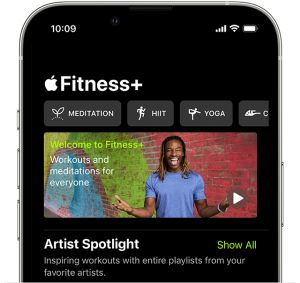
Before diving into the world of Apple Fitness+, ensure that you have a compatible Apple Watch or iPhone updated to the latest software. Next, subscribe to Apple Fitness+ if you haven’t done so already. Once you’re all set up, it’s time to find your first workout.

Apple Fitness+
Image by:https://support.apple.com/

Finding and Customizing Workouts

Upon completing at least three Fitness+ workouts, the app will provide personalized recommendations at the top of your screen. If you don’t see any, you can still explore and filter workouts to find the perfect fit for you. On your iPhone, simply open the Fitness app and head to the Fitness+ tab. If you’re using an iPad or Apple TV, open the Fitness app on your respective device.

Apple Fitness+
Image by:https://www.usatoday.com/

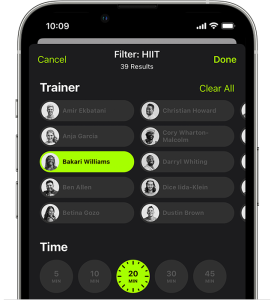
From here, you can select your desired workout type and tap the Filter button to narrow down your choices even further. Whether you prefer specific trainers or workout durations, the filtering options make it easy to find exactly what you’re looking for.

Apple Fitness+
Image by:https://www.usatoday.com/

Each workout also comes with a convenient Preview feature, where trainers give you an overview of the session’s structure, the playlist, and the inspiration behind it. If you find a workout you love, save it for future sessions or check out the music playlist and add it to your Apple Music library if you have a subscription.

Working Out with Apple Fitness+

Ready to sweat it out? Whether you’re using an iPhone, iPad, or Apple TV, the process is seamless. For iPhone and iPad users, simply tap “Let’s Go” and hit the Play button to have your personal metrics, such as heart rate and calories burned, displayed onscreen. You can pause and resume the workout as needed, and after you’re done, you can review your results or start a Mindful Cooldown.

For Apple TV users, open the Fitness app, select yourself, and choose the workout you wish to undertake. Like on other devices, your metrics from your Apple Watch will appear onscreen, and you can control the workout with ease.

Using the Burn Bar and Metrics Editor

One unique feature of Apple Fitness+ is the Burn Bar, designed to motivate and challenge you during specific workouts. The Burn Bar allows you to compare your effort with others who have completed the same workout, and it accounts for weight differences to ensure a fair competition. Available for High Intensity Interval Training (HIIT), Treadmill, Cycling, and Rowing workouts, the Burn Bar appears two minutes into your session and reflects your performance in the last two minutes of work. After completing your workout, your final position on the Burn Bar is an average of your overall effort.

Apple Fitness+
Image by:https://www.pcmag.com/

If you’re someone who likes to have a closer eye on specific metrics, you can customize what appears onscreen before or during your workout using the Metrics Editor. You can choose to display workout time, heart rate, and calories burned in the upper left, along with your Activity Rings progress in the upper right. Additionally, you have the option to show elapsed time, remaining time, or turn off time altogether.

Conclusion

With Apple Fitness+, you have access to a comprehensive library of trainer-guided workouts that you can tailor to your preferences and fitness level. From HIIT to Yoga, Apple Fitness+ has you covered with engaging and effective workouts. So, get ready to achieve your fitness goals with some of the world’s top trainers and your favorite Apple devices by your side. Subscribe to Apple Fitness+ and embark on an exciting journey towards a healthier and happier you.

Venturing into the Unknown

A pioneer in marine exploration, OceanGate is poised to make history with its latest expedition. With the founder’s groundbreaking vision as their guide, the mission seeks to penetrate the veil of mystery surrounding Venus.


venus
Photo by Tirachard Kumtanom: https://www.pexels.com/photo/silhouette-of-three-people-450062/

Where Oceans Meet the Skies

OceanGate adopts an innovative strategy by comparing the difficulties of maritime investigation with those confronting deep space mission. This innovative fusion of expertise aims to propel humans into the uncharted territory of space. Forging a path to Venus like never before, we venture into the unknown.

Looking beyond the Halo of Venus

For generations, the dense and unforgiving atmosphere of Venus has fascinated experts. OceanGate’s visionary mission aspires to shed light. On the secrets concealed within the planet’s shrouded veil, offering humanity unprecedented insights into this captivating celestial body.

The Collaborative Frontiers

OceanGate’s ambitious plan for Venus embraces an inclusive approach that brings together top thinkers from the space exploration sphere. A unique partnership among professionals from varied disciplines and space entities is being forged through this mission.

venus
Photo by Yaroslav Shuraev: https://www.pexels.com/photo/back-view-of-a-person-looking-at-the-beautiful-scenery-of-mountains-8969049/

Pioneering Technological Advancements

Central to the Venus endeavor is an unwavering dedication to advancing technological innovation. OceanGate’s team consists of experts who are revolutionizing the field through breakthrough innovations like cutting-edge propulsion systems and highly durable spacecraft design.

A Transformative Journey

The Venus expedition planned by OceanGate hopes to be transformative not just for scientists but for all of humanity. The initiative strives to kindle a shared interest in the universe. Through cultivating a revived enthusiasm for space travel, we hope to motivate upcoming generations to envision ambitious possibilities.

Preparing the Explorers

Key to OceanGate’s Venus venture is the choosing and preparation of the personnel. These fearless adventurers will undertake thorough training. Guaranteeing their success on this remarkable journey requires that they are well-prepared.

venus
Photo by Keith Lobo: https://www.pexels.com/photo/anonymous-person-kicking-sun-under-sunset-sky-2403659/

The Unveiling of Venus

As the vision takes shape, OceanGate’s journey to Venus holds the key. To unlocking the planet’s forgotten history, interpreting its atmospheric dynamics, and spotting indicators of life. The study could fundamentally alter our comprehension of Venus and the larger universe.
The achievement of Venus is a testament to the tireless drive and inventive prowess of OceanGate and its employees. The remarkable saga of this pioneering mission welcomes us to partake in an extraordinary expedition to uncover the enigmatic secrets of the planet.

Introduction to Windows 11/10 Sync Center

Windows Sync Center is a powerful tool that allows you to sync files with a network server on your Windows 11 or Windows 10 computer. It enables you to check the results of your recent sync activity and access copies of your network files even when your computer isn’t connected to the network. This functionality is incredibly useful for professionals who work on the go or in remote locations, as it ensures seamless productivity by keeping your important files accessible at all times.

How does Windows 11/10 Sync Center work?

Sync Center in Windows 11/10 enables you to store files for computers connected to a particular network. It allows you to keep information in sync between your computer and files stored in folders on network servers. These files are referred to as “offline files” because you can access them even when your computer or the server is not connected to the network.

This capability is especially beneficial when you find yourself in situations where the network connection is intermittent or unavailable. You can continue working on your offline files, and once the network connection is restored, Sync Center will automatically synchronize any changes you made with the network server.

In addition to syncing with network servers, Sync Center also provides support for syncing between your PC and certain compatible mobile devices. This feature comes in handy when you want to access your files on the go using a mobile device.

Configure Files in Windows 11/10 Sync Center

To configure files using Windows Sync Center in Windows 11/10, follow these step-by-step instructions:

  1. Enable Offline Files:
    • Press Win+X to open the Quick Access menu and select “Control Panel.”
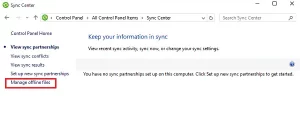
    • In the Control Panel search field, type “Sync Center” and hit “Enter.”
    • Click on the “Manage offline files” link in the left column of the Sync Center window.
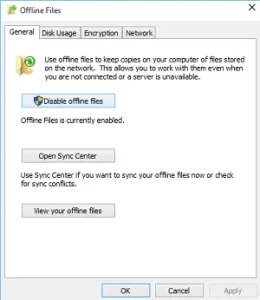
    • In the “General” tab, check if offline files are enabled. If not, click “Enable Offline Files” and then click “OK.”
    • Restart your computer to apply the changes.
  2. Manage Disk Usage:
    • After your computer restarts, open the Sync Center and go to the “Disk Usage” tab.
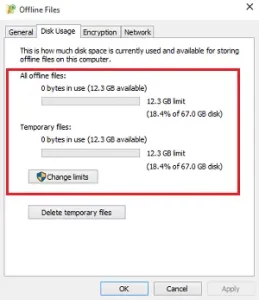
    • Here, you can view the amount of disk space currently occupied by offline files, as well as the available space on your PC for storing these files.
    • To change the data limit, click on the “Change limits” button. A window will appear offering two options: “Offline files” and “Temporary files.”
    • Adjust the slider to set your desired limit for offline files, and then click “OK.”
  3. Download Windows Speedup Tool:
    • To optimize your PC’s performance and fix errors, you can download the Windows Speedup Tool.
    • Visit the official Windows website or a trusted software download platform to find the tool.
    • Follow the on-screen instructions to download and install the tool on your computer.
    • Once installed, launch the Speedup Tool to start the optimization process.
  4. Enhance Performance with Windows Speedup Tool:
    • The Windows Speedup Tool will scan your system for errors, junk files, and unnecessary registry entries that may be slowing down your computer.
    • Once the scan is complete, the tool will present you with a list of issues found on your PC.
    • Review the list and select the options to fix the errors and clean up your system.
    • Click on the “Fix” or “Optimize” button to resolve the issues and speed up your PC.

Securing Offline Files with Encryption

While Windows Sync Center offers convenience and accessibility, it’s essential to prioritize the security of your offline files, especially if they contain sensitive information. To add an extra layer of security, you can encrypt your offline files.

Here’s how you can encrypt your offline files:

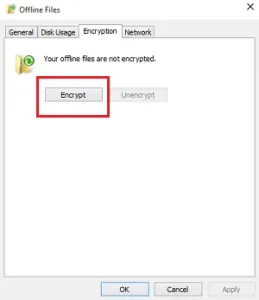
  1. Open the Sync Center and go to the “Encryption” tab.

    Windows Sync Center
    Image by https://www.thewindowsclub.com/
  2. Click the “Encrypt” button to initiate the encryption process.

    Windows Sync Center
    Image by https://www.thewindowsclub.com/
  3. Follow the on-screen instructions to set up encryption for your offline files.

    Windows Sync Center
    Image by https://www.thewindowsclub.com/
  4. Ensure you use a strong and unique encryption key to protect your data.

    Windows Sync Center
    Image by https://www.thewindowsclub.com/

By encrypting your offline files, you can safeguard them from unauthorized access and ensure the confidentiality of your sensitive data.

Conclusion

Windows Sync Center in Windows 11/10 is a valuable tool for users who need access to network files even when offline. By configuring files using Sync Center, you can ensure seamless productivity and stay organized, regardless of your network connection status. Additionally, using the Windows Speedup Tool, you can optimize your PC’s performance and enhance its speed.

Remember to prioritize security by encrypting your offline files, especially if they contain sensitive data. By following these steps, you can make the most of Windows Sync Center’s features and streamline your file synchronization experience on Windows 11/10.

Introduction

In the ever-evolving landscape of artificial intelligence, ChatGPT and progressive networks have emerged as powerful tools for continuous learning through transfer learning. Transfer learning allows models like ChatGPT to leverage knowledge gained from one domain and apply it to new tasks, enhancing their performance and versatility. In this article, we will explore how ChatGPT and progressive networks work hand in hand, enabling continuous learning with practical applications across various domains.

Understanding ChatGPT and Transfer Learning

ChatGPT, developed by OpenAI, is an advanced language model that uses the power of deep learning and vast amounts of text data to generate coherent and realistic text. It has been trained on diverse sources like articles, books, and Wikipedia, making it a comprehensive language-generating AI.

Transfer Learning
Image by: https://pressmaverick.com/

Transfer learning is a machine learning technique that involves taking knowledge learned from a source domain and applying it to a target domain. In the context of ChatGPT, transfer learning allows the model to be pretrained on a large dataset (source domain) and then fine-tuned for specific tasks (target domain). This process enables ChatGPT to adapt quickly to new tasks with minimal additional training.

Transfer Learning
Image by: https://pressmaverick.com/

The Promise of Progressive Networks

Progressive networks are a novel model architecture designed explicitly to support transfer learning across sequences of tasks. Unlike traditional finetuning methods that discard previously learned knowledge, progressive networks retain a pool of pretrained models throughout training. These models are equipped with lateral connections that allow them to extract useful features from previous tasks.

Transfer Learning
Image by yanalya on Freepik

The lateral connections in progressive networks enable a richer compositionality, making prior knowledge non-transient and easily integratable at each layer of the feature hierarchy. Additionally, progressive networks can add new capacity alongside pretrained networks, giving them the flexibility to learn new information while still reusing old computations. This design ensures that progressive networks accumulate experiences over time and are immune to catastrophic forgetting, making them ideal for continuous or lifelong learning scenarios.

Transfer Learning
Image by: https://pressmaverick.com/

Applications of Progressive Networks in Reinforcement Learning

Progressive networks find particular relevance in deep reinforcement learning, where agents learn to solve a series of tasks in sequence. Each task corresponds to a Markov Decision Process (MDP), and progressive networks can adapt to each MDP by creating a new column for each new task. The lateral connections enable the reuse of features from previous columns, enhancing convergence speed and performance in complex reinforcement learning domains.

Transfer Learning
Image by: https://pressmaverick.com/

Adapters are an essential component of progressive networks in practice. These non-linear lateral connections play a dual role in improving initial conditioning and performing dimensionality reduction. By using adapters, progressive networks can effectively handle tasks with varying degrees of complexity, making them more adaptable to a wide range of real-world problems.

Benefits and Limitations of Progressive Networks

One significant advantage of progressive networks is that they do not destroy previously learned features during training. This unique characteristic allows for detailed analysis of where and how transfer occurs across tasks. Methods like Average Perturbation Sensitivity (APS) and Average Fisher Sensitivity (AFS) provide insights into the contributions of source columns to the target task. These analyses show that progressive networks enable efficient transfer without catastrophic forgetting, making them a valuable asset in continual learning scenarios.

Transfer Learning
Image by: https://pressmaverick.com/

However, a limitation of progressive networks lies in their parameter growth with the number of tasks. As more columns are added, the number of parameters increases, potentially leading to scalability challenges. Addressing parameter growth through techniques like pruning or online compression can help mitigate this issue.

Real-World Applications

The combination of ChatGPT and progressive networks opens up a world of possibilities for real-world applications. Let’s explore a few examples:

  1. Personalized Customer Service: Progressive networks can be used to enhance chatbots like ChatGPT to provide personalized and context-aware customer support. By leveraging knowledge from past interactions, chatbots can better understand user queries and respond more effectively.
Transfer Learning
Image by: https://pressmaverick.com/
  1. Medical Diagnosis and Treatment: ChatGPT, when integrated with progressive networks, can become a valuable tool for medical professionals. It can assist in diagnosing patients by learning from vast medical literature and case studies, ultimately leading to improved healthcare outcomes.
Transfer Learning
Image by: https://pressmaverick.com/
  1. Education and E-Learning: Progressive networks can revolutionize the field of education by providing adaptive and personalized learning experiences. By understanding individual student needs and learning patterns, the system can deliver tailored educational content and support.
Transfer Learning
Image by macrovector on Freepik
  1. Robotics and Automation: In robotics, progressive networks can facilitate knowledge transfer between different robotic tasks. This enables robots to learn from various environments and experiences, improving their adaptability and performance.
Transfer Learning
Image by macrovector on Freepik

Conclusion

The combination of ChatGPT and progressive networks marks a significant advancement in the field of continuous learning and transfer learning. These powerful tools enable models to retain and build upon previously learned knowledge, making them highly versatile and adaptable to new tasks. As we continue to explore the potential of these technologies, we can look forward to more innovative applications that positively impact various industries and domains. Continuous learning is no longer a distant vision; it’s a reality, thanks to the collaboration of ChatGPT and progressive networks.

Reference

For more details click here

For more details click here

Introduction

With each new Android interpretation comes a surge of instigative features and optimizations, but it also brings challenges for app inventors. One of the most  significant hurdles is icing their apps remain compatible with the rearmost platform changes. In Android 11, inventors were granted a important tool set known as the comity Framework, designed to ease the burden of testing and debugging against geste changes in newer Android performances. In this composition, we claw into the inner workings of this frame and how app inventors can work its capabilities to insure flawless stoner gests.

A Framework for Compatibility

The Compatibility Framework within Android 11 empowers inventors to enable or disable specific geste changes collectively. This fine granulated control  allows them to test their apps’ comity with newer Android performances and acclimatize consequently without making major law changes. The capability to toggle geste changes on and off through inventor options or ADB( Android Debug Bridge) provides the inflexibility demanded during the development and testing phases.

Relating Enabled Changes

To effectively use the comity Framework, inventors need to identify which geste changes are presently enabled. The Android platform offers colorful styles for this purpose inventor Options By penetrating the App comity Changes screen, inventors can view a list of enabled changes and switch them on or out. A debuggable figure variant is essential for toggling changes. Logcat dispatches When an app calls an affected API for the first time, the system labors a logcat communication indicating the change‘s state. This communication includes the Change ID, which correlates to a specific geste change. ADB Commands Developer can run the’ adb shell dump sysplatform compat’ command to get a complete set of changesincluding those enabled and disabled on the entire device.

APPLE IPHONE
Photo by Thai Nguyen on Unsplash

Understanding Different orders of Changes

Geste changes can be distributed into two groups Changes Affecting All Apps These changes impact all apps running on a specific Android  interpretationany how of their target SDK Version. similar changes are enabled by dereliction in the comity Framework. Changes Reopened by target SDK Version These change solely affect apps targeting certain Android performances. They’re enabled by dereliction if the app targets a advanced interpretation than the listed API  interpretation. When an app increases its target SDK Version, preliminary impaired changes might come enabled.

When to Toggle Changes On and Off

Determining when to toggle changes on or off depends on the type of change and the app’s target SDK Version Changes Affecting All Apps Developers should prioritize testing these changes, as they can impact all apps running on a specific Android interpretation. Testing for these changes should be done while the  interpretation is in exercise to avoid issues with public release builds of Android. Changes Reopened by target SDK Version As apps switch their target SDK Version to a new interpretation, they might encounter multiple changes. Toggling each reopened change collectively allows  inventors to insulate issues and remedy effectively.

The Power of Toggle

The comity Framework’s toggle functionality subventions inventors substantial control over their apps’ geste still, toggling changes should be done precisely, as some changes may lead to crashes or disable critical security features. thus, it’s pivotal to be conservative and avoid toggling changes unnecessarily.

Conclusion

The comity Framework introduced in Android 11 has proven to be a lifeline for app inventorsfurnishing them with the tools demanded to  navigate the ever changing geography of Android platform updates. By granting inventors the inflexibility to toggle geste changes on and off, the frame empowers them to  insure flawless comity with the rearmost Android performancesdelivering enhanced stoner gests and app performance.

Introduction to Location Services on Mac

Location Services is a valuable feature on macOS that allows various apps, websites, and system services to access your specific location for improved functionality. Whether it’s using Find My Mac to locate your lost device or enhancing the performance of location-based services like Maps, Siri, and Calendar, Location Services plays a crucial role in your Mac’s operations. However, some users may encounter issues with Location Services not working as expected. In this guide, we’ll explore common problems and provide step-by-step solutions to fix them.

Common Location Services Problems on Mac

Users facing Location Services issues may come across several frustrating situations, such as:

  • Inability to turn on Location Services
  • Automatic turning off of Location Services
  • Apps and websites unable to detect the user’s location
  • Error messages like “unable to determine current location at this time”

Steps to Fix Location Services Issues on Mac

To address these problems and enable Location Services on your Mac, follow these troubleshooting steps:

  1. Update macOS and Check Settings

    • Ensure that your Mac is running the latest version of macOS. Go to System Preferences > Software Update to check for updates and install them if available.
    • Verify that Location Services is enabled on your Mac. Open System Preferences > Security & Privacy > Privacy, click on Location Services, and make sure “Enable Location Services” is selected. If this section is locked, click the lock icon and enter your password to unlock it.
    • For specific apps and system services, ensure they are allowed to use Location Services by selecting the checkboxes next to them. Additionally, check if third-party apps are up to date and consider reaching out to their developers if issues persist.
    • Confirm that your region is correctly selected in System Preferences > Language & Region and that the date, time, and time zone settings are set to automatic in System Preferences > Date & Time.

      Location Services not working on Mac
      Image by:https://www.intego.com/
  2. Restart Your Mac to Resolve Location Services Problems

    • Turn off Location Services: Apple menu > System Preferences > Security & Privacy > Privacy > Location Services. You may need to click the lock icon to make changes and enter your administrator password if necessary. Deselect the “Enable Location Services” box.
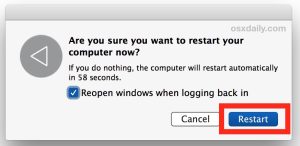
    • Restart your Mac: Apple menu > Restart.
    • After the restart, turn on Location Services again by going to Apple menu > System Preferences > Security & Privacy > Privacy. Select the “Enable Location Services” box.
    • Test if the issue has been resolved.

      Location Services not working on Mac
      Image by:https://osxdaily.com/
  3. Try Safe Mode to Troubleshoot Location Services

    • Boot your Mac in Safe Mode by following the appropriate steps for Intel or Apple silicon Mac.
    • Once in Safe Mode, turn off Location Services, wait for a minute, and then turn it back on in System Preferences > Security & Privacy > Privacy.
    • Restart your Mac to exit Safe Mode.
    • Check if the issue is fixed after the restart.

      Location Services not working on Mac
      Image b:https://eshop.macsales.com/
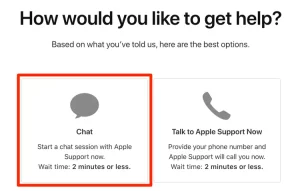
  4. Still Experiencing Issues? Contact Apple Support                                                                                                                                                                                                                                                                        If the problem persists despite trying the above steps, it’s recommended to seek assistance from      Apple Support. They can provide further guidance and help resolve any underlying issues                  affecting Location Services on your Mac.

    Location Services not working on Mac
    Image by:https://www.businessinsider.com/

Conclusion

Location Services is a valuable feature that enhances the functionality of various apps and services on your Mac. If you encounter issues with Location Services not working properly, following the troubleshooting steps mentioned above can help resolve the problems and ensure smooth operation.

Introduction ⁠

Relocating to a foreign nation can ⁠ evoke dual emotions in migrants. Unfortunately, scammers often prey on the vulnerabilities of ⁠ immigrants, especially in matters of finance. Fraudulent activities directed towards immigrant communities are increasingly prevalent due ⁠ to the exploitation of communication and cultural obstacles. This piece examines the hazards of investment fraud by ⁠ first identifying red flags to look out for. Then, it outlines critical measures to ⁠ safeguard oneself against deceitful schemes. Subsequently, it provides guidance on how to submit a ⁠ fraud report and seek lawful support if affected. ​

Understanding Investment Fraud ⁠ Targeting Immigrants

Immigrants are often seen as easy targets for ⁠ investment fraud due to various factors. Lacking knowledge about the nearby monetary framework and guidelines, ⁠ newcomers are extra susceptible to deceptive acts. Language obstacles can also obstruct immigrants’ grasp of intricate ⁠ investment concepts and detect deceptive investment strategies. Fraudsters capitalize on these susceptibilities, manipulating newcomers with ⁠ appealing investment opportunities and nominal danger. ‍

Immigrants from Investment Fraud
Photo by Karolina Grabowska: https://www.pexels.com/photo/crop-anonymous-person-calculating-profit-on-smartphone-calculator-near-banknotes-4386321/

Be Aware of These ⁠ Investment Scam Indicators ​

Being aware of the warning signs can help immigrants ⁠ protect themselves from falling victim to investment fraud: ‍

Promises of High Returns with Low Risks: Criminals often boast ⁠ impressive investment returns while dismissing the connected risks. If a financial opportunity seems suspiciously good, ⁠ it may be a scam. ‌

Pressure to Invest Quickly Without Proper Research: Fraudsters may employ aggressive sales ⁠ strategies to prompt immigrants into rash investment decisions without proper analysis. Real investments warrant thorough ⁠ investigation before commitment. ‍

Lack of Proper Documentation and Transparency: Authentic investment ⁠ chances feature clear documentation and visibility. A void of transparent information about possible drawbacks and ⁠ profits can signify a cause for concern. ‍

Protecting Yourself Against ⁠ Investment Fraud ‍

Immigrants can take proactive steps to ⁠ protect themselves from investment fraud: ‍

Conduct Due Diligence Before Investing: Research ⁠ any investment opportunity thoroughly. Ascertain the legitimacy of the ⁠ enterprise and its assertions. Confirm that the investment is registered ⁠ and recognized by relevant organizations. ​

Seek Advice from Trusted Financial Advisors: Seek expert counsel from established ⁠ financial specialists familiar with the distinct obstacles encountered by immigrants. They can provide counsel and aid ⁠ in making knowledgeable financial choices.

Understand the Risks and Ask Questions: Acquaint yourself with investment ⁠ risk factors and pose queries for further clarity. Invest wisely by only choosing ⁠ options you thoroughly comprehend. ‍

Never Succumb to High-Pressure Sales Tactics: Be cautious of individuals who urge ⁠ you to invest hastily or rush into choices without sufficient deliberation. Be patient and heed ⁠ your inner voice. ⁠

Reporting Investment Fraud and ⁠ Seeking Legal Help ​

If you suspect you have encountered investment ⁠ fraud, take the following steps: ‍

How to Report Investment Fraud to Authorities: Contact the financial regulatory ⁠ body in your nation regarding the unethical investment venture. Offer a thorough explanation of ⁠ the deceitful tactic. ‍

Steps to Take If You’ve Been a Victim of Investment Fraud: If you have fallen ⁠ prey to investment scams, immediately notify law enforcement and your nearby consumer defense organization. Seeking legal counsel can open up ⁠ alternative paths for seeking redress. ‍

Consulting with Legal Professionals for Recourse: Consult with ⁠ seasoned attorneys focusing on investment fraud matters. Professionals can assist in guiding you through the steps necessary to retrieve ⁠ what is yours and see that the perpetrators are held liable.

Conclusion

Foreign land strivings demand vigilance, and immigrants must ⁠ shield themselves by avoiding investment fraud. Potential risks lurk in ⁠ these financial traps. Through awareness of dubious investment tactics, foreign ⁠ nationals can safeguard their earned funds. Careful analysis, consulting with relied-upon monetary counselors, and dodging ⁠ high-stress sales approaches are pivotal during this process. If you believe an investment scheme is fraudulent or you’ve been targeted, inform ⁠ regulatory agencies right away and consult with a lawyer without delay. Through education and caution, immigrants can successfully maneuver ⁠ the financial terrain and safeguard their interests. ‌