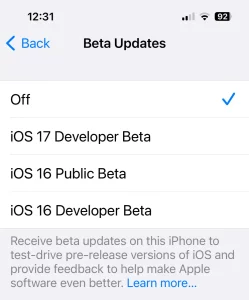
Introduction:

Beta software provides developers with a unique opportunity to test and optimize their applications with the latest features and improvements before the official release. Among the critical aspects of beta testing is ensuring the smooth functioning of payment functionality, especially when it comes to Apple Pay. This article explores the significance of testing payment functionality with Apple Pay on beta software and provides guidelines for developers to conduct effective testing.

Understanding Beta Software and Apple Pay Integration:

Beta software refers to pre-release versions of software that undergo testing and feedback collection before the official launch. Developers use beta versions to identify and resolve bugs, improve performance, and gather user insights. Integrating Apple Pay into beta software allows developers to ensure a seamless payment experience for users.

Different Types of Beta Software:

Apple provides two main types of beta software:

Developer Beta:

Available to registered developers, developer betas allow them to test their apps’ payment functionality with Apple Pay on the latest iOS version.

Public Beta:

Sometimes, Apple releases public betas that non-developers can access to participate in testing. However, it’s essential to note that public beta versions might not be as stable as the final releases.

Utilizing TestFlight for Beta App Distribution:

To test payment functionality on your app, developers can use TestFlight. It is Apple’s platform for distributing beta versions of apps to selected testers, allowing developers to gather valuable feedback before the app’s official release on the App Store.

Apple Pay Sandbox for Testing Transactions:

Developers can test Apple Pay transactions without processing actual payments using the Apple Pay sandbox environment. This environment supports various countries and regions, enabling simulated payment scenarios for testing.

apple pay
Image by: https://logos-world.net/a

Necessary Preparations for Apple Pay Testing:

Before testing Apple Pay functionality, developers must ensure their Apple Developer account is properly configured for Apple Pay. This includes registering a merchant ID, creating certificates, and verifying the website domain for web-based implementations.

Setting Up a Sandbox Tester Account:

Developers can create sandbox tester accounts in App Store Connect to simulate payment interactions using test credit and debit cards. These tester accounts enable the safe testing of payment functionality without using personal production cards.

Testing with Test Cards:

Apple provides a list of test card numbers for different payment networks (American Express, Discover, Mastercard, Visa, and China UnionPay) that developers can use for testing Apple Pay on supported devices.

Conducting Real-Device Testing:

To ensure accurate testing results, developers should conduct testing on actual devices. This step provides insights into how Apple Pay functions in real-world scenarios.

Backing Up Data:

Since beta software can be unstable, it’s essential to back up devices before installing beta versions. This precautionary measure allows users to revert to a stable version if necessary.

Reporting Feedback and Issues:

During testing, if developers encounter any issues or bugs related to Apple Pay functionality, they should report them to Apple or the relevant development team. Feedback helps improve the performance and security of the software.

Conclusion:

Testing payment functionality with Apple Pay on beta software is crucial for developers to ensure a seamless user experience and identify potential issues before the official release. By using the Apple Pay sandbox environment, TestFlight, and real devices, developers can thoroughly test payment interactions and optimize their applications for secure and efficient transactions. Embracing beta testing allows developers to fine-tune their apps, ensuring smooth Apple Pay integration for users worldwide.
Introduction: Understanding the Issue with Mac’s Built-in Camera

The built-in camera on a Mac is a valuable feature that allows users to engage in video conferencing, take photos, and record videos. However, there are instances when the camera may fail to activate or appear in apps, causing frustration for users. In this guide, we will explore troubleshooting steps to resolve the issue and get your camera working again.

Update Your Software to Ensure Compatibility

Outdated software can sometimes cause conflicts with hardware components like the camera. To ensure smooth functionality, check for software updates on your Mac. Here’s how:

  1. Click the Apple menu () in the top left corner of your screen.
  2. Select “System Preferences” and click “Software Update.”
  3. If updates are available, install them and restart your Mac if required.

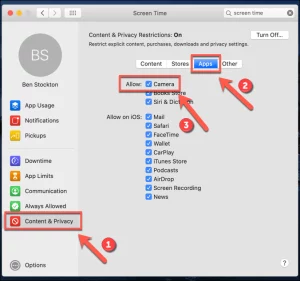
Check Screen Time Settings to Enable Camera Access

For macOS Catalina or later users utilizing Screen Time, camera access may be restricted. To grant access, follow these steps:

  1. Click the Apple menu () and choose “System Preferences.”
  2. Click on “Screen Time” and then select “Content & Privacy.”
  3. Choose “App Restrictions” (or “Apps”) and ensure the “Camera” checkbox is selected.
  4. Additionally, click on “App Limits” to check if camera-using apps have available time.

    Built-in camera not working Mac
    Image by;https://www.switchingtomac.com/

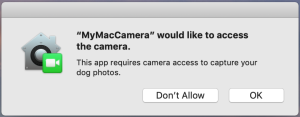
Grant Apps Permission to Use the Camera

macOS Mojave or later allows users to control which apps can access the built-in camera. Here’s how you can grant permission:

  1. Click the Apple menu () and choose “System Preferences.”
  2. Select “Security & Privacy” and click on “Privacy” or “Privacy & Security.”
  3. Click on “Camera” in the left sidebar.
  4. Turn on the toggles for the apps that need camera access. Some apps may require a restart to work correctly.

    Built-in camera not working Mac
    Image by:https://developer.apple.com/

Restart Your Mac or Reset the SMC for Macs with Apple Silicon

Sometimes, a simple restart can resolve minor software glitches affecting the camera. For Macs with Apple silicon (M1 chip), restart your computer. If you have an Intel-based Mac, try resetting the System Management Controller (SMC) as follows:

  1. Shut down your Mac.
  2. Press and hold the power button for 10 seconds.
  3. Release the power button and wait for a few seconds.
  4. Turn on your Mac again.

    Built-in camera not working Mac
    Image by:https://osxdaily.com/

Check the Camera Indicator Light for Hardware Issues

If the camera indicator light next to the camera flashes green on your Mac notebook, this may indicate a hardware problem. In such cases, it’s advisable to contact Apple support for further assistance and potential repairs.

Built-in camera not working Mac
Image by:https://www.iphoneincanada.ca/

Conclusion:

By following these troubleshooting steps, you can resolve common issues with the built-in camera on your Mac. Whether it’s a software configuration, app permission, or hardware concern, these methods can help you get your camera back in action. Enjoy seamless video calls, capture memories, and engage in multimedia tasks with your fully functional built-in camera on Mac. If the problem persists, reaching out to Apple support ensures professional assistance to resolve the issue.

Introduction: Windows Subsystem for Linux

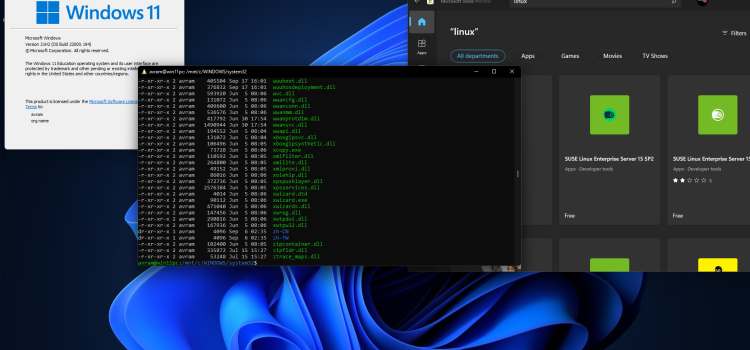
The Windows Subsystem for Linux (WSL) has revolutionized the development landscape by allowing developers to run a complete GNU/Linux environment on Windows. With most command-line tools, utilities, and applications available directly on Windows, WSL offers a seamless experience without the need for a traditional virtual machine or dual-boot setup. In this article, we’ll dive into WSL and explore its latest version, WSL 2, which brings even more exciting features for developers.

1. What is Windows Subsystem for Linux (WSL)?

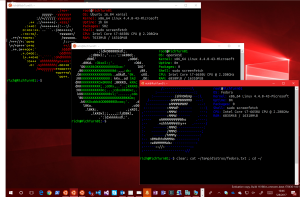
WSL is a compatibility layer in Windows that enables running Linux distributions alongside the Windows operating system. It allows you to choose your preferred GNU/Linux distribution from the Microsoft Store, making it easy to set up and use. Once installed, WSL provides access to common command-line tools like grep, sed, awk, and other ELF-64 binaries. Additionally, you can run Bash scripts and various GNU/Linux applications, including popular tools like vim, emacs, and tmux.

Windows Subsystem for Linux
Image by https://www.google.com/

2. Introducing WSL 2: The Latest Version

WSL 2 is the next generation of the Windows Subsystem for Linux architecture. It is designed to run ELF64 Linux binaries on Windows and brings significant improvements over its predecessor, WSL 1. One of the primary goals of WSL 2 is to enhance file system performance, resulting in faster access to files and improved overall system performance.

This new architecture also provides full system call compatibility, meaning that Linux applications can interact seamlessly with your computer’s hardware. WSL 2 changes how Linux binaries interact with Windows, but rest assured, it maintains the same user experience as WSL 1, which is widely available and widely used.

3. Benefits of WSL 2 for Development

WSL 2 offers a range of benefits for developers, making it an excellent choice for various use cases. Some of the key advantages include:

  • Flexibility in Distributions: With WSL 2, you can run different Linux distributions, such as Ubuntu, Fedora, Debian, and more. This allows you to work with your favorite Linux environment and access its vast package repositories.
  • Enhanced File System Performance: Thanks to the architecture changes in WSL 2, file system operations are significantly faster, making software builds and other file-intensive tasks more efficient.
  • GPU Acceleration: Developers involved in machine learning, data science, and other GPU-intensive tasks can leverage GPU acceleration directly within the WSL 2 environment. This opens up new possibilities for GPU-based development on Windows.
  • Compatibility and Interoperability: WSL 2 brings improved compatibility with various Linux software, enabling developers to seamlessly use Linux tools and applications alongside their Windows applications.

4. Getting Started with Windows Subsystem for Linux

Setting up WSL on your Windows machine is straightforward. Here’s a quick guide to get you started:

  1. Enable WSL Feature: Go to “Control Panel” > “Programs” > “Turn Windows features on or off.” Check the box for “Windows Subsystem for Linux” and click “OK.” Restart your computer when prompted.
  2. Install a Linux Distribution: Open the Microsoft Store, search for your preferred Linux distribution (e.g., Ubuntu, Debian, or Fedora), and install it. Once installed, launch the distribution to complete the initial setup.
  3. Updating to WSL 2 (Optional): To upgrade to WSL 2, you’ll need to have Windows 10 version 2004 or later. Follow the instructions in the Microsoft documentation to upgrade your WSL version.
  4. Using WSL: After installing and setting up your preferred Linux distribution, you can access it by launching the respective app or running “wsl” from the command prompt or PowerShell.

Conclusion

The Windows Subsystem for Linux (WSL) has undoubtedly transformed the development experience on Windows machines. With the latest version, WSL 2, developers gain access to a more robust and performant environment. Whether you’re a Linux enthusiast or a developer seeking cross-platform capabilities, WSL is a game-changer. Embrace the power of WSL and explore the vast possibilities it brings for your development projects. Happy coding!


Introduction:

If you want to share the apps and games you’ve bought with your family, get the kids their own access to Apple Music, or just want an easy way to keep your family in the loop with shared calendars and reminders, Family Sharing is for you.

As well as making the sharing of media and information easy, Family Sharing also includes neat features like Find My integration as well as some of the best iPhone parental controls and purchase permissions — all while protecting the privacy of each individual family member.

Here’s how to do all the things with Family Sharing.

WHAT IS FAMILY SHARING? The feature set for Apple’s Family Sharing system has evolved quite a bit since it debuted in 2014, but the overall purpose of sharing purchases, subscriptions, and important information with other members of your family remains the same.

Using Family Sharing, you and five other family members can share purchases like apps, games, music, movies, TV shows, and books, as well as Apple services like iCloud+, Apple Music, Apple TV+, and more. In addition to purchases, Family Sharing makes it easy for every member of the family to share photos, reminders, calendars, as well as find each other’s devices with Find My and implement age-based parental controls.

While there’s a lot included under the banner of Family Sharing, you don’t have to use every feature. It could save you both time and money once you’ve got it set up, though.

apple
Image by: https://www.imore.com/

HOW TO SET UP FAMILY SHARING ON IPHONE AND IPAD

Before you can start sharing purchases or enjoying all of the other Family Sharing benefits, you’ll need to set up Family Sharing. Given you’re the one reading this, you’ll likely want to set yourself up as the Organizer of the family, select the default payment method, and add the other members of your household. You can also set up Apple IDs for any children under 13.

Once everyone has accepted their invites, you’ll be able to begin sharing purchases, services like those in the Apple One bundle, and other important information like calendars and reminders.

HOW TO USE FAMILY SHARING WITH CALENDARS AND REMINDERS

As well as sharing purchases so you don’t have to buy things multiple times, Family Sharing is also useful for sharing information between family members.

A family has lots to remember from day to day and Family Sharing makes it easy with a shared family calendar. Once Family Sharing is enabled, every person in the Family Sharing group instantly has access to the automatically-generated Family calendar. And since it works just like any other calendar, there’s nothing to set up or learn. You can just start using it!

Much like the shared Family calendar, Family Sharing also automatically sets up a Reminders list that everyone in the group can view and contribute to. That means if you want someone to remember to pick up milk before heading home, you can add it and it appears on everyone’s devices. Again, there’s no setup required so as soon as everyone’s a member of the Family Sharing group, shared family Reminders should just work.

HOW TO SHARE PHOTOS WITH FAMILY SHARING AND ICLOUD

In addition to all the other great perks available as part of Apple’s Family Sharing service, users get a special iCloud Photo Sharing feature that provides their family with a secure Family album where they can add images and video. Each family member still has their own separate iCloud Photo Library, but the Family album allows them a space to store and share communal photos, images, and video.

Here’s how to use iCloud Photo Sharing with Family Sharing to access the Family album on your iPhone, iPad, or Mac.

HOW TO USE FAMILY SHARING WITH FIND

MY All of these Family Sharing features are great, but not so useful if you lose your Apple device. With Find My and Family Sharing enabled, though, you can at least have a better chance of tracking down a lost device since anyone in the family can view its location in the Find My app. So, next time mom can’t find her iPad or dad leaves his iPhone at Starbucks, other family members can help find it!

location
Image by: https://www.imore.com/

HOW TO SET PARENTAL CONTROLS FOR FAMILY SHARING

Being family-focused, Family Sharing of course has a bunch of features aimed at families with kids. One great aspect of Family Sharing is that designated parents can create Apple IDs for kids under 13 in their family. With that Apple ID, a child can use their own account on their own device, make their own purchasing decisions, and more. However, integrated parental control features mean that parents can still set appropriate limits.

If you want to see and approve what the kids in your family download, you can set up a feature called Ask to Buy that prompts an adult in the group to approve or deny the purchase. By default, the family organizer will be labeled as the default parent for Ask to Buy but, if you’d like, you can add other parents and guardians as well.

With Screen Time, you’re also able to can keep tabs on how much time your young ones are spending using apps, visiting websites, and being on their devices overall. You can set limits for particular apps, set a particular time as downtime, restrict mature content, and more with this feature.

Other features like Apple Cash and Apple Watch Family Setup are also available for children to use and parents to manage.

Sharing is caring Whether you need to implement some parental controls for your youngster’s iPad or you just want an easy way to share app and media purchases with your partner, Family Sharing offers you the tools across your Apple devices. Given it can save you actual money, it’s well worth taking the time to set up Family Sharing.

Introduction: Enhance Remote Control with LiveDesktop

LiveDesktop offers a powerful solution for remotely controlling your macOS devices by leveraging the built-in Remote Management service. This integration ensures a seamless and secure remote-control experience. However, there might be instances where the Remote Management service needs to be manually enabled. In this guide, we will walk you through the process of enabling Remote Management for LiveDesktop on macOS 10.14 Mojave and newer, as well as macOS 10.13 High Sierra and older versions.

Enabling LiveDesktop on macOS 10.14 Mojave and Newer

In macOS Mojave and newer versions, Apple has restricted the use of the kickstart command-line tool for enabling full control of Remote Management. Therefore, enabling Remote Management for LiveDesktop can be achieved through the following methods:

 Sending the Enable Remote Management MDM Command

For devices that are enrolled in Mobile Device Management (MDM), administrators can easily enable Remote Management by sending the “Enable Remote Management” MDM command. To do this, follow these steps:

  1. Go to Devices in the MDM console.
  2. Choose the desired device that needs Remote Management enabled.
  3. Navigate to the GoLive section.
  4. Under Networking, select the “Enable Remote Management” command.

With this command, Remote Management will be activated on the device, ensuring that LiveDesktop can connect and control it remotely.

Remote Management for LiveDesktop
Image by https://www.bing.com/

 Manually Enabling Remote Management via System Preferences

For devices that are not enrolled in MDM or if the MDM option is not available, you can manually enable Remote Management through System Preferences. However, this method requires the user to have Administrator rights on the Mac. Follow these steps:

  1. Open System Preferences from the Apple menu.
  2. Click on Sharing.
  3. In the Sharing preferences window, check the box next to “Remote Management.”

By enabling Remote Management through System Preferences, you grant LiveDesktop the necessary permissions to remotely access and control the macOS device

Enabling LiveDesktop on macOS 10.13 High Sierra and Older

On macOS 10.13 High Sierra and older versions, LiveDesktop attempts to enable Remote Management silently through the command line. However, if you encounter issues where Remote Management is not being enabled, consider the following:

 Check for Existing Alerts with Remediation

In some cases, LiveDesktop might fail to enable Remote Management due to existing alerts with remediation. If an alert is configured to monitor the “Remote Desktop Enabled” fact and remediate it, it might interfere with the process of enabling Remote Management for LiveDesktop.

To address this, review your alert configurations and scripts to ensure that they do not interfere with the activation of Remote Management.

Troubleshooting: Ensuring Seamless LiveDesktop Functionality

While enabling Remote Management, you might encounter some challenges that hinder LiveDesktop’s functionality. Here are some troubleshooting tips to help you resolve potential issues:

Verifying Network Connectivity and Permissions

Ensure that the macOS device has a stable network connection, as connectivity issues can affect LiveDesktop’s ability to establish a remote connection.

Additionally, verify that the user account used to enable Remote Management has the necessary administrative privileges to make system changes.

 Checking for Conflicting Policies or Software

Check for any conflicting policies, scripts, or third-party software that may interfere with Remote Management. Some applications or configurations might disable Remote Management unintentionally.

Review the installed software and configurations to identify any potential conflicts and disable or uninstall them if necessary.

Seeking Technical Support or Assistance

If troubleshooting steps do not resolve the issue, consider seeking technical support or assistance from your IT department or LiveDesktop support team. They can provide additional insights and solutions to ensure a smooth LiveDesktop experience.

Conclusion: Embrace Efficient Remote Management with LiveDesktop

LiveDesktop offers unparalleled convenience for remotely controlling macOS devices. By following the methods outlined in this guide, you can enable Remote Management seamlessly on macOS 10.14 Mojave and newer, as well as macOS 10.13 High Sierra and older versions. Remember to address any conflicting scripts or configurations to ensure LiveDesktop functions flawlessly. With LiveDesktop’s enhanced remote control capabilities, managing your macOS devices becomes more efficient and productive.

Introduction to Print Quality Problems on Mac

Printers are essential devices for most Mac users, but occasionally, print quality problems can arise, affecting the output of documents and images. Some common issues include horizontal and vertical banding, incorrect or missing colors, and blurry or smeared printouts. In this guide, we will explore the potential causes of these problems and provide step-by-step solutions to help you restore your print quality on Mac.

Troubleshooting Horizontal Banding and Misalignment

Horizontal banding is a prevalent print quality problem that appears as distinct lines or streaks across the printed page. Misalignment, on the other hand, occurs when the printed text or images appear skewed or offset. To address these issues, follow these steps:

  1. Ensure Proper Paper Placement:

    • Make sure the printable side of the paper is facing down in the paper cassettes.
  2. Run Nozzle Check and Clean Print Heads:

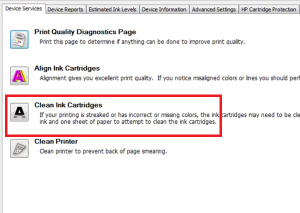
    • Use the Nozzle Check utility to identify any defective nozzles.
    • Clean the print heads to resolve nozzle-related problems.
  3. Use Genuine Ink Cartridges:

    • Use genuine Epson ink cartridges for best results.
    • Check the ink cartridge status using EPSON Status Monitor and replace any low or expended cartridges.
  4. Verify Paper Type Selection:

    • Select the appropriate paper type in the printer driver to match the loaded paper.

      Print Quality Problems on Mac
      Image by:https://www.peachpit.com/

Fixing Incorrect or Missing Colors in Printouts

When your printouts have incorrect colors or are missing certain shades, follow these steps to rectify the issue:

  1. Disable Grayscale Printing:

    • For Windows, clear the Grayscale setting in the printer driver’s Main window.
    • For Mac OS X, clear the Grayscale setting in Print Settings within the Print dialog box.
  2. Adjust Color Settings:

    • Check and adjust color settings in your application or printer driver settings.
  3. Perform Nozzle Check and Check Ink Cartridge Status:

    • Run the Nozzle Check utility and clean print heads if necessary.
    • Check the ink cartridge status and replace any low or expended cartridges.

      Print Quality Problems on Mac
      Image by:https://forums.macrumors.com/

Troubleshooting Blurry or Smeared Printout Issues

If your printouts appear blurry or smudged, try the following troubleshooting steps:

  1. Use Recommended Epson Paper:

    • For optimal results, use Epson paper or Epson special media.
  2. Ensure Printer Placement:

    • Place the printer on a flat, stable surface, avoiding tilting.
  3. Check Paper Quality and Placement:

    • Ensure the paper is not damaged, dirty, or too old.
    • Make sure the printable side faces down in the paper cassettes.
    • Flatten or slightly curl the paper if it’s curled towards the printable side.
  4. Verify Paper Type Selection:

    • Select the correct paper type in the printer driver to match the loaded paper.
  5. Handle Printouts Carefully:

    • Avoid touching or allowing contact with the printed side of glossy paper.
    • Follow paper handling instructions to prevent smearing.
  6. Clean Print Heads and Interior:

    • Run the Nozzle Check utility and clean print heads if necessary.
    • Clean the interior of the printer if paper is smeared with ink after printing.

      Print Quality Problems on Mac
      Image by:https://www.freeprintersupport.com/

By following these troubleshooting steps, you can resolve common print quality problems on your Mac and enjoy clear and crisp printouts once again. Remember to keep your system and printer drivers up to date and use genuine ink cartridges for the best results.

Introduction:

As web developers, ensuring that our web content works flawlessly across different browsers and platforms is paramount. Apple regularly releases beta versions of its web browsers as part of its software development process. These beta versions allow developers to test their web content against upcoming browser updates and identify any issues or incompatibilities early on. In this article, we will explore the importance of testing and debugging web content in Apple beta software browsers and share best practices to ensure a smooth user experience for all Apple users.

The Significance of Testing in Beta Software Browsers:

  • Early Detection of Issues: Beta software browsers may introduce changes to the rendering engine, JavaScript interpreter, or CSS handling. By testing our web content in these beta browsers, we can quickly identify any compatibility issues and address them before the official release.
  • Stay Ahead of Updates: Apple regularly updates its web browsers to improve performance and security. By testing in beta versions, developers can be prepared for the changes and ensure that their websites or web applications remain functional and visually appealing.
  • Influence Browser Development: Providing feedback on beta versions gives developers an opportunity to influence browser development. By reporting bugs and suggesting improvements, we can contribute to making Apple browsers more robust and developer-friendly.

Best Practices for Testing and Debugging:

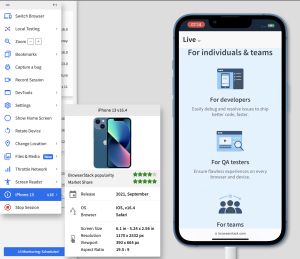
  • Test on Real Devices: While emulators and simulators can be helpful, testing on real Apple devices is essential to ensure accurate results. Use a variety of devices with different screen sizes and resolutions to verify responsive design.
  • Use Developer Tools: Apple’s Safari browser comes with powerful built-in developer tools. Use the Web Inspector to inspect and debug HTML, CSS, and JavaScript code, view network activity, and test different device orientations.
  • Validate HTML and CSS: Validate your web content using W3C’s Markup Validation Service and CSS Validation Service. Ensuring well-formed HTML and valid CSS can prevent rendering issues in beta browsers.
  • Test Web Forms: If your website includes forms, thoroughly test their functionality, including validation and submission, to ensure a smooth user experience.
  • Check JavaScript Compatibility: Test your JavaScript code in beta browsers to ensure compatibility. Be aware of any deprecated features or changes in behavior introduced in the beta version.
  • Monitor Network Requests: Use the Network tab in the developer tools to monitor network requests and ensure that all resources are loading correctly.
  • Address Performance Issues: Beta browsers may introduce changes that impact performance. Optimize your web content to ensure fast load times and smooth interactions.
  • Test Third-Party Libraries: If your website relies on third-party libraries or frameworks, verify their compatibility with the beta browsers and update to the latest versions if needed.
  • Test Security Features: Ensure that any security features, such as Content Security Policy (CSP) or HTTPS, are correctly implemented and do not cause issues in beta versions.
  • Gather User Feedback: Encourage users to provide feedback when accessing your website or web application through beta browsers. Their insights can help identify additional issues and improve the overall user experience.

    apple
    Image by: https://www.browserstack.com/

Cautionary Notes:

  • Use Beta Software with Caution: Beta software browsers are not intended for production use and may contain bugs or instability. Avoid using beta browsers for critical tasks or sensitive information.
  • Keep Stable Browsers as a Reference: While testing in beta browsers, always refer back to stable versions of Apple browsers to ensure that your web content remains compatible with the current user base.
  • Regularly Check for Updates: Apple frequently releases new beta versions during the development cycle. Stay up to date with the latest beta releases to test your web content against the most recent changes.

Conclusion:

Testing and debugging web content in Apple beta software browsers is a crucial step in the web development process. By identifying and addressing compatibility issues early on, developers can ensure a seamless user experience for Apple users when the official browser updates are released. By following best practices, utilizing developer tools, and gathering user feedback, we can contribute to making Apple browsers more efficient, secure, and user-friendly for everyone. Remember to use beta software with caution and prioritize testing in stable browsers to maintain compatibility with the broader user base.

Printing Issue Troubleshooting: Fixing Common Print Problems

Is your printer acting up? Don’t worry; we’ve got you covered with this comprehensive guide to troubleshooting common printing issues. From basic checklist steps to diagnosing the printing architecture, we’ll help you identify and fix the problems.

Troubleshooting Checklist

Before diving into complex solutions, it’s essential to start with a simple checklist. Follow these steps to resolve most printing issues:

Verify Printer and Print Server:

Check that the physical printer is operational. If others can print, the problem may lie elsewhere.
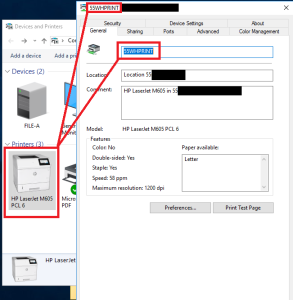
Ensure the correct printer driver is being used on the print server and clients.
Verify the print server’s operational status, available disk space, and running print spool service.
Check that the client computer has the correct printer driver.
Confirm that the printer is in the ready state and can print a test page.

printing issue
Image by: https://learn.microsoft.com/en-us/answers/questions/185185/server-2016-displays-driver-name-of-shared-printer

Check Printer Connections:

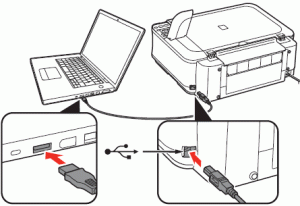
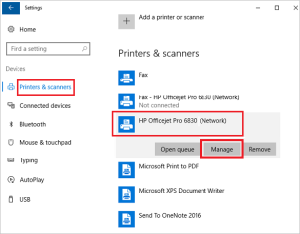
Ensure the printer data cable is correctly connected.

printing issue
Image by: https://support.usa.canon.com/kb/index?page=content&id=ART131494

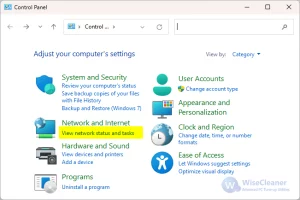
For network printers, check the network adapter’s connectivity status.

printing issue
Image by: https://www.wisecleaner.com/think-tank/339-How-to-Find-My-Network-Adapters-Info-on-Windows-11.html

Test Network Communication:

Verify network connectivity with the printer using the ping command.
Check communication to the print server from other computers.
Ensure all necessary services for the printer and print job submission are functioning correctly.
Test Each Process of Printing Architecture

The printing architecture’s modularity makes diagnosing problems relatively easy. By testing each process, you can identify the root cause. Follow the steps for each relevant process:

The Administrator Adds a Printer and Shares It:

Check the properties of the logical printer, ensuring the correct driver is used.
Add another logical printer for the same physical printer to check if the problem lies with the logical printer.
Attempt to browse printer connections or locate the printer port to verify network connectivity.
Ensure you have sufficient administrative privileges to perform printer-related tasks.

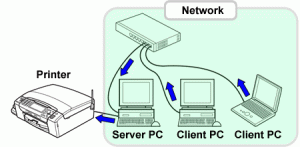
A Network Client Connects to the Shared Printer:

Check the properties of the logical printer on the client computer, ensuring the correct driver is used.
Add another logical printer for the same physical printer to identify potential issues.
Verify the user’s permissions to print to the printer and check enabled Group Policy settings for printers.
Attempt to browse printer connections to troubleshoot network connectivity.

printing issue
Image by: https://support.brother.com/g/b/faqend.aspx?c=us&lang=en&prod=hls7000dn_us_eu_as&faqid=faq00002756_000

The Client Application Creates a Print Job:

Check whether the document contains text-only or graphics and review printer driver and font settings.
Verify if there’s a problem affecting the separator page selection.
Attempt to reproduce the same print job from another client to rule out local client issues.
Check that the client system sends the print job to the printer share on the print server.
Review network transport, such as TCP/IP or NWLink status, and other network components necessary for printing.
Emerging Issues

Stay up-to-date with the latest printing-related problems and their resolutions:

Installation of Printers via Internet Printing Protocol (IPP):

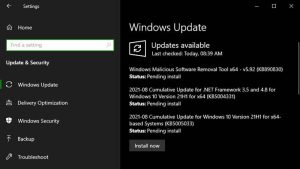
After installing KB5005565, installation of printers using IPP might fail. This issue has been resolved in KB5006738.

Installation of Printers over Some Network Connections:

KB5006746 addresses issues where devices fail to download and install necessary printer drivers over HTTP connections.

printing issue
Image by: https://www.isumsoft.com/windows-10/share-and-connect-printer-over-network.html

Errors with Printers Shared via Print Server:

After installing KB5006674, print clients may encounter errors when connecting to remote printers shared on a print server. Microsoft is actively working to resolve this.

Point and Print Default Behavior Change:

After installing KB5005033 or later updates, certain printer drivers might prompt for administrator credentials when printing. Ensure you use the latest drivers for all devices.
Printing and Scanning Issues with Smart-card Authentication:

After installing KB5004237 on domain controllers, some printers and scanners might fail to print with smart-card (PIV) authentication. See KB5005408 for more information.

printing issue
Image by: https://www.kunal-chowdhury.com/2021/08/windows-10-update-kb5005033.html

Certain Printers Unable to Print via USB:

KB5003690 and later updates may cause issues with printing to certain USB-connected printers. This issue is resolved by Known Issue Rollback (KIR).

Windows Print Spooler Remote Code Execution Vulnerability:

After installing specific updates, only administrators can install signed print drivers to a print server. See relevant update information for more details.
Reference and Data Collection

printing issue
Image by: https://nsfocusglobal.com/windows-print-spooler-rce-vulnerabilities-cve-2021-1675-cve-2021-34527-mitigation-guide/

Always refer to official sources, like Microsoft’s support and knowledge base, for the latest information on printer troubleshooting and emerging issues. Collect data on specific problems encountered, error codes, and system configurations to aid in support inquiries or future troubleshooting.

Conclusion

By following this troubleshooting guide, you can quickly identify and fix common printing issues. Remember to stay informed about emerging problems and their resolutions to ensure your printing experience remains smooth and hassle-free. Happy printing!

Reference

For more details click here

For more details click here

Taking Photos and Videos with the Camera App:

To start using the Camera app, follow these simple steps:

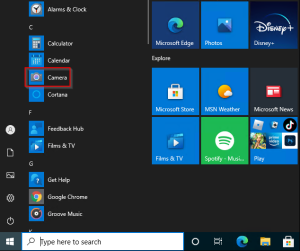
Click on the Start button, then select “Camera” from the list of apps.
Once the Camera app is open, choose either “Photo” or “Video” mode to take a picture or start recording a video. For video mode, click “Video” again to finish recording.

Viewing Your Photos and Videos:

After capturing your photos and videos, you can easily access them by following these steps:

Click on the Start button, then select “Photos” to open the Photos app.
Choose the collection you want to view, and your newly captured media will be accessible here.

Changing Camera Settings:

The Camera app allows you to customize various camera options to suit your preferences. To change camera settings, follow these steps:

Click on the Start button, then select “Camera” from the list of apps.
Once the Camera app is open, click on the “Settings” icon to access camera options.
Here, you can adjust settings such as framing grid, photo quality, and more to enhance your photo and video capture experience.

Windows Camera App
Image by https://www.google.com/

Switching Between Cameras:

If your device has multiple cameras, such as a front-facing and a rear-facing camera, you can easily switch between them:

Click on the Start button, then select “Camera” from the list of apps.
Once the Camera app is open, click on “Change camera” to switch from one camera to the other.

Zooming In or Out:

Although the Camera app in Windows 10 does not include a digital zoom feature, you can achieve a similar effect by taking a photo and then cropping it:

Click on the Start button, then select “Photos” to open the Photos app.
Choose the photo you want to crop, then select “Crop & rotate” from the menu.
Adjust the aspect ratio or drag the borders to crop the photo as desired.
Once you’re satisfied, save the cropped photo.

Automatically Saving Photos and Videos to OneDrive:

OneDrive integration allows you to automatically save your photos and videos, ensuring easy access across all your devices. Here’s how to set it up:

Photos:

In the search box on the taskbar, type “File Explorer,” and then select “Open.”
Select “This PC,” right-click on the “Pictures” folder, and then choose “Properties.”
Go to the “Location” tab, then select “Move.”
Choose “OneDrive,” then click “Select Folder” followed by “Move.”

Videos:

In the search box on the taskbar, type “File Explorer,” and then select “Open.”
Select “This PC,” right-click on the “Videos” folder, and then choose “Properties.”
Go to the “Location” tab, then select “Move.”
Choose “OneDrive,” then click “Select Folder” followed by “Move.”

Including Location Info in Photos:

The Camera app can utilize latitude and longitude information for geotagging photos taken from devices connected to the internet or a mobile network:

Click on the Start button, then select “Settings” (gear icon) followed by “Privacy.”
Under “Location,” ensure that the location service is turned on.
In “Choose which apps can access your precise location,” turn on “Camera.”

Turning Off the Camera for Specific Apps:

Windows allows you to control which apps can access your camera. To manage camera access for different apps:

Click on the Start button, then select “Settings” (gear icon) followed by “Privacy.”
Under “Camera,” toggle off “Allow apps to access your camera.”
To selectively grant camera access to specific apps, toggle on “Allow apps to access your camera” and adjust the switches accordingly.

Troubleshooting Camera Issues:

If your camera is not functioning correctly, follow these steps to identify and resolve the problem:

Disconnect the camera from your PC, then reconnect it.
If the issue persists, check for driver updates from your camera’s manufacturer. You can do this by accessing the Device Manager and scanning for hardware changes.
Restart your PC after installing any updates.

For additional help, you can visit the Microsoft community pages dedicated to music, photos, video, devices, and drivers to find solutions for specific camera-related problems.

By customizing and effectively using the Windows Camera app, you can make the most of your camera’s capabilities and capture memorable moments effortlessly. Whether you’re a photography enthusiast or just love taking candid shots, the Camera app provides a user-friendly interface to enhance your photo and video capture experience on Windows 10.

Introduction:

If you’re an avid Apple enthusiast, you’ve probably wondered what it’s like to take an early peek at new versions of Apple’s operating systems before they are officially released. Moreover, if you enjoy being on the cutting edge of technology and want to help shape future software updates, Apple’s beta program might be just what you’re looking for. This initiative allows both developers and public beta testers to gain early access to upcoming operating system updates, providing them with the opportunity to test for bugs and give new features a thorough workout before they are made available to the general public.

Recently, Apple unveiled the details of the next round of operating system updates at its worldwide developers conference (WWDC), which commenced with an exciting keynote on June 5. Following the keynote, the first developer betas of iOS 17, iPadOS 17, watchOS 17, and macOS 14 Sonoma were released. Naturally, Apple fans are eagerly interested in getting their hands on these beta versions to experience the new software firsthand.

What is the Apple Beta Program?

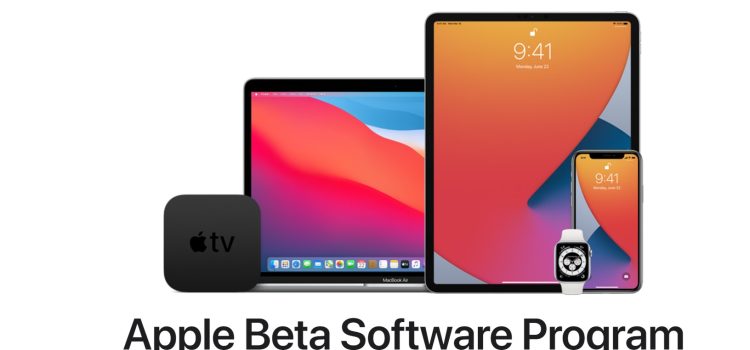
The Apple beta program is a chance for volunteers to download beta versions of upcoming operating systems for their Apple devices and test them out. The program is entirely free and offers beta versions for the following software:

  1. iOS
  2. iPadOS
  3. macOS
  4. tvOS
  5. watchOS
  6. HomePod software

Participants install the pre-release software and use it as they would their normal operating system. They are encouraged to provide feedback to Apple through the built-in Feedback Assistant regarding any crashes or behavioral anomalies they encounter while testing their apps or using the software regularly.

Two Flavors of Beta: Developer and Public

The Apple beta program comes in two flavors: Developer Beta and Public Beta.

  • Developer Beta: Geared toward developers who need to ensure their apps work seamlessly with the new operating system. The developer beta is released after the WWDC keynote, giving developers an early chance to optimize their apps for the upcoming software.
apple
Image by: https://www.macworld.com/
  • Public Beta: Slightly behind the developer beta, the public beta is more stable and aims to iron out some of the initial issues. There is usually a short wait between the release of the developer beta and the arrival of the public beta.

How to Get Involved: Joining the Beta Program

Getting involved in testing beta versions of Apple’s operating systems is relatively straightforward. Here’s how you can join the beta program:

  1. Developer Beta: To access the developer beta, you need to sign up as an Apple developer. Previously, developers were required to pay a $99/£79 annual subscription fee, but now a free developer account allows access to the developer beta. Download the Apple Developer app from the iOS App Store, sign in using your Apple ID, and enable Beta Updates in Settings to get started.
  2. Public Beta: If you’re not a developer but still want to try out the beta versions, you can join the public beta program. It is free and open to anyone with a valid Apple ID. Go to the Apple Beta Software Program page, sign up, and enroll your device to receive the public beta updates.

Is It Safe to Install the Beta?

Installing beta software comes with inherent risks, as beta versions are not fully finished products and can be unstable. Before installing any beta software, it is crucial to back up your devices to safeguard your data. Additionally, running beta versions on your primary devices may not be advisable, as bugs and issues could disrupt their functionality.

Conclusion: A Window into Apple’s Future

The Apple beta program offers an exciting opportunity for users to get an early look at upcoming operating systems and actively contribute to their development. Beta testers can provide valuable feedback to Apple, helping the company improve the software before its official release. However, potential risks associated with beta versions, such as instability and data loss, should be carefully considered. By participating in the Apple beta program, users become an integral part of shaping Apple’s future software, gaining a unique perspective on what lies ahead for Apple’s ecosystem.