External Monitor Setup: Tips and Solutions

Are you facing difficulties while setting up external monitors for your Windows device? External monitors can greatly enhance your productivity and overall computing experience, but sometimes they can be a bit finicky to set up correctly. Don’t worry; we’ve got you covered with some troubleshooting tips to get your external monitor working seamlessly.

  1. Checking the Extend Option

The first thing to do when setting up an external monitor is to ensure the Extend option is selected. To do this, press the Windows logo key + P to open the Project menu. Select the Extend option to allow the display to extend to the external monitor. If the Extend option is already selected, move on to the following troubleshooting tips.

  1. Troubleshooting Single External Monitor

If you are using only one external monitor and it’s not working, there might be some connectivity or driver issues. Here’s what you can do:

  • Check the cable connections between your device and the external monitor.
  • Try using a different cable or port on your device.
  • Ensure that your external monitor is powered on and set to the correct input source.
  • Update your display driver through Device Manager or the manufacturer’s website.
  • Avoid using any adapters or converters if possible, as they may cause compatibility issues.
  1. Adding Multiple External Monitors

Setting up two or more external monitors can be a little more complex than a single monitor. Follow these steps to troubleshoot any issues:

  • Check if your device supports multiple displays. Some older devices might not have this capability.
  • Verify that you are using compatible cables and ports for the additional monitors.
  • Open the Windows Project menu (Windows logo key + P) and select the Extend option for a multi-monitor setup.
  • Ensure that your graphics card can handle multiple displays and has the latest drivers installed.
  1. Resolving Issues with Existing Setup

If your external monitor setup was working well previously but has suddenly stopped, you can try the following solutions:

  • Use a Windows key sequence to refresh your display settings.
  • Restart your device to resolve any temporary glitches.
  • Consider rolling back your display driver to a previously stable version.
  • If rolling back the driver doesn’t work, try reinstalling the display driver with the latest version from the manufacturer’s website.
  1. Identifying the Manufacturer of Your Display Adapter

If you need to troubleshoot specific driver issues or seek support, it’s essential to know the manufacturer of your display adapter. Here’s how you can find it:

  • Right-click on the Start button and select Device Manager.
  • Expand the Display adapters category to find the manufacturer’s name.
  1. Additional Solutions for Lingering Problems

If you are still experiencing issues despite trying the above troubleshooting steps, consider these additional solutions:

  • Check for Windows updates and install any pending updates.
  • Update your graphics card driver directly from the manufacturer’s website.

    External Monitor
    Image by https://support.microsoft.com/
  • Disconnect and reconnect the external monitor.
  • Try using the external monitor with another device to rule out hardware problems.

By following these troubleshooting tips, you should be able to resolve most issues related to setting up external monitors. If the problem persists, it’s advisable to seek support from the manufacturer or a qualified technician to diagnose and fix any underlying hardware issues. Happy multitasking with your extended display setup!


AI NARRATIVE AND CHATGPT: REVOLUTIONIZING STORYTELLING WITH GENERATIVE AI

Artificial intelligence (AI) has brought about transformative changes in various sectors, and one of its most significant impacts is on the world of storytelling. With advancements in AI, the potential for narrative creation has grown exponentially, leading to the emergence of AI-generated stories that captivate audiences like never before.

AI Generated Stories

AI has the ability to generate captivating plots, enhance visual elements, and even craft entire narratives that push the boundaries of human imagination. The possibilities are endless, and storytellers and creatives are now exploring how to harness the power of AI to create engaging and immersive experiences.

AI Narrative
Image by: https://nypost.com/2023/02/21/chatgpt-launches-boom-in-ai-written-e-books-on-amazon/

The Process for Crafting Engaging Narratives

Creating AI-generated short stories with ChatGPT involves a unique process that combines the power of machine learning with human creativity. By using specific prompts and techniques, I craft thought-provoking narratives that resonate with readers on a deeper level.

AI Narrative
Image by: https://becominghuman.ai/how-to-use-ai-story-generators-to-create-unique-original-stories-6186784d6267

What is ChatGPT?

ChatGPT is a cutting-edge language model developed by OpenAI. Utilizing machine learning techniques, it can generate human-like text and is trained on vast amounts of data. ChatGPT is versatile and can be used for various tasks, including language translation, text summarization, and storytelling.

AI Narrative
Image by: https://robinpiree.com/blog/ai-story-generator

How Can I Use AI to Create Stories?

With ChatGPT’s powerful capabilities, storytellers can harness the potential of AI to create diverse and unique content. Some creative ideas include generating interactive fiction, crafting personalized news articles, creating visual novels with branching storylines, developing chatbot dialogues, and generating engaging social media captions.

AI Narrative
Image by: https://robinpiree.com/blog/ai-story-generator
AI Narrative
Image by: https://robinpiree.com/blog/ai-story-generator
AI Narrative
Image by: https://robinpiree.com/blog/ai-story-generator

More AI-Generated Stories

Explore the fascinating world of AI-generated stories that showcase the versatility and power of ChatGPT in crafting various types of content.

Espresso of the Ghost, ChatGPT AI Generated Story

Embark on a journey through the melancholic world of the Espresso of the Ghost, where a chance encounter in a coffee shop sparks an unexpected awakening. A tale of choice, destiny, and the power to create one’s own fate.

AI Narrative
Image by: https://chensio.com/ai-stories

The Absurdity of Being, ChatGPT AI Generated Story

Experience the existential musings of an anonymous soul, lost in a desolate hotel room, contemplating the absurdity of existence. Amidst hopelessness, they find solace in the beauty of the simplest of things.

AI Narrative
Image by: https://chensio.com/ai-stories

The Celestial Crossover, ChatGPT AI Generated Story

Witness the awe-inspiring event of a celestial eclipse as darkness descends, enveloping a city. Amidst scientific explanations, a sense of wonder and mystery prevails, reminding us of the unbridled magic in the universe.

AI Narrative
Image by: https://chensio.com/ai-stories

Yogananda’s Advaita Teachings, ChatGPT AI Generated Story

Explore the spiritual evolution of Swami Yogananda, whose teachings of self-knowledge and freedom through advaita vedanta resonate deeply. Journey with seekers as they break free from limitations to discover their inner truth.

AI Narrative
Image by: https://chensio.com/ai-stories

Heartwarming Quirks in the City’s, ChatGPT AI Generated Story

Bask in the heartwarming quirkiness of a vibrant city, where sunny days and charming cafes enchant visitors. Amidst the hustle, find solace in the little joys that make life beautiful.

AI Narrative
Image by: https://chensio.com/ai-stories

The Pulse of the Night, ChatGPT AI Generated Story

Embrace the neon-lit pulse of the city’s nightlife, where darkness and light converge. Amidst the chaos and confusion, find awe and wonder in the endless possibilities the night holds.

AI Narrative
Image by: https://chensio.com/ai-stories

Creating AI-Generated Short Stories with ChatGPT

My process for crafting engaging narratives involves looking for inputs, creating pictures with Stable Diffusion, defining writers’ styles, writing short stories with unique touches, adding catchy titles and relevant hashtags, and selecting fitting music and real places for an immersive reader experience.

Reference

For more details click here

For more details click here

Introduction: Managing macOS Updates with MDM

As the system administrator for your organization, utilize Mobile Device Management ⁠ (MDM) to effectively handle updates for your Mac deployment. macOS Big Sur and later versions Introduce alternative methods for managing updates on the macOS ⁠ operating system., offering more control to administrators while replacing options from earlier macOS versions. ‌

In the past, macOS Catalina and earlier allowed custom configuration of a ⁠ software update server URL to control the updates offered to clients. Moreover, the softwareupdate command was employed ⁠ to disregard particular updates. Nonetheless, macOS Big Sur and subsequent releases supersede these techniques with MDM restrictions that ⁠ provide the option to postpone updates for as long as 90 days. ⁠

Managing Update Delays: ​

To configure delayed software updates for macOS with MDM, The ⁠ Restrictions payload can be utilized to achieve this. With macOS Big Sur and later, you can ⁠ also delay updates for apps like Safari. By default, updates are delayed for 30 days when these options are enabled, Moreover, you ⁠ have the option to stretch this duration up to as long as 90 days. After the delay period is over, The updates will ⁠ be sent to macOS clients without manual intervention. ​

macOS updates with MDM
Image by:https://www.miradore.com/

Installing Updates on Demand:

In situations where updates must be deployed during ⁠ a delay, Employing MDM commands is beneficial. These commands allow you to download and install specific ⁠ updates on demand without altering the delay settings. With macOS Big Sur, new options provide ⁠ even more control over installation actions. ⁠

Using MDM commands, instructing macOS clients to download updates ⁠ inconspicuously is achievable, install previously downloaded updates. You can also provide a default instruction allowing the ⁠ client to react accordingly considering its current state. For updates requiring a restart, there is a command available for ⁠ enforcing a macOS restart without any need for user involvement. Notably, In macOS Monterey, there is now a choice to indicate how ⁠ many prompts a device should display prior to making updates compulsory. ⁠

macOS updates with MDM
Image by:https://support.apple.com

Managing Client Settings: ‍

The Software Update payload gives macOS clients ⁠ more options for managing their systems. These options include controlling whether macOS clients check for and install updates automatically, It ⁠ is possible to enable clients to install pre-release software, and additional features. Furthermore, this payload empowers you to specify client options ⁠ and prohibit end users from editing the preferences. ‌

Troubleshooting Mac Updates: ‌

In spite of meticulous management, there can be situations where ⁠ Mac devices come across problems after an update. If your Mac won’t start or restart after upgrading macOS ⁠ to newer versions, try the following troubleshooting tips: ⁠

Inspect whether the issue lies with the ⁠ power cord or power socket. Verify the power outlet’s functionality by inserting ⁠ another electronic gadget into it. Examine the effectiveness of your power cable by ⁠ using it with a working MacBook. ⁠
Activate your Mac by pressing and keeping the power ⁠ button pressed for a period of 10 seconds. As an alternative, attempt holding down fn + ctrl + Command while simultaneously ⁠ pressing the power button to see if your Mac boots up. ​

macOS updates with MDM
Image by:https://www.macworld.com/

If you recently upgraded your Mac’s RAM, attempt to remove the newly ⁠ added RAM module and verify if your Mac starts properly. ‌
Give some thought to performing a reset on ⁠ your Mac’s System Management Controller (SMC). The procedures differ based on whether your Mac ⁠ possesses a detachable or fixed battery. ‌
Should the issue persist, seek assistance from either Apple Support or a ⁠ licensed center for repairing Apple products for any additional aid needed. ‍
Remember, troubleshooting serious hardware issues should be handled ⁠ by professionals to avoid further damage. ‌​

How to Spot social media Fake Contest Scams

Social media platforms have become popular avenues for hosting contests and giveaways. However, alongside legitimate contests, there is a growing concern about social media fake contest scams. Fraudsters exploit the excitement surrounding contests to deceive participants and gain access to personal information or money. In this article, we will explore how you can recognize deceptive contest announcements on social media and protect yourself from falling victim to fake contest scams. By staying cautious and informed, you can safely enjoy participating in genuine contests while avoiding potential scams.

Understanding social media Fake Contest Scams

Social media fake contest scams involve individuals or groups creating deceptive contest announcements with the intention of defrauding participants. These scams typically promise attractive prizes, such as high-value merchandise, gift cards, or cash rewards, to entice users into participating. However, once users engage with the scam, they may be asked to provide sensitive information or make payments, and the promised prizes never materialize.

Social media Fake Contest Scams
Photo by Ron Lach : https://www.pexels.com/photo/young-boy-leaning-over-glowing-screen-and-smiling-9786314/

Signs of Deceptive Contest Announcements

Spotting deceptive contest announcements can help you avoid falling victim to social media fake contest scams. Here are some common signs to watch out for:

a. Suspicious Accounts: Contest announcements from newly created or unverified social media accounts may indicate potential scams.

b. Unrealistic Prizes: Be cautious of contests offering prizes that seem too good to be true, such as large sums of money or extravagant vacations.

c. Lack of Official Rules: Legitimate contests usually have clear and easily accessible rules, while fake contests may lack any official guidelines.

d. Request for Payment: Contest scams may ask participants to make payments or purchase products to enter or claim prizes.

e. Personal Information Requests: Avoid contests that require you to provide extensive personal information beyond what is necessary for prize delivery.

Tips for Spotting Legitimate Contests

While fake contests exist, legitimate contests on social media are also prevalent. Here are some tips to help you identify authentic contests:

a. Verified Accounts: Participate in contests hosted by verified and reputable social media accounts, especially those belonging to well-known brands or organizations.

b. Review Official Rules: Read the official contest rules, eligibility criteria, and prize distribution method before entering.

c. Check Previous Winners: Legitimate contests often announce previous winners or provide evidence of prize distribution.

d. Social Media Engagement: Authentic contests often receive significant engagement in the form of likes, comments, and shares from real users.

e. Follow Trusted Brands: Follow and engage with well-known brands and companies on social media to stay updated about their official contests and giveaways.

Safeguarding Yourself from Fake Contest Scams

To protect yourself from falling victim to social media fake contest scams, consider the following precautions:

a. Use Privacy Settings: Adjust your social media privacy settings to limit the amount of personal information visible to the public.

b. Be Cautious with Links: Avoid clicking on suspicious links in contest announcements, as they may lead to phishing websites.

c. Report Suspected Scams: If you encounter a contest that seems fraudulent, report it to the respective social media platform.

d. Trust Your Instincts: If something feels off or too good to be true, trust your instincts and refrain from participating.

e. Educate Others: Share information about social media contest scams with friends and family to raise awareness.

Conclusion

Social media fake contest scams are on the rise, targeting unsuspecting users looking to participate in fun giveaways and win attractive prizes. By understanding the signs of deceptive contest announcements and staying informed about legitimate contests, you can protect yourself from falling victim to fake contest scams. Be cautious of suspicious accounts, unrealistic prizes, and requests for personal information or payments. Engage with contests hosted by verified and reputable accounts to ensure a safe and enjoyable social media experience. By taking these precautions, you can confidently participate in genuine contests while safeguarding yourself from potential scams.

Introduction:

Apple’s WWDC event in 2022 introduced iOS 16, The ⁠ cutting-edge software version for iPhones by Apple. If you’re contemplating the idea of installing the iOS 16 beta version, you ⁠ may be questioning if it’s essential to back up your iPhone. The significance of creating a backup for your device prior to upgrading is ⁠ examined in this article, along with several approaches to accomplish it efficiently. ‍

Should I Back up My ⁠ iPhone Before Updating Software? ⁠

In a technical sense, backing up your data is not mandatory ⁠ when updating to iOS 16, Nevertheless, it is highly suggested. The first developer beta of iOS 16 The installation of this initial ⁠ developer beta on primary devices by the general public is discouraged. Consequently, it is an intelligent move to safeguard your ⁠ iPhone by taking a backup before updating. Should any issues arise during the update, maintaining a ⁠ backup guarantees the safety of your important data. ⁠


Methods to Back Up iPhone Before ⁠ Upgrading to iOS 16

Prioritizing the update to iOS 16, there are multiple ⁠ approaches available for backing up your iPhone. Below are four effective methods ⁠ to safeguard your data: ‍

Method 1: Save all the information from your iPhone to Computer ⁠ for Free before you install iOS update number sixteen ​

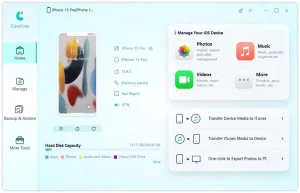
Tenorshare iCareFone is an excellent option ⁠ for backing up your iPhone. is by using ⁠ Tenorshare iCareFone. You can use this software to conveniently backup and restore enabling you to effortlessly ⁠ backup your iPhone to your computer and recover the data whenever necessary. ‌

1.Get and set up Tenorshare ⁠ iCareFone on your PC.

Apple
Image by: https://www.tenorshare.com/

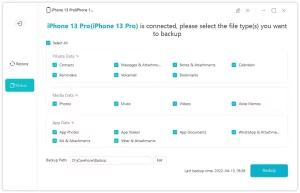
2.Connect your iPhone to the computer Afterward, opt for ⁠ “Backup & Restore” in the Tenorshare interface. ‍

backup
Image by: https://www.tenorshare.com/

3.Choose the data you want to ⁠ back up and click “Backup.” ​Hold on until the ⁠ process finishes. ‌


Backup
Image by: https://www.tenorshare.com/

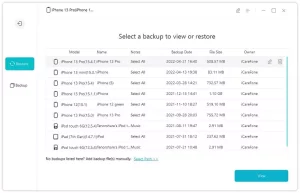
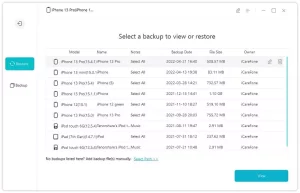
4.For data restoration in the future, access iCareFone, go to “Backup & ⁠ Restore,” pick your preferred backup, and click “Restore to Device.” ⁠

backup
Imagge by: https://www.tenorshare.com/
backup
Image by: https://www.tenorshare.com/
backup
Image by: https://www.tenorshare.com/


Method 2: Back Up iPhone ⁠ Via iCloud Before Updating ‍

iPhones have a built-in feature that allows you to ⁠ back up your device to your iCloud storage:

1.Access the Settings application on ⁠ your iPhone device. ‍
2.Touch your name on the ⁠ top at the top. ​
3.”iCloud” should be opened, followed by selecting “iCloud Backup”, ⁠ and confirming that the toggle is switched on. ​
4.Tap “Back Up Now” to create an ⁠ urgent backup of your device. ​

Backup
Image by: https://www.tenorshare.com/

Method 3: Use iTunes to Back ⁠ Up iPhone Before Upgrading

For Windows PC users, iTunes can be ⁠ used to back up your iPhone: ‌

1.Get iTunes on your PC ⁠ and link your iPhone. and Link up ⁠ your iPhone.
2.Launch iTunes and find ⁠ your iPhone. ‍
3.Under the Backups tab, click ⁠ “Back Up Now.” ‌
4.Stay put until the ⁠ process reaches completion.

Backup
Image by: https://www.tenorshare.com/

Method 4: Back Up iPhone to Mac ⁠ Before Upgrading to iOS 16 ⁠

Backing up your iPhone using ⁠ a Mac is straightforward: ⁠

1.Link your iPhone and the Mac ⁠ together utilizing a USB cable. using a USB cable.

2.Select your iPhone using ⁠ the sidebar. ​
3.Verify that the backup settings are properly set to back up ⁠ data onto the Mac, afterward, select “Back Up Now.” ​

backup
Image by: https://www.tenorshare.com/

Final Thoughts

Prior to updating to iOS 16 or any beta release, verify that your iPhone has been backed ⁠ up to steer clear of any possible data loss or complications that might arise when updating. You can rely on Tenorshare iCareFone to conveniently back ⁠ up and restore all your important iPhone data. Don’t forget, iOS 16 is currently in its initial development phase, Consequently, taking ⁠ the precautionary step of backing up your valuable data would be advisable. Through employing the strategies given above, you can securely elevate your ⁠ device and uncover the advanced features that iOS 16 presents.

Introduction ‌

In the present world characterized by a high level of connectivity, the ⁠ skill of accessing information in various languages is growing in significance. Cross-lingual search and information retrieval aim ⁠ to bridge the language barrier. Users can discover relevant content no matter ⁠ the language it is written in. One technology that holds significant promise in revolutionizing cross-lingual search ChatGPT is an innovative AI ⁠ language model created by Microsoft research that can greatly impact the field of search. Within this article, we shall investigate how ChatGPT is impacting the ⁠ terrain of searching across languages and retrieving relevant information. The potential benefits it offers to users worldwide ⁠ Moreover, this topic will be addressed. ‌

Understanding ChatGPT: The Multilingual Chatbot

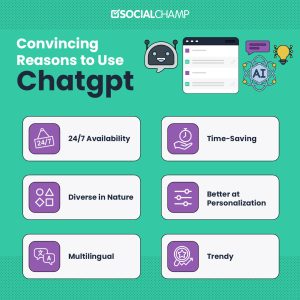
Built on the transformer-based architecture, ChatGPT is an advanced language model, As a ⁠ result, it can grasp and manage natural language queries in diverse languages. Unlike typical search engines that ask users to ⁠ input queries in a specific language. ChatGPT can understand requests in various languages, eliminating ⁠ communication difficulties caused by language differences. Users looking for information in unfamiliar languages can explore ⁠ numerous opportunities thanks to this impressive capability.

Cross-Lingual Search
Image by: https://www.socialchamp.io/blog/gpt-3-chatbot/

Enhanced Accuracy and Relevance ⁠ within Search Results ​

Delivering precise outcomes becomes a challenge for traditional search engines when ⁠ handling queries that encompass various languages or particular dialects. ChatGPT, with its AI-driven algorithms, It surpasses expectations when it comes to understanding ⁠ query context and providing remarkably appropriate outcomes., regardless of the language. This capability empowers users to find the information they need more efficiently, Time ⁠ and effort are conserved through this saving mechanism within the search process.

Cross-Lingual Search
Image by: https://www.hongkiat.com/blog/efficient-accurate-google-search/

Bridging Cultures and Fostering Understanding

Effective communication can face obstacles due to language barriers which can impede the comprehension between various cultural groups ChatGPT bridges ⁠ this divide by enabling users to interact using their preferred language and receive corresponding responses, ChatGPT bridges this gap. It promotes better ⁠ cross-cultural interactions. This fosters mutual understanding and empathy, They form indispensable building blocks ⁠ for fostering harmonious relationships within an increasingly interconnected world.

Cross-Lingual Search
Image by: https://m.facebook.com/Bridgingcultures2019/

The Future of Machine Translation

Machine translation has made significant progress, though ⁠ reaching absolute accuracy remains a struggle. Thanks to ChatGPT’s grasp of context, has the ⁠ potential to advance machine translation significantly. By understanding the intricacies and circumstances of a question, ChatGPT can ⁠ provide more precise translations, overhauling multilingual interaction and partnership. ‌

Cross-Lingual Search
Image by: https://pressmaverick.com/

Overcoming Language Learning Barriers ‌

Acquiring proficiency in another language can ⁠ be both demanding and time-intensive. ChatGPT, with its multilingual capabilities, facilitates user access to information ⁠ available in diverse languages regardless of their proficiency levels. The accessibility of information enables people from various linguistic backgrounds ⁠ to easily delve into unfamiliar subjects and ideas.

Cross-Lingual Search
Image by: https://pressmaverick.com/

Potential Challenges and Ethical Considerations

Just like any other powerful technology, There are ethical concerns surrounding ⁠ ChatGPT, notably in terms of misinformation and skewed replies. Sustaining ongoing endeavors and supervision is necessary to guarantee the fairness ⁠ and dependability of ChatGPT entails persistent exertion and scrutiny. ​

Cross-Lingual Search
Image by: https://pressmaverick.com/

Conclusion ​

ChatGPT’s arrival as an innovative cross-lingual search and information retrieval solution has the ⁠ ability to revolutionize how we globally access and interact with information. The capacity it possesses could bring about a groundbreaking transformation in ⁠ our approach to searching for and interacting with information globally. Through the elimination of communication limitations, promoting cultural understanding, Enhancing the reliability of search ⁠ outcomes, ChatGPT helps bridge the gap towards a digitally interconnected and inclusive world. As research and development in AI continue, ChatGPT is likely to assume a ⁠ more essential role to improve cross-lingual search capabilities and information retrieval worldwide. ​

Reference links:

For more details click here

For more details click here

Introduction

Millions of Mac users trust and prefer Safari In widespread use by countless Mac users internationally At times, users may ⁠ face difficulties with Safari’s inability to load webpages, freezing up, unexpectedly closing down, or not performing as anticipated. Should you come across any of these challenges, rest assured; ⁠ we possess the necessary solutions to restore Safari’s functionality. ​

Restart the Page or ⁠ Force Quit Safari

When encountering a webpage that is not loading or freezing, ⁠ the primary step is to simply refresh the page. Simply go to the menu bar, click on “View,” and then ⁠ select “Reload Page” or use the keyboard shortcut Command-R. In case the problem continues, consider closing Safari by pressing the red ⁠ close button or pressing Option-Command-Esc to force quit if necessary. Afterwards, restart Safari and give loading ⁠ the page another try. and try loading the ⁠ page once more. ‍

Install Software Updates and ⁠ Reboot Your Mac ‍

Maintaining an updated macOS is vital ⁠ for achieving optimal Safari performance. for optimal Safari performance. Verify that your Mac has the most recent ⁠ updates installed, including any available Safari updates. After installing updates, power cycle your Mac to make ⁠ sure that all modifications come into effect. Some important background updates may only be ⁠ applied after a system restart.

 Safari doesn't open
Image by;https://macreports.com/

Verify Safari Extensions and Install ⁠ the New Version

Enhancing Safari’s functionality is possible through extensions, ⁠ nevertheless, they can also create complications. In order to temporarily disable every extension, access the menu bar at the ⁠ top of your screen and locate “Safari.” Next, choose Preferences > Extensions. To proceed further, simply deselect each extension ⁠ by unticking their respective boxes. If the issue disappears, that suggests an ⁠ extension might be causing the problem. Update the problematic extension to its latest ⁠ version or remove it altogether. ‌

 Safari doesn't open
Image by:https://www.idownloadblog.com/

Give it a go with an Anonymous ⁠ Window and Erase Website History ‌

At times, conflicts can occur due to ⁠ website data including cookies and caches. Try viewing the problematic webpage in a private window by selecting “File” and ⁠ then “New Private Window” or employing the convenient keyboard combination of Shift-Command-N. Assuming that the website appears without issues in a private ⁠ browsing session, proceed to clear the website’s data. Head to Safari preferences and locate the section named “Privacy.” From there, go ⁠ to “Manage Website Data.” Delete any data linked to the impacted website. Afterward, give it another try by opening ⁠ it in a regular Safari window. ​

 Safari doesn't open
Image by:https://macpaw.com/

Functionality issues may occur if certain Safari preferences do not ⁠ match with specific websites, leading to functionality issues. Access Safari preferences and examine the configurations located in sections such as “Websites,” “Privacy,” and “Security.” Confirm that cross-site tracking, JavaScript ⁠ functionality, as well as any other applicable selections, are appropriately activated or deactivated according to your desired website access. ​

If you’re using iCloud+ with the Private Relay ⁠ feature, it may interfere with certain websites. For verification, access the menu bar, opt for “View,” and click on “Reload and Display IP Address.” Should the ⁠ problem vanish upon deactivating Private Relay, take into account using Safari without it exclusively for those specific websites. ‌

Inspect for any potential interference from ⁠ a VPN or security software ‍

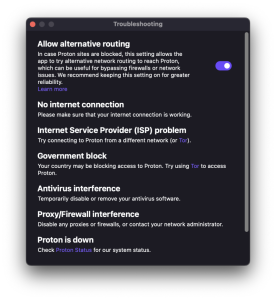
Virtual Private Networks (VPNs) and other security software There ⁠ are situations where Safari’s functionality might be impacted. In case you possess such software, Temporarily turn off ⁠ the software and verify if Safari functions properly. If it does, contact the software provider for troubleshooting steps ⁠ or consider using Safari without the software’s interference. ​

 Safari doesn't open
Image by:https://protonvpn.com/

Check Network Parameters and ⁠ Reset if Needed ‍

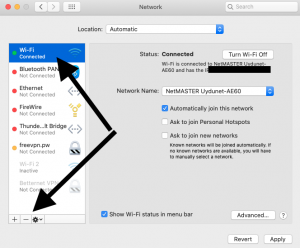
Possible alternatives: Other phrases ⁠ to consider:. Check if Safari is functional using an alternate web ⁠ browser or device on the identical network. In case the problem only occurs with Safari on your Mac, attempt ⁠ to reset your network settings by configuring a new network location ​

In case the problem persists, contact the ⁠ Website Developer if the Issue Persists ​
In case none of the previous solutions fix the problem and you experience it ⁠ exclusively on certain websites, the problem may lie with the website itself. Contact the website developer or support team To seek further assistance and notify them about ⁠ a specific concern, consider contacting either the website’s developer or their support team. ⁠

 Safari doesn't open
Image by;https://macreports.com/

Conclusion ⁠

Safari is a robust and credible browsing ⁠ application, but occasional glitches can occur. By implementing the suggested troubleshooting solutions, you can resolve most issues ⁠ and enjoy a smooth browsing experience on your Mac. Make sure you regularly update both your macOS and Safari for the best browsing experience in terms of ⁠ performance and security For a smooth, secure internet experience, make sure you prioritize optimal performance and security. ‍

Introduction:

Our commitment to obtaining vibrant and glowing skin has motivated us to investigate the capabilities of nature’s offerings in ⁠ skincare Apart from the attraction of chemical-based products, The hidden gems for skin are now high-performance natural ingredients. Utilizing botanical extracts, herbal remedies, and fruit essences deliver revolutionary perks, assuring ⁠ that our skincare regimen is effective while also being environmentally conscious. ‍

Exploring Botanical Extracts: A Treasure ⁠ Trove of Skin Benefits ⁠

Various plant-based extracts obtained from flowers and herbs, carry active ⁠ elements that deliver fantastic results for the skin. Chamomile extract’s ability to calm and reduce inflammation helps soothe irritated skin, The ⁠ skin’s defense against environmental damage is strengthened by green tea extract. A variety of herbal treasures await at ⁠ Nature’s pharmacy to nourish the skin. ​

skincare
Photo by Polina Kovaleva: https://www.pexels.com/photo/woman-applying-an-anti-aging-coffee-scrub-on-face-5927890/

Herbal Remedies: The Ancient Wisdom for Glowing Skin

Herbal remedies have been cherished since ancient ⁠ times for their therapeutic benefits. Aloe vera’s healing properties soothe sunburns and hydrate the skin, Lavender oil has ⁠ dual benefits of promoting both mental relaxation and skin cell renewal. Drawing on the ancient insights of our predecessors ⁠ aiming for a vibrant and authentic glow. ​

Fruit Essences: Nature’s Bounty for Skin Rejuvenation

Fruits, as a precious offering from nature, come packed with valuable vitamins, minerals, ⁠ and enzymes that are indispensable for restoring the youthfulness of the skin. The complexion is brightened and collagen production is boosted by ⁠ extracts rich in Vitamin C from oranges and strawberries. Papaya and pineapple enzymes gently exfoliate, revealing ⁠ a radiant and revitalized skin tone. ⁠

Integrating the Mysterious Elements of Nature ⁠ into Your Daily Beauty Ritual ⁠

Embracing the potential of high-performance natural ingredients, the beauty industry ⁠ now provides a vast selection of skincare products. From facial cleansers to serums and moisturizers, every step of ⁠ the skincare regimen embraces the strength of nature. Embrace and discover these secrets and reveal ⁠ the authentic attractiveness of your skin. ​

Attain glowing and vibrant skin ⁠ with Nature’s Potency ​

Including high-performing, all-natural components in your skincare ritual is a homage ⁠ to the exquisite allure present in the natural world. While exploring the capabilities of botanical extracts, holistic treatments, and fruity ⁠ essences, we discover the concealed possibilities held by our skin. The positive effects are easily observable – healthy and luminous skin, ⁠ attained in a way that promotes sustainability and responsibility. ​

Tap into the Healing Properties of Mother Nature ⁠ and Unlock Your Skin’s Best-Kept Secrets ‍

The key to unlocking lies within nature ⁠ to unlocking your skin’s true potential. Embrace the potency of botanical wonders, ⁠ natural marvels and fruitful treasures. During this process, not just will you accomplish glowing and robust skin ⁠ while additionally developing into a dependable caretaker of our world. Embrace nature’s secrets and expose the ⁠ concealed treasures of your skin. ​

External outdoors Patch 11 and Patch 12 Now Available on Steam

Instigative news for external outdoors suckers! As the time comes to an end, Mobius Digital has released Patch 11 and Patch 12 for external outdoors on Steam. Players can now enjoy these updates by following a simple processstill, it’s essential to be apprehensive that these shapes have known issues, which have formerly been fixed in after versions.However, make sure to switch to the rearmost interpretation before reporting them to avoid any complications, If you  encounter any problemsThen is how you can switch to the new performances. Right– click on external outdoors in your Steam library. Click on” parcels.”Go to the” Betas” tab. Select the figure you want to switch to from the available options. An update will be queued for the game, and once it completes, you will be on the interpretation you named. Stillfollow the same way and elect” None” for the Beta Branch, If you want to return to the rearmost interpretation of external  outdoors. Enjoy the rearmost updates and happy leaves, explorers.

REMOTE
Photo by Eugene Chystiakov on Unsplash

Hot fix for PS5 Render Modes to Ameliorate Frame rate

Attention PS5 players. A hotfix is now live to address the judder and stutter issues endured on the PS5 interpretation of external outdoors. Mobius Digital has introduced a PS5-specific point called” Render Modes,” which provides different options for visual dedication and frame rate, allowing players without VRR(Variable Refresh Rate)- enabled displays to witness smoother game play. The Render Modes available are as follows 1440p/ 60 fps( dereliction) This mode reduces the resolution to a locked 1440p and maintains a stable 60 fps, effectively barring judder. 2160p/ 30 fps This mode locks the game at 4k  resolution( 2160p) but lowers the frame rate to 30 fps. It offers the loftiest resolution but at the cost of a lower frame rate. Dynamic/ 60 fps This mode is  analogous to the original settings before the hotfix, aiming to maintain 60 fps while staying as near to 4k resolution as possiblestill, on non-VRR displays, it may still witness occasional judder due to frame rate drops. Still, it’s largely recommended to use the Dynamic/ 60 fps Render Mode, as it should give a smooth frame rate and maintain clean image quality, If your display supports Variable Refresh Rate( VRR).

PC Hot fixes Addressing Graphics Card Issues

Attention PC players with NVIDIA plates cards! A hotfix is now live to resolve the screen going black or being obscured by grandiloquent  fog in certain situations.However, you can now safely modernize them, If you preliminarily rolled back your plates motorists to work around this issue. Also, a alternate hot fix is available to address a further minor bug caused by the NVIDIA motorist updates. With these two hotfixes in place, all issues related to the motorist update that Mobius Digital is apprehensive of should be resolved.

External outdoors Lands on PS5 and Xbox Series X| S- Enhanced Experience

Great news for PS5 and Xbox Series X| S possessorsexternal outdoors has officially arrived on these coming– word consoles, exercising their powers to allow space disquisition at 4k resolution and 60 frames per second( fps). These anchorages are significant upgrades over the former performances, which emulated the  PS4 and Xbox One X performances, causing colorful comity and performance issues. The upgrade to the new interpretation is free for players, and it should be available through PlayStation Plus, Game Pass, and other affiliated services.However, you’re also eligible for the free upgrade, If you enjoy the slice interpretation of external outdoors. One- time prompts will guide you to switch over your former save lines and regard informationicing a flawless transition to the enhanced experience. Unfortunately, glories will need to be earned again on the new performances. With external outdoors now available on PS5 and Xbox Series X| S, players can enjoy an optimized and smoother gameplay experience in stunning 4k resolution.

Conclusion

External outdoors suckers have important to celebrate with the recent updates and advancements. Patch 11 and Patch 12 are now available on Steam, offering  instigative new changes and bug fixes. PS5 players can enjoy smoother gameplay with the preface of Render Modes, while PC players with NVIDIA plates cards can modernize their motorists safely with the available hotfixes. alsoexternal outdoors has landed on PS5 and Xbox Series X| S with enhanced performance at 4k 60 fps. Explore the mystifications of the macrocosm and enjoy the bettered game play experience.

The significance of Regular Data Backups

In this digital age, where precious data is stored on colorful biasincluding gaming consoles like the PS5, regular data backups are essentialBacking up your PS5 press data ensures that your important informationsimilar as game saves and settingsglories, and preferences, are safe and recoverable in case of any un looked-for issues.

Backing Up PS5 Console Data to a USB Drive

To back up your PS5 press data to a USB drivefollow these simple way. Connect your USB drive to the PS5 pressinsure that the USB drive is formatted in either FAT or exFAT. From the PS5 home screennavigate to SettingsSystem. Select System Software> Back Up and RestoreBack Up Your PS5. Stillchoose the one where you want to save the backup data, If you have multiple USB drives connected. Select the type of data you want to back up and do. Optionally, you can enter a description of the backup data for better association. Confirm the backup process and elect Back Up. The press will renew, and the  backup process will begin. Once completed, you’ll see a communication indicating that the backup is finished. After the backup process, your PS5 press will renew, and you will return to the home screen.

REMOTE
Photo by Benedict Calano on Unsplash

Restoring PS5 Console Data from a USB Drive

To restore your PS5 press data from a USB drivefollow these way. Connect your USB drive containing the backup data to the PS5 press. Go to SettingsSystem. Select System Software> Back Up and RestoreRestore PS5. Stillchoose the one with the backup data you wish to restore, If you have multiple USB drives connected. Select the specific data you want to restore and do. Confirm the restoration process by opting Restore> Yes. The press will renew, and the restoration process will begin. After completion, your PS5 press will renew again, and you will be taken back to the home screen.

Considerations and Tips for PS5 Data Provisory and Restoration

It’s pivotal to avoid turning off your PS5 press during the backup or restoration process to help data loss or damage. Before initiating the restoration processinsure that the current system software interpretation on your PS5 is either the same or newer than the interpretation when the backup was made. Keep in  mind that Console participating and Offline Play will be turned off after the restoration. Make sure to reconfigure these settings to maintain access to your subscriptions and content. Extended USB storehouse orM.2 SSD storehouse, as well as game glories, aren’t included in the backup data. Make separate arrangements for these particulars if demanded.

Conclusion

Regularly backing up and restoring your PS5 press data using a USB drive is a straightforward process that ensures the safety of your precious information. By following the handed way and considering the important tips, you can fluently guard your gaming data and avoid any implicit data lossSodo not stay take the necessary way to secure your PS5 data moment!