How to Install Google Maps on Your Windows PC

Are you an avid Google Maps user who wishes they had an easy way to access it on their Windows PC? You’re not alone! While Google Maps is a staple on Android and iOS devices, there isn’t an official desktop application for Windows… yet. But fear not! In this guide, we’ll show you how to seamlessly use Google Maps on your Windows PC without the need for a dedicated app. Whether you’re planning a road trip, checking out new places, or simply love exploring maps, this step-by-step guide is here to solve your problem.

The Windows Dilemma

Google Maps works like a charm on smartphones and tablets. However, when it comes to Windows PCs, the story takes a different turn. Windows offers its native Microsoft Maps app, but many users still prefer the familiar interface and extensive geographic data of Google Maps. So, let’s bridge that gap and make it work for you.

Installing Google Maps as a Desktop App Using Microsoft Edge

Microsoft Edge comes to the rescue by allowing you to install web apps or websites as Windows desktop apps. Here’s how to set up Google Maps as a desktop app using Microsoft Edge:

  1. Launch Microsoft Edge: Open the Edge browser and navigate to the Google Maps website.
  2. Access the Context Menu: Click on the three-dots menu in the top-right corner of the browser to open the context menu.
  3. Install Google Maps: Go to “Apps” in the context menu and select “Install Google Maps.”

    Windows PC
    Image by https://www.makeuseof.com/
  4. Confirmation: Confirm the installation by clicking “Install” in the pop-up dialog. Wait for Edge to finish installing the app.

    Windows PC
    Image by https://www.makeuseof.com/
  5. Customize: Once installed, Google Maps will open in a new window. During the initial setup, you can choose to pin the app to the taskbar, Start menu, create a desktop shortcut, and enable auto-start after login.

Now you can launch and use Google Maps just like any other desktop app on your Windows PC. It provides access to your timeline, recent and saved items, contributions, and even supports location sharing.

Uninstalling Google Maps Added via Edge

If you ever want to remove Google Maps from your PC, follow these steps:

  1. Search for Google Maps: Press the Win key and type “Google Maps.”
  2. Uninstall: Right-click on Google Maps and select “Uninstall.” Confirm the action by clicking “Yes,” and the app will be removed from your system.

    Windows PC
    Image by https://www.makeuseof.com/

Running Google Maps as a Desktop App Using Google Chrome

If Google Chrome is your preferred browser, you can add Google Maps as a shortcut, effectively running it as a desktop app on your Windows PC. Here’s how:

  1. Launch Google Chrome: Open Google Chrome and go to the Google Maps website.
  2. Access the Menu: Click on the three-dots menu in the top-right corner.
  3. Create Shortcut: Navigate to “More Tools” and select “Create Shortcut.”

    Windows PC
    Image by https://www.makeuseof.com/
  4. Configuration: In the Create shortcut dialog, choose the “Open as window” option. You can also rename the app if you prefer.
  5. Finalize: Click “Create.”

Once installed, the Google Maps app will open in a new window, providing a similar set of functionalities as the web version.

Pinning Google Maps to Taskbar and Start Menu

For quick access, you can pin the Maps app to your taskbar and Start menu. Simply press the Win key, type “maps” in Windows search, right-click on the Google Maps shortcut, and select “Pin to Start” or “Pin to Taskbar.”

Uninstalling a Google Maps Shortcut Added via Chrome

If you decide to remove the Google Maps shortcut installed via Chrome, here’s how to do it:

  1. Open Run: Press Win + R to open the Run dialog.
  2. Access Control Panel: Type “control” and click OK to open the Control Panel.
  3. Programs and Features: Go to “Programs” > “Programs and Features” in the Control Panel.
  4. Uninstall: Select “Google Maps” from the list of installed programs and click “Uninstall.”

While web apps are convenient for quick access, they lack some features, such as the ability to download offline maps. If you prefer running Google Maps natively on Windows, consider using an Android emulator or installing the Google Play Store on Windows to access the app directly from the official store.

Windows PC
Image by https://www.makeuseof.com/

Navigating With Google Maps on Windows

Installing web apps streamlines access without keeping your browser open continually. However, it does have limitations. Notably, the web version doesn’t support offline map downloads, so you’ll still need your phone for offline navigation.

Alternatively, you can explore Microsoft Maps, which offers the capability to download maps for offline navigation, along with other handy features like favorite places, map collections, annotation tools for creating map markings, and more.

In conclusion, while Windows may not have an official Google Maps app, these methods will help you integrate Google Maps seamlessly into your Windows PC experience. Happy exploring!

About the Author:

Tashreef Shareef is a technology enthusiast with years of experience in writing tech-related articles. He’s passionate about solving everyday tech problems and helping users make the most of their devices.

Tashreef’s expertise and insightful tips make him a reliable source for tech-related advice. In this article, he guides Windows users on how to make the most of Google Maps on their PCs.

Introduction: Resolving a Missing Network Adapter in Windows 10

In the modern digital age, being without a network adapter on your Windows 10 PC is akin to being stranded on a deserted island without a map. Your internet connectivity relies on it, whether you’re working remotely, streaming your favorite shows, or simply browsing the web. But fear not, because in this article, we’ll guide you through the process of resurrecting your missing network adapter and getting back online.

Understanding the Network Adapter

Before we dive into the solutions, let’s briefly grasp the importance of a network adapter. This vital component facilitates the transfer of data to and from other devices on both wireless and wired networks. However, sometimes it mysteriously vanishes from your Device Manager or prompts Windows 10 to notify you about its absence.

Solutions to Fix Your Network Adapter

1. Restart and Check Your Internet Connections

  • Restarting Your PC or Laptop: Sometimes, the simplest solutions work wonders. Begin by restarting your computer and checking if the network adapter reappears.
  • Ethernet Cable Check: If you’re using an Ethernet cable, unplug it and then plug it back in. This can sometimes trigger the detection of the missing adapter.

2. Show the Hidden Drivers in Windows 10

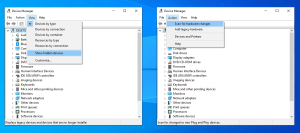
  • Reveal Hidden Devices: It’s possible that your network adapter is hidden in Device Manager. Follow these steps to make it visible:
    • Right-click Start > Device Manager.
    • Open the View menu and click Show hidden devices.
    • Expand the Network adapters list to check if the adapter is now visible.
    • If not, click Action > Scan for hardware changes.

      Windows 10
      Image by https://www.makeuseof.com/

3. Remove the Battery From Your Laptop

  • Laptop Reset: If you’re using a laptop with a removable battery, try removing it for a few seconds. This can sometimes resolve the issue by resetting the motherboard.

4. Turn Off Your Antivirus and VPN

  • Antivirus and VPN Check: Disable or uninstall your VPN and restart your device. Also, consider updating your antivirus software.

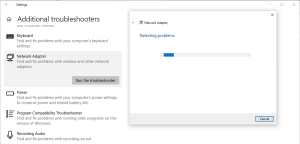
5. Run the Network Adapter Troubleshooter

  • Troubleshoot with Windows: Utilize Windows 10’s Network Adapter troubleshooter:
    • Right-click Start > Settings or use Win + I.
    • Head to Update & Security > Troubleshoot > Additional troubleshooters.
    • Below “Find and fix other problems,” select Network Adapter > Run the troubleshooter.

      Windows 10
      Image by https://www.makeuseof.com/

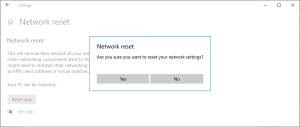
6. Use the Network Reset Tool

  • Network Reset: If the troubleshooter doesn’t work, try Network Reset to restore network settings to their defaults:
    • Open Settings > Network & internet > Status.
    • Scroll down to Network reset and select Reset now.

      Windows 10
      Image by https://www.makeuseof.com/

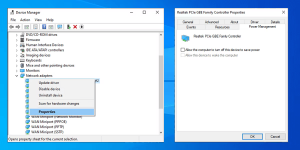
7. Check Your Power Management Settings

  • Power Management: On laptops, Windows 10 may turn off certain features to save power. Adjust these settings to keep your network adapter active:
    • Right-click Start > Device Manager.
    • Expand the Network adapters list.
    • Right-click your network adapter > Properties.
    • Open the Power Management tab and uncheck “Allow the computer to turn off this device to save power.”

      Windows 10
      Image by https://www.makeuseof.com/

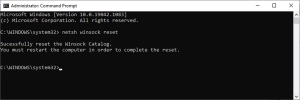
8. Reset the Winsock Settings

  • Winsock Reset: Resetting Winsock can resolve network adapter issues. Follow these steps:
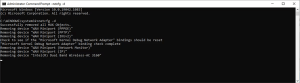
    • Search for Command Prompt in the Start menu and run as administrator.
    • Type netsh winsock reset and press Enter.
    • Restart your PC or laptop.

      Windows 10
      Image by https://www.makeuseof.com/

9. Clean Up Your Network Devices

  • Device Cleanup: If all else fails, clean up network devices using Command Prompt:
    • Press Win + R to open the Run window.
    • Type cmd and press Ctrl + Shift + Enter to run Command Prompt as administrator.
    • In Command Prompt, type netcfg -d.
    • Restart your device and check for the network adapter.

      Windows 10
      Image by https://www.makeuseof.com/

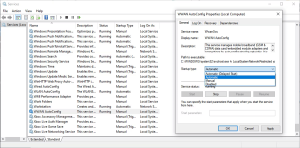
10. Check Windows 10’s Background Services

  • Service Management: Ensure that essential background services are running smoothly:

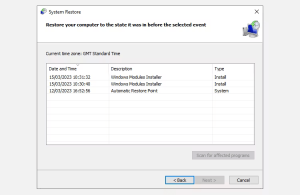
11. Use a Restore Point

  • System Restore: As a last resort, consider using a system restore point if you’ve recently made system changes. This can help in case a Windows update caused the network adapter issue.

    Windows 10
    Image by https://www.makeuseof.com/

Conclusion

In the realm of Windows 10 troubleshooting, a missing network adapter is a common villain. However, armed with these solutions, you can swiftly overcome this issue and restore your internet connectivity. Remember, in our digital age, a reliable network adapter is your passport to the online world. So, don’t let it stay missing for long.

Razvan Mihaila, our expert in Windows systems, has shared these practical solutions to assist you in resolving network adapter issues on Windows 10. With over a decade of experience in IT and a passion for problem-solving, Razvan is your go-to source for tech tips.


Informative Table: Key Solutions at a Glance

Solution Description
Restart and Check Connections Restart your device, unplug and re-plug Ethernet cables.
Show Hidden Drivers Make hidden network adapters visible in Device Manager.
Remove Laptop Battery For laptops, remove the battery briefly to reset settings.
Turn Off Antivirus and VPN Disable or uninstall VPN and consider antivirus updates.
Run Network Adapter Troubleshooter Use Windows 10’s built-in troubleshooter for network adapters.
Use Network Reset Tool Reset network settings to default without data loss.
Check Power Management Settings Prevent Windows from turning off your network adapter to save power.
Reset Winsock Settings Reset Winsock data to potentially fix network adapter issues.
Clean Up Network Devices Cleanup network devices via Command Prompt if needed.
Check Background Services Ensure that essential background services are running correctly.
Use a Restore Point Consider system restore if recent changes caused the issue.

Comparative Table: Troubleshooting Tools

Troubleshooting Tool Ease of Use Effectiveness Data Loss
Network Adapter Troubleshooter Easy Moderate No
Network Reset Tool Easy High Yes (Network settings)
System Restore Moderate High No (System changes)

How to Control Location Permissions for System Services on Your iPhone

Your iPhone holds a wealth of personal data, and managing what it can access is paramount. While you may be aware of location access for apps, did you know that your iPhone’s system services also tap into your location data by default? In this guide, we’ll delve into the world of system services, discuss their significance, and teach you how to regain control over your iPhone’s location privacy.

Understanding System Services in Your iPhone’s Location Services

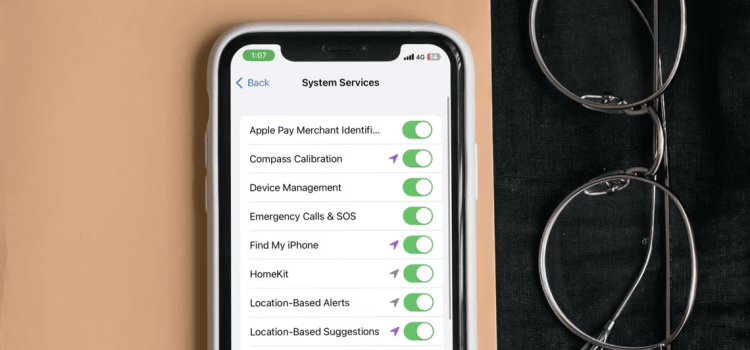
Your iPhone’s system services encompass a range of essential processes and features designed to optimize functionality and enhance user experience. When we refer to System Services within Location Services, it signifies that these built-in functionalities rely on your location data to operate efficiently. Crucially, the location information collected remains anonymous.

Let’s look at some practical examples of these services:

Find My iPhone

This service is a lifeline when your iPhone goes missing, helping you track its location and recover it.

Emergency Calls & SOS

During emergency calls, your location data is crucial for providing accurate information to first responders, ensuring timely assistance.

However, not all system services are as vital. Some, like Compass Calibration and Location-Based Suggestions, may have limited utility for most users and can even impact privacy and battery life. Here’s how to regain control:

How to Limit Location Permissions for Your iPhone’s System Services

  1. Access Your Settings: Open your iPhone’s Settings app.
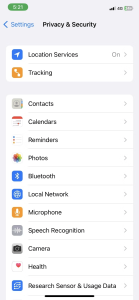
  2. Navigate to Privacy & Security: Scroll down and tap on “Privacy & Security.”
  3. Select Location Services: At the top, find and tap on “Location Services.”
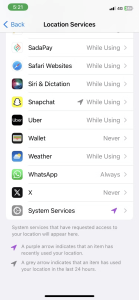
  4. Access System Services: Scroll down to the bottom of the page, and you’ll discover “System Services.” Tap it.

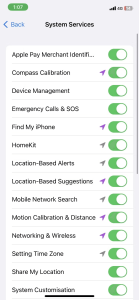
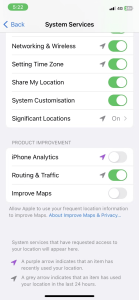
You’ll now see a list of features that utilize your location data, including:

  • Compass Calibration
  • Motion Calibration and Distance
  • System Customization

To protect your privacy and optimize performance, toggle off the services you don’t require. By doing so, you regain control over your iPhone’s location information.

Taking Charge of Your iPhone’s Location Services

As you’ve discovered, many system services depend on your iPhone’s location data. While some are indispensable, others may not be vital for your daily use. By disabling unnecessary services, you strike a balance between protecting your privacy and ensuring optimal device performance.

In an era of rapid technological advancement, it’s crucial to wield your smartphone’s features wisely. With this knowledge, you can navigate the intricacies of your iPhone’s settings and safeguard your valuable data effectively.

Meet the Knowledge Source – Hiba Fiaz

Hiba Fiaz is a seasoned tech writer with a passion for demystifying complex tech topics. With years of experience in the field, she’s dedicated to helping readers make informed decisions about their tech gadgets. Hiba’s expertise shines through her ability to translate tech jargon into accessible, reader-friendly content.

Human-Centric Formatting: We’ve provided a step-by-step guide to empower readers to control their iPhone’s location services. Clear language, visuals, and concise explanations enhance user experience.

Introduction

Meet Aman Kumar: Your Guide to Twitch Notifications

Are those endless Twitch notifications hindering your productivity and focus? If so, you’re not alone. In today’s digitally connected world, notifications can be a double-edged sword. While they keep you informed, they can also be a major distraction.

In this guide, we’ll introduce you to Aman Kumar, your go-to expert, who will help you regain control over your Twitch notifications. With Aman’s assistance, you’ll learn how to disable those pesky notifications on both desktop and mobile devices. So, let’s dive into this quest for uninterrupted productivity.

The Annoying Twitch Notifications

Understanding the Distraction

Imagine this scenario: You’re deeply engrossed in an important project, and suddenly, a notification pops up on your screen. It’s Twitch, letting you know that your favorite streamer is live. The temptation to click and check out the stream is strong, disrupting your workflow.

The Need to Disable

To maintain your focus, it’s essential to disable Twitch notifications when they become more of a distraction than an update. Of course, if you need assistance in staying concentrated, we’ll also explore some apps that can help.

How to Disable Twitch Notifications on Desktop

Step 1: Log In to Your Account

The journey begins by opening Twitch in your browser and logging into your account.

Twitch Notifications
Image by https://www.makeuseof.com/

Step 2: Accessing Settings

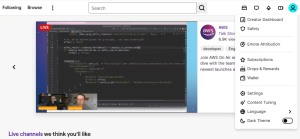
Click on your profile icon in the top-right corner and choose “Settings” from the menu.

Twitch Notifications
Image by https://www.makeuseof.com/

Step 3: Navigating to Notifications

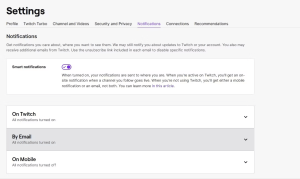
Now, navigate to the “Notifications” tab.

Twitch Notifications
Image by https://www.makeuseof.com/

Step 4: Tailoring Your Notifications

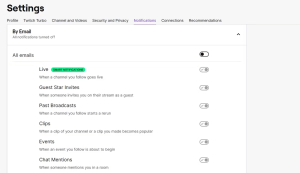
Click the drop-down icon next to “By Email” to fine-tune your email notifications. You can even disable all activities with the “All emails” toggle.

Step 5: Total Notification Silence

For complete silence while using Twitch, explore the “On Twitch” drop-down menu and disable irrelevant notifications. Your focus will thank you.

How to Disable Twitch Notifications on Mobile

Step 1: Launching the Mobile App

Open the Twitch mobile app and log in to your account.

Step 2: Accessing Settings on Mobile

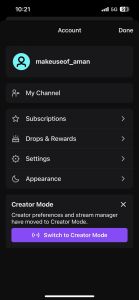
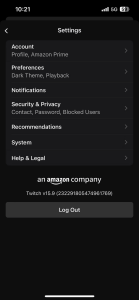
Tap your profile icon in the top-left corner and select “Settings” from the menu.

Step 3: Mobile Notification Control

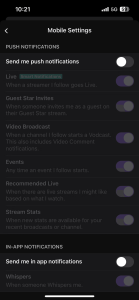
Choose “Notifications” and then “On Mobile.” Turn off the “Send me push notifications” toggle.

Step 4: A Customized Mobile Experience

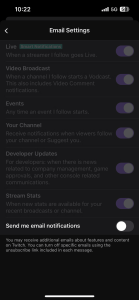
To halt Twitch email notifications, tap “By Email” and switch off the “Send me email notifications” toggle. If you want to stop notifications from a specific channel, explore the “Per channel” option.

Stop the Distractions – Enjoy Focused Work

The Wisdom in Notification Management

Notifications can be both a boon and a bane. While they keep us informed, they can disrupt the most important tasks. If you find Twitch notifications affecting your workflow, use the techniques described above to regain control.

Tools for Enhanced Concentration

For those seeking enhanced focus and productivity, consider using apps designed to improve attention span and reduce distractions while working.

Conclusion

Achieving Peace from Twitch Notifications

In a world of constant digital noise, achieving a distraction-free environment is a valuable skill. Thanks to Aman Kumar’s guidance, you now have the knowledge to take charge of your Twitch notifications. Reclaim your focus, and enjoy uninterrupted productivity.

Introduction: 8 Compelling Reasons for Consumers and Merchants

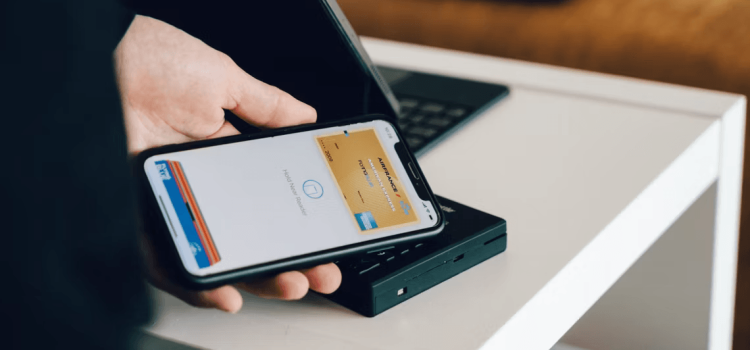
In a world where digital wallets are becoming the norm, Apple Pay stands out as a popular choice for contactless payments. However, before fully embracing this technology, both consumers and merchants should weigh the pros and cons. In this article, we’ll delve into 8 compelling reasons why you might want to think twice before using Apple Pay for your transactions. Join us as we navigate the intricacies of this digital payment system and explore its potential drawbacks.

1. Vulnerability to Cyberattacks:

Apple Pay boasts impressive security measures, but a jailbroken iPhone could compromise the system. Learn why it’s crucial to maintain the integrity of your device’s software to ensure a safe payment experience.

Consumers and Merchants
Image by https://www.makeuseof.com/

2. Public Wi-Fi Connections Compromise Security:

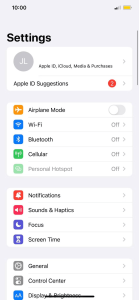
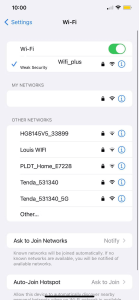
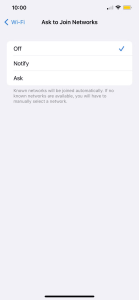
While Apple Pay doesn’t require internet connectivity, your iPhone’s automatic search for public Wi-Fi networks poses a threat. Understand the risks of unauthorized contactless payments on public networks and discover how to safeguard your transactions.

3. Potential to Bypass Contactless Limits Without Authorization:

Dig into research exposing Apple Pay’s susceptibility to payment fraud. Find out how hackers could exploit Express Transit mode and learn how to protect yourself from potential fraudulent transactions.

4. Apple Collects Significant Personal Data:

Privacy concerns take center stage as we explore the personal information Apple Pay requires. Delve into the implications of sharing your transaction history and consider whether the convenience of Apple Pay outweighs the privacy trade-off.

5. Apple Pay Only Works on Apple Devices:

Discover a limitation of Apple Pay: it’s exclusive to Apple devices. Explore how this restriction might affect your payment choices and whether you’re prepared to commit to Apple’s ecosystem.

Consumers and Merchants
Image by https://www.makeuseof.com/

6. Confusion and Irritability Among New Users:

For merchants, catering to diverse payment preferences is essential. Learn about the challenges of customers using Apple Pay for the first time and find out how offering alternative payment methods can enhance the shopping experience.

7. Failed Transactions Due to Card Clash:

Uncover the issue of “card clashes” that can disrupt contactless transactions. Explore why this problem might arise and discover the potential complications it could bring to your business.

Consumers and Merchants
Image by https://www.makeuseof.com/

8. Implementation Cost:

While Apple Pay doesn’t charge merchants fees, there are still costs associated with implementation. Dive into the expenses of getting NFC payment terminals and training staff, and determine whether the benefits outweigh the financial investment.

Is Apple Pay Worth It?

After exploring these 8 reasons, it’s time to weigh the pros and cons. While Apple Pay offers convenience, faster checkouts, and security, its disadvantages can’t be ignored. As technology evolves, Apple is likely to address these concerns, making Apple Pay more robust and secure. Ultimately, the decision rests on your individual needs and preferences. Are the advantages of Apple Pay compelling enough to outweigh its drawbacks? The choice is yours.

About the Author:

Meet Aria Tricia, a tech enthusiast and finance expert. With years of experience in both the tech and financial sectors, Aria has gained valuable insights into the intersection of digital payment systems and consumer needs. Her passion for simplifying complex financial concepts for everyday readers makes her a reliable guide through the intricacies of modern payment solutions.

Conclusion:

As digital payment methods continue to shape the way we handle transactions, it’s essential to consider the potential drawbacks alongside the benefits. Apple Pay, though convenient, comes with its fair share of concerns. From security vulnerabilities to implementation costs, consumers and merchants must make informed decisions. By delving into these 8 reasons, you’re equipped to navigate the world of digital wallets with a clear understanding of whether Apple Pay is the right choice for you.

Introduction: Join a LAN World in Minecraft

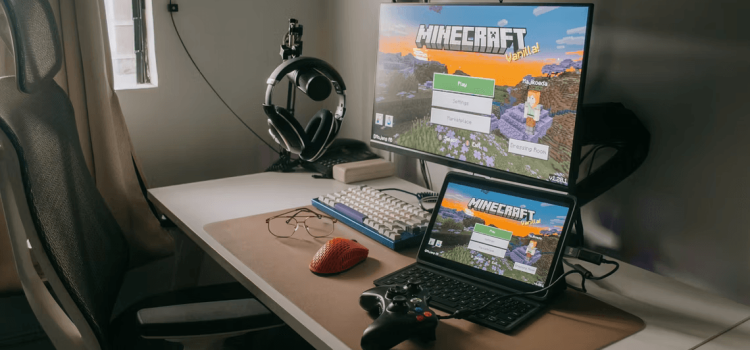
In the realm of gaming, few experiences are as exciting as immersing yourself in a Minecraft LAN world with friends. However, the frustration of being unable to connect or facing disruptions in your LAN gaming session can be a real buzzkill. If you’re a Windows user grappling with Minecraft LAN woes, you’ve come to the right place. In this article, we’ll explore seven proven solutions to get your LAN world up and running smoothly. Whether you’re a seasoned gamer or a novice explorer, these expert tips will help you overcome the hurdles and reconnect with your friends seamlessly.

1. Connect Both Devices to the Same Network

The Foundation of a Smooth LAN Experience

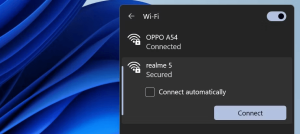
Before delving into complex fixes, start with the basics. To join or host a Minecraft LAN world, all devices must be on the same network. To ensure this, check your network connection settings and disable automatic connections to other networks. This simple step can save you from connectivity headaches.

LAN World
Image by https://www.makeuseof.com/

2. Connect to the Same Network Using the Same Connection Method

Syncing Connection Types

It’s not just about being on the same network; your connection type matters too. Ensure that your device uses the same connection method (Wi-Fi, Ethernet, etc.) as the host. Even though Minecraft doesn’t strictly require this, matching your connection type with the host’s can resolve compatibility issues.

3. Ensure You’re Using the Same Minecraft Version as the Host

Version Compatibility is Key

A common oversight is not running the same Minecraft version as the host. Ensure that your game is up-to-date by selecting the latest release in the Minecraft launcher. Mismatched versions can be a major obstacle to joining LAN worlds.

LAN World
Image by https://www.makeuseof.com/

4. Change Your Windows Network Profile to Private

Unlocking Private Network Access

Windows often sets new network connections as public by default. This setting hides your device from others on the network. Change your network profile to private so that other devices can see and connect to your machine, making LAN gaming a breeze.

5. Enable Network Discovery in the Control Panel

The network discovery feature in Windows allows your device to discover other devices connected to the same network or permit other devices to see yours. If you still can’t join the LAN world in Minecraft or have issues, make sure this setting is turned on. Here’s how you can check that:

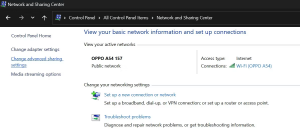
  1. Type “Control Panel” in Windows Search and open the Control Panel app.
  2. Navigate to Network and Internet > Network and Sharing Center.
  3. Click on the Change advanced sharing settings option on the left.

    LAN World
    Image by https://www.makeuseof.com/
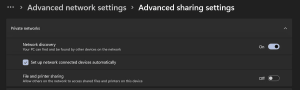
  4. Expand the private network profile and turn on the toggle next to Network discovery.
  5. Also, check the box beside Set up network connected devices automatically.

    LAN World
    Image by https://www.makeuseof.com/

6. Perform Some General Fixes

Troubleshooting 101

When all else fails, these general fixes can come to your rescue:

  • Whitelist Minecraft in Windows Defender to prevent connection blocks.
  • Disable proxy servers or VPN connections.
  • If using mods, ensure everyone has the same mods or try playing without them.
  • Check your router settings for any restrictions on device connectivity.

7. Create a Direct Connection in Minecraft

Going Direct for Reliable Connectivity

LAN World
Image by https://www.makeuseof.com/

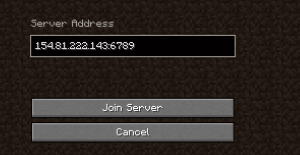
If nothing else works, establish a direct connection to the host server. This method involves using the host’s IPv4 address and LAN port number. It’s a surefire way to bypass most connectivity issues.

LAN World
Image by https://www.makeuseof.com/

Conclusion

In the world of Minecraft, adventures are best shared with friends in LAN worlds. But when technical glitches obstruct your path, it can be disheartening. By following these seven expert-backed solutions, you can troubleshoot and overcome LAN connection problems on your Windows system. Now, reconnect with your friends and dive back into the blocky wonders of Minecraft without a hitch.

Knowledge Source:

This article is based on insights from Shan Abdul, a seasoned gamer and tech enthusiast. With years of experience in navigating Minecraft LAN challenges, Shan has become a go-to source for gamers seeking solutions to connectivity issues.


Informative Table: 7 Ways to Fix Minecraft LAN Issues

Issue Solution
Devices not on the same network Connect all devices to the same network.
Different connection methods Ensure all devices use the same connection method.
Version mismatch Use the latest Minecraft version or match the host’s version.
Windows network profile set to public Change the network profile to private.
Network discovery disabled Enable network discovery in Windows settings.
General troubleshooting Whitelist Minecraft, disable proxies/VPNs, mod compatibility.
Direct connection not established Establish a direct connection using IPv4 address and LAN port.

Comparative Table: Connection Methods

Connection Method Advantages Disadvantages
Wi-Fi Wireless convenience Potential for interference
Ethernet Reliable, low latency Requires physical connection

Fix a Grayed Out “Extend Volume” Option in Disk Management for Windows

If you’re struggling with Windows preventing you from extending your disk volume, don’t worry—there’s a solution. In this article, we’ll delve into the reasons behind the grayed-out “extend volume” option and guide you through expert strategies to resolve it effectively.

Why Is the Extend Volume Option Grayed Out on Windows?

If you’ve encountered the frustrating situation where the “extend volume” option is grayed out in the Disk Management tool, several factors might be at play. Here’s what you need to consider:

  1. Unallocated Space Placement: The unallocated space needed to extend a partition must be adjacent to the partition itself.
  2. File System Compatibility: If the partition’s file system isn’t supported by Windows, you won’t be able to extend it.
  3. Lack of Unallocated Space: Without available unallocated space on the drive, the “extend volume” option remains inaccessible.

Now that we’ve identified potential culprits, let’s explore the solutions that can help you regain control over your disk management.

1. Convert the Partition to an NTFS File System

Windows has specific compatibility requirements for file systems. If the target partition is formatted in a non-compatible file system, such as FAT32, you won’t be able to extend it. Here’s how to address this:

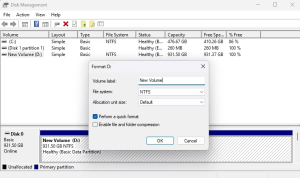
  • Right-click on the partition and select Format.
  • Choose NTFS from the File system drop-down menu, then click OK.
  • Be aware that formatting erases data, so back up your data before proceeding.

The conversion might take time depending on your data volume. After completion, restart your computer and check if the “extend volume” option is now accessible.

Extend Volume
Image by https://www.makeuseof.com/

2. Delete a Partition and Create Unallocated Space

Lack of adjacent unallocated space can cause the “extend volume” option to be grayed out. To free up space, you might need to delete a neighboring partition. Here’s how:

Extend Volume
Image by https://www.makeuseof.com/
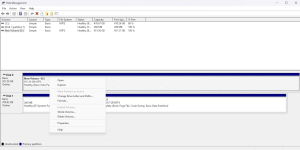
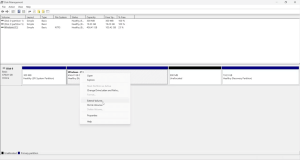
  • For a regular volume, right-click and choose Delete Volume (backup data first).
  • For a recovery partition, use Command Prompt:
    • Open Command Prompt as an administrator.

      Extend Volume
      Image by https://www.makeuseof.com/
    • Enter DiskPart, then type list disk to select the desired disk.
    • Use list partition to find the recovery partition’s number.

      Extend Volume
      Image by https://www.makeuseof.com/
    • Select the partition with select partition [number], then use delete partition override to remove it.
  • Open Disk Management to find unallocated space. Right-click on the target partition, choose Extend Volume, and follow the prompts.

    Extend Volume
    Image by https://www.makeuseof.com/

Your partition should now extend seamlessly.

Extend Volume
Image by https://www.makeuseof.com/

Extend Your Windows Partitions Without Any Further Issues

Managing disk space is essential for smooth system performance. The grayed-out “extend volume” issue doesn’t have to be a roadblock. By converting incompatible file systems and strategically creating unallocated space, you can efficiently manage your partitions. With these expert solutions, you can empower yourself to overcome the extend volume challenge.

Aman Kumar: Your Guide to Disk Management Solutions

Meet Aman Kumar, a seasoned tech enthusiast with years of experience in troubleshooting and optimizing Windows systems. Aman’s passion for simplifying complex tech problems led him to become a trusted source for practical solutions. With his insightful guidance, you’ll navigate the world of Windows disk management with confidence.

Comparative Table: Troubleshooting Methods

Issue Solution
Incompatible File System Convert the partition to NTFS.
No Adjacent Unallocated Space Delete a neighboring partition to create unallocated space, then extend the target partition.

Essential Points at a Glance

Problem Solution
Extend volume grayed out 1. Convert partition to NTFS
2. Delete a partition and create unallocated space
Unallocated space placement Adjacent to the partition being extended
File system compatibility Ensure the partition is formatted as NTFS
Lack of unallocated space Create unallocated space by deleting a partition

In the dynamic world of technology, problem-solving is key. With Aman Kumar’s insights and expert solutions, you’re empowered to conquer the extend volume challenge and optimize your Windows disk management for a seamless experience.

Introduction: A Guide to Unearthing iOS 17’s Message App Treasures

In the ever-evolving realm of mobile technology, Apple’s iOS updates are keenly anticipated for the array of innovative features they bring. While iOS 17 doesn’t showcase flashy introductions, it’s not without its gems. George Tinari, a tech enthusiast known for his insightful commentary on iOS advancements, uncovers six concealed features in the Messages app that elevate your texting escapades to new heights.

1. Catch Up with a Tap: “Catch Up” Button in Group Chats

Missing out on group conversations is a thing of the past with the “catch up” button. Tinari dives into this valuable enhancement, showcasing how it helps you swiftly return to where you left off, even amidst a flurry of messages.

iOS 17's
Image by https://www.makeuseof.com/

2. Seamless Interaction: Swipe to Reply with Ease

Tinari unravels the intuitiveness of the swipe-to-reply function. No longer confined to cumbersome steps, responding to messages becomes fluid and natural. This gem, exclusive to iMessage conversations, empowers effortless communication.

iOS 17's
Image by https://www.makeuseof.com/

3. Connected Conversations: Displaying Contact Locations

Bringing the Find My app into play, Tinari explains how iOS 17 seamlessly integrates your contacts’ locations into Messages. By ingeniously placing the location snippet atop conversations, you stay informed about your contacts’ whereabouts without missing a beat.

4. Personalized Stickers: Turn Your Photos into Stickers

Tinari delves into the creative realm of iOS 17’s sticker-making feature. Transforming photos into expressive stickers is a game-changer for sharing emotions. The article walks you through the process, demonstrating the delight of crafting your unique visual language.

5. Written Word from Sound: Automatic Transcription of Audio Messages

Transcribing audio messages isn’t just a dream anymore. Tinari illustrates how this feature streamlines communication by providing automatic transcriptions of audio messages, making conversations more inclusive and accessible.

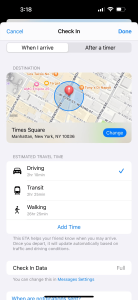
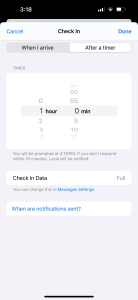
6. Thoughtful Check-Ins: Sharing Your Arrival with Ease

The Check In feature is a standout revelation in iOS 17. Tinari dissects its utility, offering insights into how it allows you to notify contacts upon your arrival. Whether through location-based or time-triggered notifications, this innovation addresses a common issue of informing loved ones about your safety.

Embrace the Enhanced Experience: Apple’s iOS 17 Messaging Evolution

Tinari’s article encapsulates the essence of iOS 17’s Messages app evolution. It’s not just about show-stopping features but about enriching everyday interactions. The six hidden gems he uncovers reflect Apple’s commitment to refining the user experience in subtle yet impactful ways.

Key Features at a Glance

Feature Description
Catch Up Button Quickly return to where you left off in group chats.
Swipe to Reply Effortlessly reply by swiping right on messages.
Contact Locations View friends’ locations integrated into messages.
Create Photo Stickers Transform your photos into personalized stickers.
Audio Message Transcription Automatic transcription of audio messages.
Check In Notifications Notify contacts about your arrival through automated notifications.

Feature Comparison

Feature Benefit
Catch Up Button Effortlessly get up to speed in group conversations.
Swipe to Reply Instantly respond with a simple swipe, saving time.
Contact Locations Stay connected with friends by knowing their whereabouts.
Create Photo Stickers Express yourself uniquely with personalized stickers.
Audio Message Transcription Conveniently read audio messages when unable to listen.
Check In Notifications Keep loved ones informed about your safety during travels.

Meet the Knowledge Source: George Tinari

George Tinari, a seasoned tech writer and enthusiast, has a knack for dissecting software updates to reveal their hidden marvels. With years of experience in the field, Tinari has been a prominent voice in app and software analysis. His meticulous examination of iOS 17’s Messages app features showcases his expertise in unearthing the intricacies that enrich users’ digital experiences.

Conclusion: A Fresh Outlook on Texting

With George Tinari as your guide, the concealed treasures of iOS 17’s Messages app come to light. These features, though tucked away, redefine your interaction with friends and family. From quicker catch-ups to personalized stickers, iOS 17’s enhancements promise a seamless and elevated messaging escapade. Embrace these subtle innovations, and reimagine the way you communicate in the digital age.

Introduction: Controller Not Working on Windows PC

Meet Pankil Shah, an avid gamer and tech enthusiast with a knack for solving gaming-related challenges. If your gaming controller is giving you a hard time on your Windows PC, Pankil’s got you covered. With his extensive expertise, he’s here to walk you through practical solutions to get your controller up and running smoothly again.

1. Check if Windows Recognizes Your Controller:

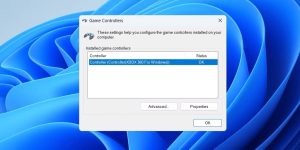
Before diving into complex fixes, start with the basics. Open the Game Controller Settings using Win + R, then type “joy.cpl” and hit Enter. If your controller’s status is not showing as OK or it’s missing, a connection issue might be at play.

Controller
Image by https://www.makeuseof.com/

2. Disconnect and Reconnect the Controller:

The good ol’ “turn it off and on again” mantra works here too. For wired controllers, switch USB ports. Wireless? Ensure it’s charged, then try unpairing and pairing it once more. Often, this simple act works wonders.

3. Scan for Hardware Changes:

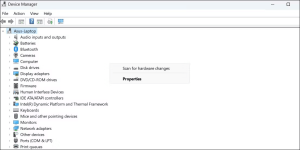
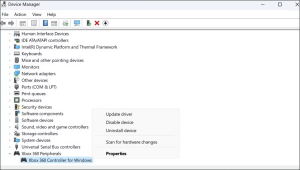
If the issue persists, the Device Manager is your friend. Right-click the Start icon, select Device Manager, then scan for hardware changes. Your controller should pop up, ready to work its magic.

Controller
Image by https://www.makeuseof.com/

4. Run the Relevant Window Troubleshooters:

Controller
Image by https://www.makeuseof.com/

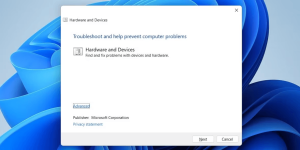
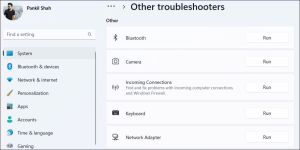
When recognition isn’t enough, utilize built-in troubleshooters. Win + R, type “msdt.exe -id DeviceDiagnostic,” hit Enter, and let it fix common problems. For wireless controllers, try the Bluetooth troubleshooter via Settings > Troubleshoot > Bluetooth.

Controller
Image by https://www.makeuseof.com/

5. Update or Reinstall the Controller’s Driver:

Outdated drivers can be the root of evil. Search Device Manager, locate your controller, right-click, and select Update driver. Opt for searching automatically for drivers. No luck? Uninstall the driver, restart your PC, and let Windows reinstall it.

Controller
Image by https://www.makeuseof.com/

6. Update Your Controller’s Firmware:

Stay ahead by keeping your controller’s firmware updated. Visit the manufacturer’s app or website for the latest software. It’s a crucial step in maintaining compatibility and a seamless gaming experience.

Controller
Image by https://www.makeuseof.com/

Conclusion:

Thanks to Pankil Shah’s insights, you’re well-equipped to tackle controller issues on your Windows PC. Gaming glitches are no match for these proven solutions. Remember, a well-maintained controller makes for a fantastic gaming experience. Don’t let technical roadblocks hinder your gaming adventures any longer. Happy gaming!

About Pankil Shah: Pankil Shah is your go-to guide for all things gaming and tech. With a passion for unraveling complexities, Pankil’s expertise shines when troubleshooting gaming-related dilemmas. Years of hands-on experience and a deep understanding of technology make Pankil an invaluable resource for gamers seeking to enhance their virtual escapades. Rest assured, with Pankil’s advice, you’re in capable hands.

Visual Table: Key Points Overview

Point Solution
1 Check Windows recognition
2 Disconnect and reconnect
3 Scan for hardware changes
4 Run relevant troubleshooters
5 Update or reinstall controller driver
6 Update controller’s firmware

Comparative Table: Troubleshooters Comparison

Troubleshooter Purpose Steps to Run
Hardware and Devices Fix common issues with controllers Win + R, msdt.exe -id DeviceDiagnostic, follow prompts
Bluetooth Resolve wireless controller problems Win + I, System > Troubleshoot > Bluetooth, Run

Introduction: Ebooks and Documents

Joseph Chidi, a seasoned tech enthusiast, brings you expert insights on seamlessly sending ebooks and documents to your Kindle from Apple devices. With his extensive knowledge, Chidi simplifies the process, making it accessible to readers of all levels.

Kindle eReaders: Your Personal Library in Your Pocket

Kindle eReaders have revolutionized reading, but did you know you can also upload your own ebooks and documents? Follow these steps to have your content at your fingertips.

Ebooks and Documents
Image by https://www.makeuseof.com/

Supported File Formats: A Crucial Starting Point

Not all file formats are compatible with Kindle devices. To ensure a smooth transfer, consult Amazon’s list of supported formats or use an online file converter for easy conversion.

Sending from a Mac: Effortless Integration with Send to Kindle

Discover the cloud-based service, Send to Kindle, designed for Mac users. Follow these straightforward steps to send your files to your Kindle library:

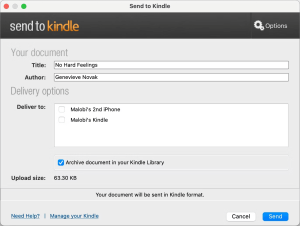
  1. Download the Send to Kindle app from Amazon.
  2. Install and launch the app, then log in with your Amazon account.
  3. Drag and drop your files into the app.
  4. Choose your Kindle device under Delivery Options and click Send.

A Mac Alternative: Quick Context Menu Transfer

For a rapid solution, use Finder’s context menu to send files to your Kindle. Simply locate the file, Control-click it, and choose “Send to Kindle.”

iOS Convenience: Sending from iPhone or iPad

Explore the Kindle App’s Send to Kindle feature on iOS devices. Here’s how to do it:

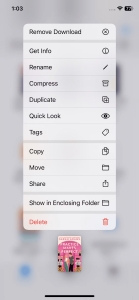
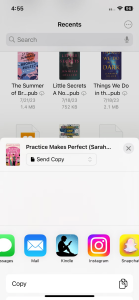
  1. Open the Files app on your device and select the document.
  2. Long-press the document, choose Share, and select Kindle from the options.
  3. If Kindle isn’t visible, tap “More” and enable the Kindle option.

Take Your Library Anywhere

With a Kindle-compatible format and your Amazon account, your documents will appear in your Kindle Library within minutes. Now you can access your digital library anytime, anywhere.

Key Points at a Glance

Platform Method Steps
Mac Send to Kindle App 1. Download the app<br>2. Log in<br>3. Drag and drop files<br>4. Select device and send
Mac Finder Context Menu 1. Locate the file<br>2. Control-click<br>3. Select “Send to Kindle”
iPhone or iPad Kindle App’s Send to Kindle 1. Open Files app<br>2. Long-press file<br>3. Choose Share<br>4. Select Kindle (or “More”)

A Comparative Overview

Method Advantages Disadvantages
Send to Kindle App (Mac) + Seamless integration<br>+ Direct device selection – App download required<br>- Mac exclusive
Finder Context Menu (Mac) + Quick transfer<br>+ No additional app required – Limited to Mac devices
Kindle App (iOS) + Available on iOS devices<br>+ User-friendly – Regional availability may vary<br>- App navigation

Conclusion: Your Digital Library Awaits!

Thanks to Joseph Chidi’s expert guidance, you now have the power to effortlessly transfer your ebooks and documents to your Kindle from Apple devices. Embrace the flexibility of taking your digital library with you wherever you go. Start exploring today!

About the Author Joseph Chidi is a tech aficionado with years of experience in simplifying complex tech processes. His passion for making technology accessible to everyone has led him to share his expertise through writing. Connect with Joseph on Twitter for more insights.