Introduction to Illuminated Typing:
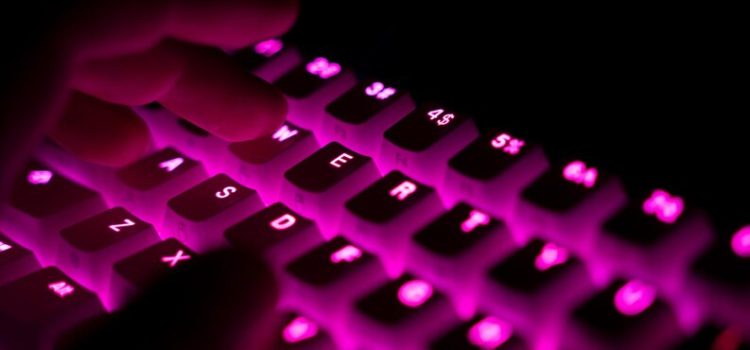
Illuminated typing, also known as backlit keyboards, has become a popular feature in modern laptops. HP laptops offer this fantastic feature, allowing users to type comfortably in low-light conditions. In this article, we will explore how to customize the keyboard lights on HP laptops to suit your preferences and enhance your overall typing experience.
Understanding the Keyboard Light Settings on HP Laptops:
Before diving into the customization process, it’s essential to understand the keyboard light settings available on HP laptops. The settings might vary depending on the model and software version, but the general options typically include brightness control, color options, and the ability to turn the backlit feature on or off.
Step-by-Step Guide to Customizing Keyboard Lights:
Accessing the Keyboard Light Settings: To begin customizing the keyboard lights, navigate to the “Keyboard” or “System Preferences” section on your HP laptop. Look for the “Keyboard Lighting” or “Backlight” option, and click on it.
Adjusting Brightness: The first customization option usually involves adjusting the brightness of the keyboard lights. Some laptops allow you to control brightness using dedicated function keys, while others might have a slider within the settings. Find the desired brightness level that suits your environment and personal preference.
Choosing Illumination Colors: Some HP laptops offer the option to change the illumination colors of the backlit keyboard. You might have a range of colors to choose from, allowing you to personalize your laptop’s appearance and match it with your style.
Setting Lighting Patterns (Optional): In more advanced models, you may have the choice to set lighting patterns, such as static, breathing, or dynamic effects. Experiment with these options to find a pattern that complements your typing experience.
Customizing Keyboard Zones (Select Models): Certain HP laptops have a unique feature that allows you to customize the lighting in different zones on the keyboard. This feature is particularly useful for gamers and users who prefer a more dynamic keyboard lighting setup.
Tips for Enhancing Your Typing Experience with Illuminated Keys:
Optimal Brightness: While it might be tempting to set the keyboard brightness to the maximum, it’s essential to find the optimal level for your eyes and the surrounding environment. Too much brightness can cause eye strain, while too little might make it difficult to see the keys.
Selecting Calming Colors: When choosing illumination colors, consider opting for calming tones that are easy on the eyes during extended typing sessions. Blue and green shades are often recommended for a more soothing experience.
Using Lighting Patterns Wisely: If your laptop supports lighting patterns, avoid using overly flashy or distracting effects, especially in professional settings. Stick to subtle and straightforward patterns that add a touch of elegance to your typing.
Preserving Battery Life: While illuminated typing is a great feature, it can consume more battery power. Remember to turn off the backlit keyboard when it’s not needed to conserve battery life, especially when working on the go.
Conclusion:
Customizing the keyboard lights on your HP laptop allows you to personalize your typing experience and adds a touch of style to your device. With the step-by-step guide provided in this article, you can easily adjust the brightness, choose illumination colors, and explore additional lighting patterns on select models. Remember to strike a balance between aesthetics and functionality while enhancing your typing experience with illuminated keys. Enjoy comfortable and efficient typing, even in dimly lit environments, with your customized illuminated typing settings on your HP laptop.