Introduction
Meet Aman Kumar: Your Guide to Twitch Notifications
Are those endless Twitch notifications hindering your productivity and focus? If so, you’re not alone. In today’s digitally connected world, notifications can be a double-edged sword. While they keep you informed, they can also be a major distraction.
In this guide, we’ll introduce you to Aman Kumar, your go-to expert, who will help you regain control over your Twitch notifications. With Aman’s assistance, you’ll learn how to disable those pesky notifications on both desktop and mobile devices. So, let’s dive into this quest for uninterrupted productivity.
The Annoying Twitch Notifications
Understanding the Distraction
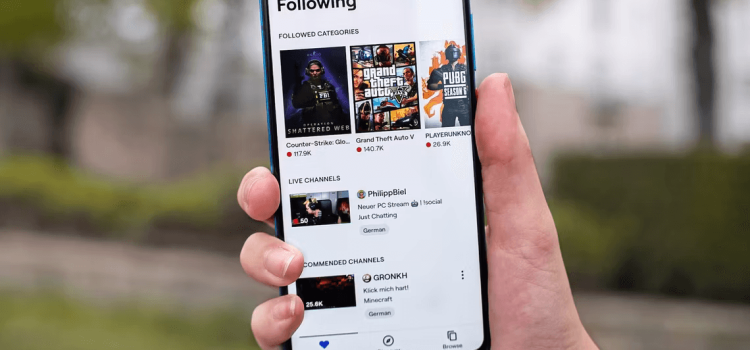
Imagine this scenario: You’re deeply engrossed in an important project, and suddenly, a notification pops up on your screen. It’s Twitch, letting you know that your favorite streamer is live. The temptation to click and check out the stream is strong, disrupting your workflow.
The Need to Disable
To maintain your focus, it’s essential to disable Twitch notifications when they become more of a distraction than an update. Of course, if you need assistance in staying concentrated, we’ll also explore some apps that can help.
How to Disable Twitch Notifications on Desktop
Step 1: Log In to Your Account
The journey begins by opening Twitch in your browser and logging into your account.
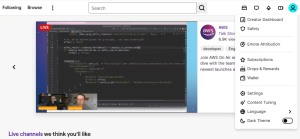
Step 2: Accessing Settings
Click on your profile icon in the top-right corner and choose “Settings” from the menu.
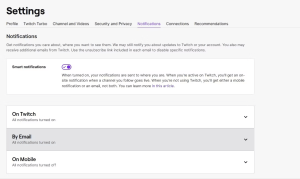
Step 3: Navigating to Notifications
Now, navigate to the “Notifications” tab.
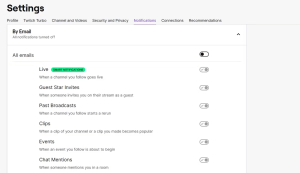
Step 4: Tailoring Your Notifications
Click the drop-down icon next to “By Email” to fine-tune your email notifications. You can even disable all activities with the “All emails” toggle.
Step 5: Total Notification Silence
For complete silence while using Twitch, explore the “On Twitch” drop-down menu and disable irrelevant notifications. Your focus will thank you.
How to Disable Twitch Notifications on Mobile
Step 1: Launching the Mobile App
Open the Twitch mobile app and log in to your account.
Step 2: Accessing Settings on Mobile
Tap your profile icon in the top-left corner and select “Settings” from the menu.
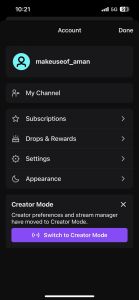
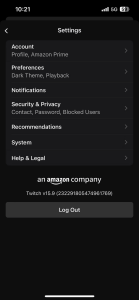
Step 3: Mobile Notification Control
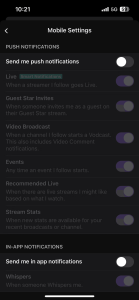
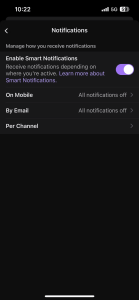
Choose “Notifications” and then “On Mobile.” Turn off the “Send me push notifications” toggle.

Step 4: A Customized Mobile Experience
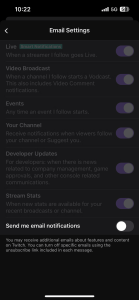
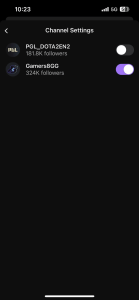
To halt Twitch email notifications, tap “By Email” and switch off the “Send me email notifications” toggle. If you want to stop notifications from a specific channel, explore the “Per channel” option.
Stop the Distractions – Enjoy Focused Work
The Wisdom in Notification Management
Notifications can be both a boon and a bane. While they keep us informed, they can disrupt the most important tasks. If you find Twitch notifications affecting your workflow, use the techniques described above to regain control.
Tools for Enhanced Concentration
For those seeking enhanced focus and productivity, consider using apps designed to improve attention span and reduce distractions while working.
Conclusion
Achieving Peace from Twitch Notifications
In a world of constant digital noise, achieving a distraction-free environment is a valuable skill. Thanks to Aman Kumar’s guidance, you now have the knowledge to take charge of your Twitch notifications. Reclaim your focus, and enjoy uninterrupted productivity.