Introduction: Controller Not Working on Windows PC
Meet Pankil Shah, an avid gamer and tech enthusiast with a knack for solving gaming-related challenges. If your gaming controller is giving you a hard time on your Windows PC, Pankil’s got you covered. With his extensive expertise, he’s here to walk you through practical solutions to get your controller up and running smoothly again.
1. Check if Windows Recognizes Your Controller:
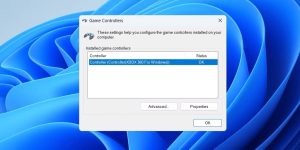
Before diving into complex fixes, start with the basics. Open the Game Controller Settings using Win + R, then type “joy.cpl” and hit Enter. If your controller’s status is not showing as OK or it’s missing, a connection issue might be at play.
2. Disconnect and Reconnect the Controller:
The good ol’ “turn it off and on again” mantra works here too. For wired controllers, switch USB ports. Wireless? Ensure it’s charged, then try unpairing and pairing it once more. Often, this simple act works wonders.
3. Scan for Hardware Changes:
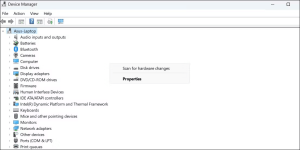
If the issue persists, the Device Manager is your friend. Right-click the Start icon, select Device Manager, then scan for hardware changes. Your controller should pop up, ready to work its magic.
4. Run the Relevant Window Troubleshooters:
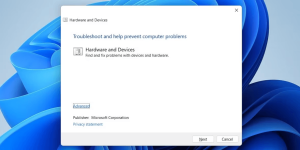
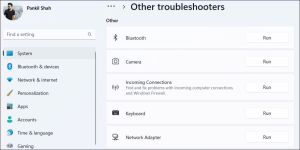
When recognition isn’t enough, utilize built-in troubleshooters. Win + R, type “msdt.exe -id DeviceDiagnostic,” hit Enter, and let it fix common problems. For wireless controllers, try the Bluetooth troubleshooter via Settings > Troubleshoot > Bluetooth.
5. Update or Reinstall the Controller’s Driver:
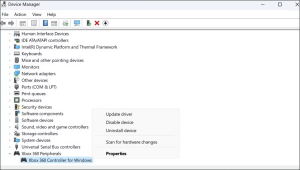
Outdated drivers can be the root of evil. Search Device Manager, locate your controller, right-click, and select Update driver. Opt for searching automatically for drivers. No luck? Uninstall the driver, restart your PC, and let Windows reinstall it.
6. Update Your Controller’s Firmware:
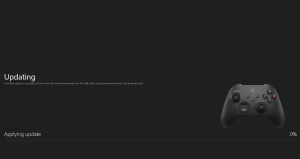
Stay ahead by keeping your controller’s firmware updated. Visit the manufacturer’s app or website for the latest software. It’s a crucial step in maintaining compatibility and a seamless gaming experience.
Conclusion:
Thanks to Pankil Shah’s insights, you’re well-equipped to tackle controller issues on your Windows PC. Gaming glitches are no match for these proven solutions. Remember, a well-maintained controller makes for a fantastic gaming experience. Don’t let technical roadblocks hinder your gaming adventures any longer. Happy gaming!
About Pankil Shah: Pankil Shah is your go-to guide for all things gaming and tech. With a passion for unraveling complexities, Pankil’s expertise shines when troubleshooting gaming-related dilemmas. Years of hands-on experience and a deep understanding of technology make Pankil an invaluable resource for gamers seeking to enhance their virtual escapades. Rest assured, with Pankil’s advice, you’re in capable hands.
Visual Table: Key Points Overview
| Point | Solution |
|---|---|
| 1 | Check Windows recognition |
| 2 | Disconnect and reconnect |
| 3 | Scan for hardware changes |
| 4 | Run relevant troubleshooters |
| 5 | Update or reinstall controller driver |
| 6 | Update controller’s firmware |
Comparative Table: Troubleshooters Comparison
| Troubleshooter | Purpose | Steps to Run |
|---|---|---|
| Hardware and Devices | Fix common issues with controllers | Win + R, msdt.exe -id DeviceDiagnostic, follow prompts |
| Bluetooth | Resolve wireless controller problems | Win + I, System > Troubleshoot > Bluetooth, Run |