This comprehensive guide is designed for Windows 11 users who are seeking ways to optimize their system’s performance by disabling Microsoft Edge’s tab preloading feature. The audience comprises individuals who have a basic understanding of Windows operating systems and are familiar with concepts like system settings, registry editing, and third-party applications.

Introduction: Disable Microsoft Edge Tab

In the realm of Windows 11, Microsoft Edge stands as the default browser, steadfastly integrated into the operating system. However, not all users find themselves enamored by its offerings, often preferring alternatives that align more with their browsing habits. One peculiar characteristic of Microsoft Edge is its “tab preloading” feature, which, while serving Edge aficionados, can be a resource-draining nuisance for those who have chosen a different path. This article delves into the world of tab preloading and presents four distinct ways to disable it in Windows 11, offering users the power to optimize their computing experience and conserve valuable system resources.

Understanding Microsoft Edge Tab Preloading

Before we embark on our journey to disable tab preloading, let’s fathom what it entails. Tab preloading is the practice of loading the Start and New Tab pages of Microsoft Edge while signing in to your Windows 11 PC. Although a boon for Edge enthusiasts, it might amount to a superfluous drain on system resources for users who’ve opted for other browsing alternatives. The next sections elucidate methods to tame this resource-consuming behavior.

Using the Group Policy Editor to Disable Tab Preloading

For those traversing the Windows 11 landscape in Pro, Education, or Enterprise realms, the Group Policy Editor is a tool of considerable might. It bestows the ability to configure system policies and personalize the computing environment. If you’re among the fortunate wielders of this editor, the path to disabling tab preloading is relatively straightforward:

  1. Initiate a search by pressing Win + S and typing “gpedit.msc” into the text box.
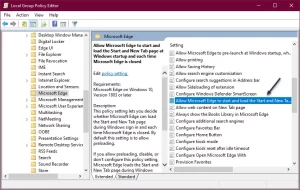
  2. In the Group Policy Editor, navigate through User Configuration > Administrative Templates > Windows Components > Microsoft Edge.
  3. Locate the policy “Allow Microsoft Edge to start and load the Start and New Tab page at Windows startup and each time Microsoft Edge is closed.” Disable it by modifying the options.
  4. Apply the changes and restart your PC to witness the newfound optimization.
    Microsoft Edge
    Image by:https://techsavvy.life/

Registry Editor Method for Home Users

For those dwelling in the Home iteration of Windows 11, the path to tab preloading eradication takes a different route. The Registry Editor assumes the role of protagonist, offering a manual means of disabling this behavior:

  1. Prioritize safety by backing up your registry.
  2. Open the Run dialog by pressing Win + R and entering “regedit.”
  3. Navigating through HKEY_LOCAL_MACHINE\SOFTWARE\Policies\Microsoft\MicrosoftEdge\Main, create a new DWORD (32-bit) Value named “AllowPrelaunch” and set its value data to 0.
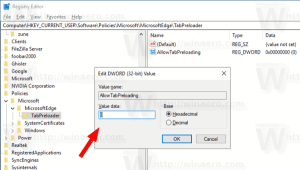
  4. Forge a new path through HKEY_LOCAL_MACHINE\SOFTWARE\Policies\Microsoft\MicrosoftEdge and create a new key named “TabPreloader.”
  5. Within this key, create another DWORD (32-bit) Value named “AllowTabPreloading” and set its value data to 0.
  6. After applying these changes, restart your PC to bask in the realm of preloading-free browsing.
    Microsoft Edge
    Image by:https://winaero.com/

Streamlining the Process with Third-Party Apps

For those seeking a simpler solution, a third-party champion steps onto the stage: the Ultimate Windows Tweaker app. This app offers a user-friendly approach to disabling tab preloading:

  1. Begin by acquiring the Ultimate Windows Tweaker app and installing it on your PC.
  2. Launch the app, employing administrative privileges.
  3. Employ the “Search For Tweaks” option and query “edge tab.”
  4. Enable the “Disable Edge Tab Preloading” option and execute the tweaks.
  5. Bid adieu to tab preloading, and after closing the app, embark on a system restart.
    Microsoft Edge
    Image by:https://www.reflectiz.com/

Making the Right Choice for You

In this expedition, we’ve explored multiple paths to vanquish tab preloading from Windows 11. Whether you wield the power of the Group Policy Editor, take the registry route, or harness the convenience of a third-party application, the result remains the same—a resource-optimized computing experience tailored to your preferences. The choice is yours, the tools are at your disposal; now, enhance your Windows 11 voyage by disabling Microsoft Edge’s tab preloading and embracing a smoother, more efficient journey.

Conclusion

In the realm of Windows 11 customization, the ability to disable Microsoft Edge’s tab preloading unveils a world of optimization. No longer shall you endure the resource drain imposed by tab preloading if you opt for other browsers. With the Group Policy Editor, the Registry Editor, or the Ultimate Windows Tweaker app, you’re empowered to shape your computing experience. By following the paths outlined in this guide, you’ll liberate your system resources, resulting in a more streamlined, efficient, and personalized Windows 11 journey. Say goodbye to unnecessary tab preloading and embark on a browsing experience that aligns seamlessly with your preferences.

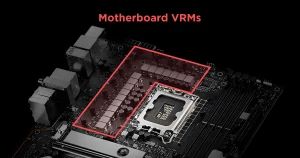
This article is designed for PC enthusiasts, gamers, and tech-savvy individuals who are interested in understanding the significance of Voltage Regulator Modules (VRMs) on motherboards. Readers seeking to enhance their knowledge about motherboard components and their impact on system stability and performance will benefit from this comprehensive guide.

Introduction: Unveiling the Power of VRM on a Motherboard

When building a PC, enthusiasts often focus on components like CPUs, GPUs, and RAM, but there’s a critical player that works behind the scenes to ensure stable performance—Voltage Regulator Modules (VRMs). These electronic circuits, commonly referred to as buck converters, play a crucial role in regulating voltages to match the specific requirements of various components, including CPUs and memory. In this article, we delve into the world of VRMs, uncovering their significance, how they function, the essential components they comprise, and how to identify top-quality VRM configurations.

How VRM Works: The Engine Behind Stable Power Delivery

At its core, a VRM is akin to a specialized power supply that takes incoming voltages and converts them to levels suitable for different PC components. It acts as a secondary level of voltage regulation, ensuring that CPUs and other power-hungry parts receive consistent and clean voltage. VRMs transform the incoming 12V from EPS connectors into the optimal operating voltage range for modern CPUs. This function is crucial in maintaining stability and preventing absurd voltage surges or drops. VRMs also enable multiple generations of CPUs to function optimally on compatible motherboards, facilitating dynamic core voltage adjustments.

motherboard
Image by:https://www.cgdirector.com/

Components of VRM: Building Blocks of Stable Performance

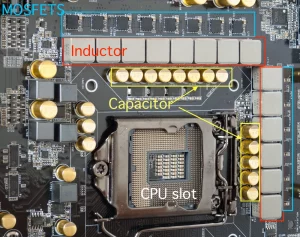
Behind every VRM’s operation are several key components that work in harmony. MOSFETs (Metal-Oxide-Semiconductor Field-Effect Transistors) are insulated gates that amplify or attenuate electronic signals, controlling the flow of current to the CPU. Chokes, cubic-shaped inductors, transform high-frequency AC signals into lower frequencies or direct currents, refining power delivery. Capacitors store and discharge energy to prevent voltage spikes, and PWM (pulse width modulation) controllers generate and adjust PWM pulses to regulate power delivery. These components come together to ensure consistent, clean power distribution, contributing to stable system performance.

motherboard
Image by:https://www.rankred.com/

Decoding VRM Quality: Identifying Top-Tier Configurations

Distinguishing between a well-engineered VRM and a subpar one is crucial for system stability. A higher number of phases is a hallmark of a quality VRM configuration, as it divides the load into separate power stages, reducing stress and heat generation. Components like leak-resistant solid-state capacitors and premium alloy chokes are indicators of a high-quality VRM. These components resist aging, consume less power, and offer superior reliability. By understanding these quality indicators, users can make informed decisions when selecting motherboards and ensure their systems are equipped with robust VRMs.

motherboard
Image by:https://www.anandtech.com/

Conclusion: The Unsung Champion of Motherboard Stability

While VRMs may remain in the background, their impact on system stability and performance is undeniable. These unsung heroes ensure that your PC’s components receive the clean and consistent power they need to function optimally. Through a deeper understanding of VRMs, enthusiasts can appreciate their role in achieving stable power delivery, preventing system crashes, and supporting optimal CPU performance. As users continue to explore the realms of PC building and optimization, the importance of VRMs as a backbone for efficiency and reliability becomes clearer than ever. So, whether you’re a gamer, a content creator, or a general user, remember that behind the scenes, VRMs are working tirelessly to keep your system running smoothly.

MacBook users who encounter the “Not Charging” status on their devices and seek simple explanations and solutions for this issue. This article is suitable for both novice and experienced users who want to understand the potential reasons behind the problem and learn how to troubleshoot it effectively.

Understanding the “Not Charging” Status on Your MacBook

The sight of your MacBook indicating “Not Charging” while it’s tethered to a power source might set off alarms. But here’s the secret: it’s not always cause for concern. This status, though seemingly perplexing, often has logical explanations. Let’s embark on a journey to demystify this phenomenon, exploring three simple reasons behind this declaration and, more importantly, learning how to address them. By the end of this article, you’ll be well-equipped to troubleshoot and resolve the issue like a pro.

1. Battery Health Management: A Lifesaver for Your Battery

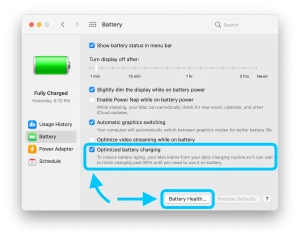
Modern MacBook models, fueled by both Intel processors and Apple’s groundbreaking silicon chips, come armed with a clever ally: Battery Health Management. This technology is a silent guardian of your battery’s longevity, mitigating the natural wear and tear that accompanies regular usage. While it might cause temporary pauses in charging, the trade-off is worthwhile—your battery enjoys an extended lifespan. We’ll guide you through the ins and outs of this feature, empowering you to seize control by toggling Optimized Battery Charging on and off in your Battery preferences.

Charging
Image by:https://9to5mac.com/

2. Power Source Predicament: Wattage Matters

Let’s delve into the critical role of your power source. If your MacBook’s battery status displays “Not Charging,” scrutinize your power adapter’s wattage. The tale of low-wattage adapters is cautionary: they provide sufficient energy to power your device but may fall short in fully replenishing your battery. Each MacBook model boasts a designated power adapter wattage, and using anything below this threshold can result in incomplete charging or even battery depletion. Embrace the wisdom of using the recommended wattage or higher for a balanced power equation.

Charging
Image by:https://www.reddit.com/

3. High-Energy Tasks: Power Drain Culprits

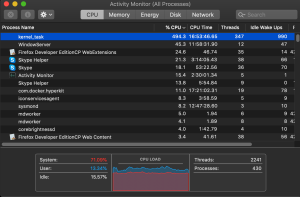
Power-hungry tasks, a hallmark of today’s computing landscape, might occasionally hinder your MacBook’s charging. Engaging in tasks that demand considerable computing power, such as GPU-intensive video editing or captivating gaming experiences, can cause your battery to discharge faster than it can recharge. The consequence? The “Not Charging” status. Discover strategies to optimize power consumption during these intensive endeavors and ensure your MacBook remains adequately charged, irrespective of the task at hand.

Charging
Image by:https://apple.stackexchange.com/

Conclusion:

The enigmatic “Not Charging” status on your MacBook need not be a cause for concern. Armed with newfound insights into Battery Health Management, power source considerations, and the influence of high-energy tasks, you’re now equipped to navigate this scenario confidently. By understanding these simple explanations and employing proactive strategies, you can ensure that your MacBook’s battery remains charged and ready to power your endeavors. Embrace this knowledge as you embark on a journey of seamless MacBook usage, unlocking its potential with every charge.

Introduction: Tailoring Your Spotify Experience with Autoplay Control

Your music journey on Spotify is personal, and the ability to shape it according to your preferences is vital. Autoplay, a unique feature, can either enhance or disrupt your flow, depending on how you like your tunes. Dive into our guide to discover how you can easily enable or disable autoplay on Spotify, giving you the power to curate your music experience precisely the way you want it.

Understanding Autoplay on Spotify

Ever reached the end of your playlist, only to have Spotify surprise you with a new track? That’s the magic of autoplay. This feature seamlessly continues the music after your playlist, album, or song selection concludes. It’s like having an ever-ready DJ at your disposal, ensuring that your auditory journey never falls silent. But what if you want to decide the rhythm? Let’s explore how you can manage this feature to dance to your beat.

How to Enable or Disable Autoplay on Spotify (Mobile)

Controlling autoplay on your mobile device is a breeze, granting you the freedom to customize your listening experience in just a few taps.

  1. Launch the Spotify app on your smartphone.
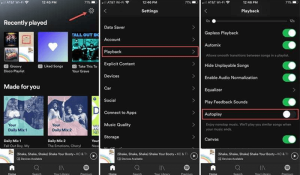
  2. Access the Settings icon located in the top-right corner and choose Playback.
  3. Activate Autoplay similar content.

    Spotify
    Image by:https://muconvert.com/

How to Enable or Disable Autoplay on Spotify (Desktop)

Desktop users, fear not! You have the same autonomy when it comes to managing autoplay on the bigger screen.

  1. Open the Spotify app on your computer.
  2. Click your Profile icon in the upper-right corner and select Settings.
  3. Locate the Autoplay option and toggle it on.

    Spotify
    Image by:https://www.idownloadblog.com/

Discover New Music with Spotify’s AI DJ

There’s a futuristic twist to your music exploration: Spotify’s AI DJ. Unveiled in February 2023, this innovative feature introduces songs you might love, complemented by a human-like voice commentary. If you’re feeling adventurous and the feature is available in your region, consider giving it a spin to witness Spotify’s uncanny understanding of your musical taste.

Spotify
Image by:https://newsroom.spotify.com/

Taking Charge of Your Spotify Experience

In the vast world of streaming platforms, customization reigns supreme. Empower yourself with the knowledge of adjusting settings to match your desired experience. Learning to navigate autoplay ensures that you’re not just a listener—you’re a conductor orchestrating your unique symphony.

Spotify
Image by:https://www.abc4.com/

Autoplay: Effortless Listening vs. Curated Playlists

The allure of autoplay lies in its ability to keep the music alive seamlessly. For those who revel in continuous beats, it’s a dream come true. But if you’re all about curated playlists and deliberate choices, toggling autoplay off might grant you peace of mind. The choice is yours, and Spotify empowers you to find your rhythm.

Conclusion: Mastering Your Musical Flow on Spotify

With the power to enable or disable autoplay, Spotify transforms from a mere app to your musical companion that dances to your tune. Seamlessly transition from one track to another or curate your playlists with meticulous precision. As you traverse the realm of melodies, remember that you hold the reins—let your auditory journey mirror your musical soul.

This content is designed for Apple Watch users who are seeking to infuse a touch of cuteness and charm into their device’s appearance. The audience includes individuals who appreciate playful and adorable aesthetics and are interested in discovering unique watch faces that showcase their personality. This information is valuable for users who want to explore watch face options that bring a smile to their face and add a delightful aspect to their Apple Watch experience.

Introduction: 4 Cute Apple Watch Faces

The Apple Watch is more than just a tech accessory; it’s an extension of your style and personality. If you’re in the mood for a dose of cuteness and charm, these four adorable Apple Watch faces are tailor-made to bring a smile to your face. From the beloved Snoopy to the creative Memoji and Playtime faces, each one offers a delightful way to express your playful side. Let’s dive into a world of whimsy and explore these cute watch faces that infuse a touch of joy into your Apple Watch.

1. Snoopy: Animated Delight

The Snoopy watch face, introduced with watchOS 10, stars the iconic duo of Snoopy and Woodstock. This animated face springs to life each time you raise your wrist, treating you to endearing scenes of the beagle and his feathered friend. Watch them interact with the watch hands, adapting to your activities – even sporting a scuba suit when you’re in the pool. With customizable clock numbers and background colors, the Sunday Surprise background adds a pop of color every week, reminiscent of the original comics.

Apple Watch
Image by:https://www.makeuseof.com/

2. Memoji: Characters on Your Wrist

The Memoji face takes the characters you love from your iPhone and brings them to your Apple Watch. From playful unicorns to majestic giraffes, you can choose from a range of Animoji characters. Alternatively, select any of your created Memojis for a personalized touch. Customizable background colors and dedicated complication spots on the top and bottom allow you to tailor this cute face to your preferences.

Apple Watch
Image by:https://www.makeuseof.com/

3. Stripes: Versatile and Vibrant

At first glance, the Stripes face may seem simple, but it’s surprisingly versatile. Choose the number of stripes (ranging from two to nine) and assign a unique color to each stripe. What’s more, you can even adjust the angle of the stripes for an added twist. While the full-screen version doesn’t support complications, the circular version offers four outer complications, making it functional and fun. For more useful complications, explore our list of the best Apple Watch complications.

Apple Watch
Image by:https://www.makeuseof.com/

4. Playtime: Whimsical Characters

Collaborating with illustrator Joi Fulton, the Playtime face introduces a whimsical cast of characters that form the shape of the current time. With a twist of the Digital Crown, change the background to suit your mood. Tap the face to watch the characters come to life. Customize the face further by selecting from various face colors and the option to disable the background, allowing the characters to steal the spotlight.

Apple Watch
Image by:https://www.makeuseof.com/

Conclusion: A World of Playful Possibilities

Your Apple Watch is a canvas for expression, and these four cute watch faces offer a playground of possibilities. Whether you’re enchanted by Snoopy’s antics, embracing the charm of Memojis, experimenting with vibrant Stripes, or exploring the whimsy of Playtime, each face encapsulates the joy of self-expression. Transform every glance at your Apple Watch into a delightful encounter that reflects your playful spirit.

This content is designed for individuals seeking clarity on the necessity of using a Virtual Private Network (VPN) to protect their internet activity. It caters to those who are curious about the privacy and security implications of VPN usage. This article helps readers understand whether a VPN is suitable for their needs and offers alternatives to enhance online privacy.

Debunking the Myths: VPNs and Internet Privacy

In the realm of online security and privacy, Virtual Private Networks (VPNs) have emerged as prominent tools, promising to shield users from prying eyes and secure their internet activities. Yet, as the digital landscape evolves, so do the myths and misconceptions surrounding VPNs’ effectiveness. The question that often arises is whether a VPN is truly essential for safeguarding internet privacy or if alternative methods exist that offer comparable benefits.

VPN Anonymity: The Yes and No

To demystify the notion of VPN anonymity, one must acknowledge that while VPNs can indeed obscure users’ IP addresses and mask their geographical origin, the claim of rendering users entirely anonymous falls short. VPNs excel in enhancing security and privacy, but they are not a cloak of invisibility. It’s vital to recognize that when users remain signed into various services while browsing, the potential for associations with the user’s true identity still exists. This reality underscores the importance of understanding the nuanced role of VPNs in the broader landscape of internet privacy.

VPN
Image by:https://www.ivacy.com/

The Question of Logging: Transparency and Trust

One of the cornerstones of VPNs’ privacy claims is the commitment to not logging user activity. However, the unsettling truth is that not all VPN companies uphold this commitment to the same degree. Security breaches in the VPN industry, such as the 2018 hacking incident involving a NordVPN server, remind us that vulnerabilities exist even within seemingly secure systems. Trust in VPN providers is paramount, and users should prioritize services that offer transparent policies and undergo third-party audits to validate their no-logs claims.

VPN
Image by:https://restoreprivacy.com/

Situations Demanding a VPN: When to Opt In

The decision to embrace a VPN hinges on understanding the specific scenarios where its usage is prudent. VPNs prove invaluable when users seek to shield their IP addresses from websites or services, allowing them to access content without geographical restrictions. Furthermore, privacy-conscious users find solace in VPNs, preventing ISPs from logging their online activity. However, it’s essential to recognize that a VPN is not a universal panacea. Rather, it’s a tool that serves its purpose in specific contexts.

VPN
Image by:https://www.top10vpn.com/

Exploring Alternatives: Privacy Beyond VPNs

While VPNs have dominated the conversation around internet privacy, alternative methods offer comparable advantages. Secure Domain Name System (DNS) services, for instance, enable users to unblock content and prevent ISP spying. These services provide an additional layer of privacy, ensuring that users’ online activities remain shielded from unwanted surveillance. However, it’s essential to recognize the limits of these alternatives compared to the comprehensive security framework that a VPN can provide.

Conclusion: Navigating the Spectrum of Privacy Solutions

In the intricate tapestry of internet security and privacy, the role of a VPN is both specific and pivotal. It’s not a panacea that guarantees total anonymity, but rather a robust tool that enhances security, shields browsing activity, and offers an array of benefits. The myths surrounding VPNs serve as cautionary tales, urging users to approach these tools with an informed perspective. As we navigate the digital landscape, we must acknowledge that privacy solutions extend beyond VPNs, with secure DNS services standing as a notable alternative. By understanding the strengths and limitations of each approach, users can tailor their internet privacy strategy to their unique needs.

This article is tailored for individuals who are concerned about the security of their online accounts and data in the digital age. It is suitable for both tech-savvy individuals and those with limited technical knowledge who want to understand the potential risks associated with artificial intelligence in the context of password cracking. The content is designed to be accessible, informative, and actionable, providing practical insights into safeguarding personal and sensitive information. Whether you’re an average internet user, a professional in the cybersecurity field, or someone seeking ways to enhance your online security, this article offers valuable insights and strategies to protect yourself from the emerging threat of AI-driven password cracking.

Introduction

In today’s digital world, the security of our online accounts and sensitive information is of paramount importance. With the increasing use of artificial intelligence (AI) across various domains, including cybersecurity, concerns have arisen about the potential for AI to crack passwords and compromise our digital defenses. This article delves into the realm of AI-powered password cracking, explores its implications, and provides practical strategies to protect ourselves from this emerging threat.

Deciphering Password Cracking

Passwords serve as the first line of defense against cyberattacks, making them a prime target for malicious actors. The process of password cracking involves unauthorized attempts to gain access to encrypted passwords. One crucial factor in this scenario is password hashing. This technique involves transforming plain-text passwords into fixed-length cryptographic hashes. These hashes are stored in databases instead of actual passwords, adding a layer of security. When attackers breach a system’s database, they aim to decipher these hashed passwords through a process known as password cracking.

Artificial Intelligence and Password Cracking

Artificial intelligence has revolutionized many aspects of technology, and unfortunately, password cracking is no exception. AI’s computational capabilities and ability to process massive data sets make it a potent tool for cyberattackers. A notable advantage is AI’s capacity to learn and adapt. Given sufficient data and time, an AI model can grasp the mathematical relationships embedded in encryption algorithms, facilitating the cracking process. This accelerates the pace of password decryption compared to traditional methods.

Password Cracking
Image by:https://etinsights.et-edge.com/

AI-based password cracking can also optimize brute-force attacks. Brute-force attacks involve trying all possible password combinations until the correct one is identified. AI can strategically reduce the number of attempts required, enhancing efficiency. Moreover, AI’s potential extends to cracking language-based encryption methods. Language models can analyze text patterns and syntax, aiding in deciphering encryption keys.

AI-Based Techniques for Password Guessing

The techniques employed in password guessing involve complex mathematical operations that fall under the purview of cryptanalysis, a cryptography sub-branch. Frequency analysis is a method that capitalizes on letter or symbol frequency distribution in encrypted text. It’s particularly effective for simpler encryption algorithms. Differential cryptanalysis, on the other hand, uncovers the vulnerabilities of block cipher algorithms by examining input-output differences. Linear and differential cryptanalysis focus on discovering encryption keys through mathematical equations. Error analysis exploits security vulnerabilities in encryption implementations, while randomness tests gauge algorithm security through randomness assessment. Special algorithm attacks target specific algorithm weaknesses for tailored breaches.

Password Cracking
Image by:https://www.spiceworks.com/

These methods have implications for both cyberattackers and cryptanalysts, highlighting the importance of keeping encryption algorithms up to date.

Strengthening Password Security Against AI Attacks

While the prospects of AI-powered password cracking are concerning, users have the means to bolster their defenses:

Use Long and Complex Passwords: Lengthy, intricate passwords with a mix of uppercase and lowercase letters, numbers, and special characters are harder to crack. Consider using password manager tools to generate and store complex passwords securely.

Password Cracking
Image by:https://www.enpass.io/

Diversify Passwords: Avoid using the same password across multiple platforms. Create distinct passwords for each account to mitigate the risk of a single breach compromising multiple accounts.

Password Cracking
Image by:https://www.tripwire.com/

Implement Two-Factor Authentication (2FA): 2FA adds an extra layer of security by requiring a secondary code, usually sent to a trusted device, in addition to your password.

Password Cracking
Image by:https://www.malwarebytes.com/

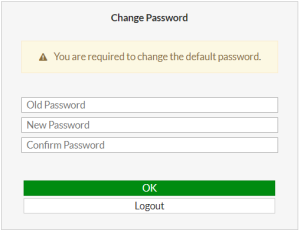
Regular Password Renewal and Logouts: Change your passwords periodically to prevent prolonged reliance on a single code. Logging out from your accounts reduces exposure to potential breaches.

Password Cracking
Image by:https://docs.fortinet.com/

The Evolving Relationship between AI and Cybersecurity

The intertwining of AI and cybersecurity introduces a complex dynamic. As AI evolves, it finds applications both for malicious intent and safeguarding digital assets. While cyberattackers leverage AI’s capabilities to break security barriers, cybersecurity professionals utilize AI to detect and counteract threats. This collaboration demonstrates the inseparable relationship between AI and cybersecurity, shaping the future of digital defense strategies.

Conclusion

As AI’s prowess continues to expand, it presents opportunities and challenges for online security. While the concept of AI-powered password cracking raises concerns, understanding the mechanisms behind it empowers individuals to take proactive measures. By adopting robust password practices, utilizing advanced security features like 2FA, and staying informed about evolving cybersecurity trends, individuals can mitigate the risks associated with AI-based attacks. As technology advances, the balance between AI-driven threats and defenses will define the landscape of digital security for years to come.

This content is designed for individuals seeking a clear understanding of the differences between APUs, CPUs, and GPUs in the context of computer hardware. It caters to readers ranging from tech enthusiasts and DIY PC builders to casual users looking to make informed decisions about their computing needs. Whether they’re contemplating a new purchase, considering upgrades, or aiming to enhance their technical knowledge, this article provides valuable insights to demystify these essential components.

Introduction 

In the intricate world of computer hardware, deciphering the distinctions between APUs, CPUs, and GPUs is akin to unveiling the secrets of a digital realm. As you embark on the journey of selecting or upgrading components for your computing endeavors, the significance of comprehending these processor acronyms cannot be overstated. These three powerhouses—APU, CPU, and GPU—play unique roles, intertwining to sculpt your device’s performance.

This enlightening guide serves as a beacon, illuminating the paths that lead to informed choices. Whether you’re an aspiring tech aficionado, an adept DIY PC builder, or a curious user seeking clarity, the clarity within these lines will be your guide. As we unravel the enigma of these processing titans, you’ll not only understand their divergent functions but also grasp why the distinction matters. So, embark on this expedition, and equip yourself with the knowledge to navigate the labyrinth of computing hardware.

Central Processing Unit (CPU) 

At the heart of every computer lies the Central Processing Unit (CPU), the veritable brain orchestrating computational symphonies. Evolving from the era of scattered CPU chips, the present-day microprocessor encapsulates the CPU’s prowess within a single chip. This compact marvel undertakes tasks with precision, executing instructions stored in the device’s memory. The CPU’s tripartite journey—Fetch, Decode, Execute—ushers inputs into orchestrated outputs, spanning from OS loading to intricate spreadsheet calculations.APU, CPU, GPU

Graphics Processing Unit (GPU) 

In a harmonious blend of artistry and functionality, the Graphics Processing Unit (GPU) steps onto the scene to elevate visual experiences. Contrasting with the linear strides of CPUs, GPUs waltz through parallel processing, catering to the intricate demands of graphics rendering. Integral to video performance, these units come both integrated and dedicated. For graphics-heavy endeavors like gaming, GPUs shine brightly, alleviating the CPU’s burden and generating lifelike images and fluid gameplay. As graphics cards emerge as dynamic entities, equipped with their memory, the display of images and videos gains a refined edge.

APU, CPU, GPU
Image by:https://www.trentonsystems.com/

Accelerated Processing Unit (APU) 

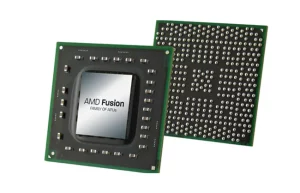
Welcome to the crossroads of innovation and efficiency—the Accelerated Processing Unit (APU). A convergence of CPU and GPU on a single chip, the APU embodies the synergy of reduction in size and amelioration in performance. The geographical proximity of the CPU and GPU within an APU’s confines fosters swift data transfers and collaboration. Enabled by the APU’s amalgam, tasks traverse this dual-processing landscape, unveiling an ecosystem where CPUs and GPUs harmoniously share their strengths. A stepping stone from integrated graphics, APUs craft an affordable bridge to elevated performance.

APU, CPU, GPU
Image by:https://www.trentonsystems.com/

APU vs. CPU vs. GPU: Now You Know! (184 words):

In this mosaic of processing units, a symphony of options beckons. Opting for discrete CPU and GPU heralds heightened performance, an endeavor suited for those aspiring to unlock substantial gains. Alternatively, the APU pathway threads a compromise between budget and performance, enhancing integrated graphics without toppling your financial equilibrium. As you stand at the crossroads, charting the course for your computer’s transformation, remember that value extends beyond the price tag. Reflect on your ambitions, budget, and aspirations to decipher the route that aligns with your journey through the digital realm.

Conclusion: Informed Decisions for Enhanced Computing (72 words):

As the curtains fall on our exploration of APUs, CPUs, and GPUs, a tapestry of knowledge unfurls before you. Armed with discernment, you’re primed to steer your computing voyage with confidence. The mosaic of processor choices intertwines expertise and pragmatism, an exquisite dance in pursuit of seamless digital experiences. Whether you tread the path of accelerated processing, harness the might of the CPU, or embrace the GPU’s artistic flair, your informed choices will etch the story of your computing endeavors.

This article is designed for homeowners and individuals who are considering implementing a DIY home security system. The audience is looking for information on the effectiveness and benefits of DIY security systems compared to professionally installed ones. They may be unsure about the feasibility of setting up their own system and want to understand the customization, installation, and monitoring options available.

Introduction: The Evolution of Home Security

In the not-so-distant past, home security systems meant locking into a contract with professional installers. Today, the landscape has shifted, empowering homeowners with the option of DIY home security systems. These systems offer not only the potential for cost savings but also increased control and flexibility. But how effective are they in keeping you safe? Let’s explore the world of DIY home security and discover how it can be a viable choice for enhancing your home’s safety.

1. The Evolution of Home Security: Beyond Traditional Models

In recent years, the market has witnessed a significant shift from traditional professionally installed home security systems to the emergence of DIY alternatives. These systems offer a wide array of features that go beyond the conventional perception of a single camera at the front door. According to a 2022 study by Parks Associates, DIY systems accounted for half of all residential installations in the United States. This indicates a growing trend towards customizable and user-friendly security solutions.

 DIY
Image by;https://history-computer.com/

2. Extensive Options: What DIY Security Systems Offer

DIY security systems have evolved beyond their initial simplistic versions. While a single camera system might be the starting point, these systems allow scalability and customization. Whether you desire comprehensive door and window monitoring, water leak alerts, or even automatic emergency service notifications, DIY systems have you covered. The variety of options available enables homeowners to tailor their security setup to match their specific needs and preferences.

 DIY
Image by:https://www.pcmag.com/

3. Installation: DIY vs. Professional Setup

Installing a DIY home security system might seem daunting, but many systems are designed with simplicity in mind. While professional installation is an option, self-installation is often straightforward and achievable, even for those without previous experience. Assessing your own capabilities and preferences is key; while some may find the challenge exciting, others might prefer the convenience of professional assistance. Researching the installation process and user feedback can help you make an informed decision.

 DIY
Image by:https://www.vivint.com/

4. Customization and Monitoring: Tailoring Security to Your Needs

The beauty of DIY systems lies in their customization capabilities. You have the power to choose the number of sensors, cameras, and other components based on your home’s layout and your security requirements. This extends to alerts as well—decide whether you want notifications for specific sounds or events. Moreover, customization often encompasses intrusion attempts, allowing you to record messages or even speak directly to potential intruders. The flexibility of monitoring options ensures that your system works according to your unique circumstances.

DIY
Image by:https://www.thisoldhouse.com/

5. Benefits of a DIY Approach: Affordability, Flexibility, and Control

One of the most significant benefits of DIY home security systems is their cost-effectiveness. With options like Roku’s $99 security system and the ability to choose professional monitoring on a subscription basis, DIY systems offer affordability without compromising security. Additionally, the flexibility to adjust your coverage, alerts, and features as needed ensures that your security solution can adapt to your evolving needs. Unlike traditional systems that require substantial changes, DIY setups allow you to make adjustments without permanent alterations.

DIY
Image by:https://www.homedepot.com/

6. Making the Decision: Is a DIY Home Security System Right for You?

In evaluating the suitability of a DIY home security system, consider your comfort with installation, desire for customization, and need for flexibility. These systems offer a dynamic approach to home security, placing control in your hands. With the ability to build a tailored system that aligns with your lifestyle and preferences, a DIY home security solution can be an effective way to ensure the safety of your household.

DIY
Image by;https://www.pcmag.com/

Conclusion: Navigating the World of DIY Home Security

As the security landscape evolves, DIY home security systems prove themselves as a viable and effective alternative to traditional professionally installed options. Offering customization, simplicity of installation, and the ability to adapt as your needs change, these systems provide peace of mind without the constraints of long-term contracts. Embrace the power to secure your home on your terms with a DIY home security system that suits your unique requirements.

This article is designed for PlayStation 5 owners and gamers who want to learn about different ways to turn on their PS5 consoles. It benefits both new PS5 users looking to explore their console’s features and experienced owners who might not be aware of all the available methods.

Introduction

The iconic PlayStation 5 has taken the gaming world by storm, offering cutting-edge features and thrilling gameplay. As a proud owner of this gaming masterpiece, you’re already familiar with its jaw-dropping visuals and lightning-fast loading times. But did you know that even the seemingly simple task of turning on your PS5 can be approached in a variety of ways? In this article, we’ll dive into the realm of PS5 activation and explore four different methods that cater to your convenience and gaming style. Whether you’re a tech-savvy enthusiast or a casual player, there’s a method that suits you perfectly.

1. Pressing the Power Button: The Common Approach

It’s the classic method that’s etched in the minds of gamers across the globe – pressing the power button. The moment you unbox your brand-new PS5 and plug it in, the urge to press that button and embark on your gaming adventure is irresistible. However, as familiar as this method may be, it’s worth considering whether there’s a more exciting and efficient way to start your gaming session.

PS5
Image by:https://kotaku.com/

2. Safe Mode Activation: A Crucial Technique

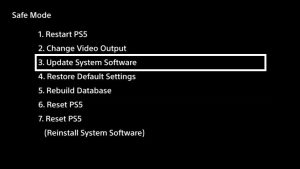
Imagine encountering technical hiccups that momentarily halt your gaming euphoria. This is where Safe Mode comes to the rescue. By holding down the power button for a specific duration, you can enter Safe Mode – a gateway to addressing various system issues. While it’s not an everyday method, knowing how to activate Safe Mode is invaluable, as it empowers you to troubleshoot and resolve potential problems swiftly.

PS5
Image by;https://www.psu.com/news/

3. Remote Play: Effortless Activation from Afar

Picture this: you’re snugly nestled on your couch, wrapped in your gaming cocoon. The idea of stepping away to turn on your PS5 might seem less appealing. Enter Remote Play, a game-changing feature that lets you power up your PS5 using your mobile device. With the Remote Play app synced to your console, you’re not only turning on your PS5 remotely but also gaining the ability to control it entirely from the comfort of your couch.

PS5
Image by:https://www.businessinsider.com/

4. DualSense Controller Magic: Instant Power On

As you savor your gaming downtime, your DualSense controller is likely resting nearby. But did you know that this controller holds the key to instant power? By pressing the PS button, you can awaken your PS5 without leaving your seat. This method is not just about convenience; it’s a testament to the thoughtful design that ensures your gaming experience remains uninterrupted.

PS5
Image by:https://blog.playstation.com/

Conclusion

In the dynamic world of gaming, even the seemingly mundane tasks can unveil hidden treasures. Turning on your PS5 is no exception. From the traditional power button press to the futuristic marvel of Remote Play, and the convenience of your trusty DualSense controller, these methods offer you a spectrum of choices. Whether you’re keen on a quick start or eager to troubleshoot technical glitches, the PS5 caters to your needs.


So, next time you power on your PS5, remember that it’s not just about pressing a button – it’s about embracing the options that align with your gaming journey. With these four methods at your fingertips, you can initiate your gaming sessions with finesse, ensuring that your exploration of virtual worlds begins seamlessly each time. The power is in your hands, and your PS5 is ready to respond in the way that suits you best. Happy gaming!