Introducing Sony’s Bits Update for Share Factory Studio

Sony’s PlayStation 5 continues to impress gamers with its cutting-edge features, and now, the tech giant has introduced a fantastic update to its free Share Factory Studio photo and video editing app. Meet “Bits,” the newest addition that promises to transform ordinary game captures into captivating works of art. With this innovative update, players can effortlessly overlay doodles, visual filters, and more onto their saved gameplay captures, adding a touch of personality and context to their videos.

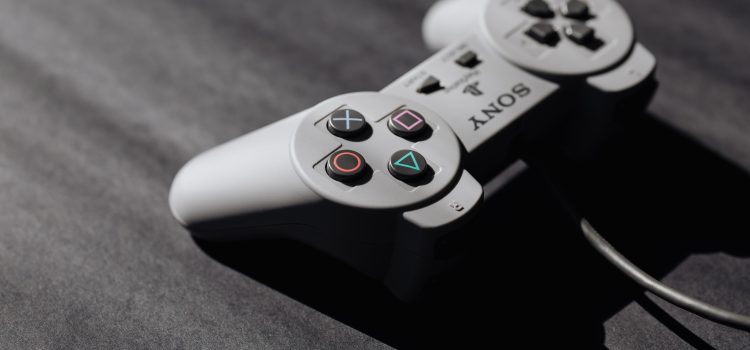
Photo by Karolina Grabowska: https://www.pexels.com/photo/sony-play-station-game-console-4219884

Elevate Your Gameplay Captures with Customizable Effects

What sets Bits apart is the extensive range of customizable effects it offers. Players can dive into a plethora of options, including various filters, engaging text, sound effects, music, voiceover, playful doodles, and an array of eye-catching visual effects like stickers and camera effects. This level of creativity and versatility is not commonly found on consoles and sets the PS5’s Share Factory Studio apart from the competition.

Compared to Microsoft’s Xbox Game DVR, which provides limited editing options, the Bits update is a game-changer. Many gamers often find themselves frustrated by the lack of editing flexibility on Xbox, leading them to explore external editing tools. However, with Share Factory Studio’s Bits, players can stay within the PlayStation ecosystem while enjoying an enriching editing experience.

Effortless Sharing: Upload to Twitter, YouTube, or the PlayStation App

Once users complete their masterpieces, saving them to the console’s storage is a breeze. From there, they can effortlessly share their creations on popular social media platforms like Twitter and YouTube directly from their PS5. Additionally, those with the PlayStation app on their mobile devices can easily find their Bits in the Game Captures section, making it convenient to download and share them further or upload them to their preferred platform.

Sony Bits vs. Xbox Game DVR: A Comparison of Editing Tools

The comparison between Sony’s Bits and Microsoft’s Xbox Game DVR is like night and day. While both consoles offer capture and sharing functionalities, the level of editing depth is significantly different. Sony’s Share Factory Studio’s Bits shines with its extensive selection of visual and audio effects, making it ideal for gamers looking to add flair to their gameplay captures without leaving the comfort of their PS5 ecosystem.

On the other hand, Xbox Game DVR has long been criticized for its limited editing capabilities. Users often resort to external editing software to refine their clips before sharing them with the world. With the introduction of Bits, Sony has bridged this gap, providing PlayStation users with a one-stop solution for capture, editing, and sharing.

Conclusion

With the introduction of the Bits update, Sony has demonstrated its commitment to enhancing the gaming experience on the PlayStation 5. This powerful and user-friendly editing tool allows gamers to transform their gameplay captures into captivating videos with ease. With a plethora of customizable effects at their fingertips, users can now infuse their personality into their gaming content, making it stand out from the crowd.

In contrast, Microsoft’s Xbox Game DVR’s limitations pale in comparison to the creative freedom offered by Share Factory Studio’s Bits. Sony has successfully set a new standard for console-based video editing, leaving Xbox users craving similar features.

If you own a PS5, don’t miss out on the opportunity to explore the exciting world of Bits and elevate your game captures into mesmerizing works of art. Embrace the Bits update, unleash your creativity, and showcase your gaming adventures like never before!

Introduction

  • Briefly explain the importance of syncing PS5 console data with cloud storage.
  • Mention the convenience and benefits of automatic sync.

Enabling Automatic Sync with Cloud Storage

  • Provide step-by-step instructions on how to enable automatic updates for cloud storage sync.
  • Guide readers to navigate through Settings > System > Power Saving > Features Available in Rest Mode > Stay Connected to the Internet.
  • Explain the importance of having automatic updates enabled for seamless sync.

Managing Saved Data and Game/App Settings

  • Instruct readers to access Settings > Saved Data and Game/App Settings.
  • Explain the difference between PS5 and PS4 saved data settings.
  • For PS5 games, guide users to select Sync Saved Data > Auto-Sync Saved Data.
  • For PS4 games, instruct users to select Auto-Upload for automatic cloud storage upload.

Utilizing PlayStation Plus Cloud Storage

Photo by Karolina Grabowska: https://www.pexels.com/photo/photo-of-gray-remote-controller-4219882/
  • Describe PlayStation Plus cloud storage and its benefits.
  • Explain the storage limits for PS5 and PS4 saved data.
  • Mention how to manage cloud storage by highlighting a game from the Games home, pressing the options button, and selecting Upload/Download Saved Data.

Checking Sync Status and Making the Most of Cloud Storage

  • Instruct users on how to check the sync status of games on PS5 consoles.
  • Highlight the advantages of cloud storage, such as picking up play on a friend’s system or after upgrading/replacing a console.
  • Mention crossplay games and the ability to transfer saved data with PlayStation Plus on PC.

Conclusion

  • Summarize the benefits of automatically syncing PS5 console data with cloud storage.
  • Encourage readers to utilize these features for a seamless gaming experience.

The article should be approximately 1000 words in length, covering the provided information and expanding on each heading. Remember to optimize the content for SEO by including the focus keyword strategically throughout the article.

PS5 Console Notifications: How to Check, Enable Do Not Disturb, and Manage Settings

Notifications are essential for staying informed and taking immediate actions on your PS5 console. This guide will walk you through checking notifications, enabling Do Not Disturb, and managing notification settings for a seamless gaming experience.

How to Check Notifications on PS5 Consoles

Whenever you see a pop-up with a PS button icon on your screen, it means you have received a notification. To view the notification in detail, follow these steps:

  • Press the PS button on your controller to open the control center.
  • Select “Notifications” from the menu.
  • A list of your notifications will appear, with the most recent ones at the top.
  • Choose the notification you want to check to expand it and view additional information and available actions.

How to Enable Do Not Disturb for PS5 Console Notifications

There might be times when you want to mute all notifications temporarily, especially during intense gaming sessions or when you need uninterrupted focus. To enable Do Not Disturb mode, follow these steps:

  • Open the control center by pressing the PS button on your controller.
  • Select “Notifications.”
  • Toggle on the “Do Not Disturb” option.

Once activated, pop-ups for notifications won’t appear on your screen until you log out, restart your PS5 console, or manually turn off the Do Not Disturb mode.

How to Delete Notifications on PS5 Consoles

Keeping your notification list organized can be helpful for better navigation. To delete specific notifications or clear all of them at once, follow these steps:

  • Access the control center by pressing the PS button on your controller.
  • Choose “Notifications” from the menu.
  • Highlight the notification you want to delete and press the square button to remove it.

If you want to delete all notifications at once, press the options button after step 1 and then select “Delete All Notifications.”

How to Change Notification Settings on PS5 Consoles

Customizing notification settings ensures that you receive notifications in a way that best suits your preferences. To configure notification settings, follow these steps:

  • Go to the home screen and select “Settings.”
  • From there, navigate to “Notifications.”
  • Here are some of the available notification settings you can adjust:
    • Allow Pop-Up Notifications: Turn this on to receive pop-ups for notifications on your screen.
    • Show Preview: Turn this on to see a preview of the notifications you receive.
    • Play Sound: Turn this on to hear a sound when you receive a notification.
    • Display Time: Adjust how long a pop-up notification appears on your screen before it disappears.

With these simple steps, you can effectively manage your PS5 console notifications and ensure a smooth gaming experience without any interruptions.

Remember to keep your notification settings tailored to your preferences and gaming needs for an immersive and enjoyable time on your PS5 console.

INTRODUCTION

The PlayStation 5 (PS5) is a gaming powerhouse, but like any console, an optimized and user-friendly home screen enhances the overall gaming experience. While the customization options might be limited at launch, there are still some useful tips and tricks to make your PS5’s home screen more efficient and tailored to your preferences.

TAILOR THE EXPLORE FEED FOR GAMES YOU CARE ABOUT

When you power on your PS5, the “Explore” page awaits you, filled with game-related news, live streams, and trailers. By default, every game you own is followed, which can clutter your feed with content you might not be interested in. Learn how to unfollow games you don’t want to see and hide spoilers for a better-curated Explore tab.

Photo by Karolina Grabowska: https://www.pexels.com/photo/close-up-photo-of-gray-video-game-console-4219889/

SORT AND FILTER YOUR GAMES

For gamers with an extensive library, navigating through a long list of games can be tiresome. Unfortunately, the PS5 sorts your library by “most recent” by default, but there are ways to sort it alphabetically or by purchase date. Additionally, discover how to filter games based on platform and source to streamline your gaming collection.

CUSTOMIZE THE CONTROL CENTER

The Control Center is your hub for shortcuts, game information, and quick menus when you press the PS button. Learn how to customize this menu, adding or removing shortcuts that cater to your preferences and make navigating your PS5 smoother and more efficient.

Delve into additional customization options that might have flown under the radar. If you find the background music and sound effects distracting, discover how to turn them off completely for a more focused gaming session. Additionally, explore Accessibility settings that offer various customizations, including altering text appearance and scroll speed. Finally, take control of your notifications and ensure they don’t interrupt your gaming moments.

CONCLUSION

While the PS5’s home screen customization features might seem limited compared to other consoles, utilizing these tips can significantly improve your gaming experience. As Sony continues to release software updates, we hope to see more useful sorting and customization features. In the meantime, make the most of what’s available and tailor your PS5’s home screen to truly make it yours. Happy gaming!

How To Fix the PS5 Touchpad Not Functioning Issue

In the world of gaming, precision and seamless control are paramount to creating an immersive experience for players. However, recent reports have indicated that some PlayStation 5 users are grappling with an infuriating issue – the PS5 touchpad not working error. This glitch has left gamers frustrated and hindered in their pursuit of virtual adventures.

The PS5’s DualSense controller boasts an innovative touchpad responsible for registering gestures and swipes in various games. However, this key feature can suffer from functionality issues, leading to diminished gameplay experiences. While the core reason behind the problem has not been definitively identified, it is believed to stem from factors such as outdated firmware, dirt accumulation on the controller, or even hardware malfunctions.

Addressing this perplexing situation requires gamers to venture into a realm of troubleshooting and potential fixes. Fear not, for we have curated a comprehensive guide that may help you regain control and steer your way back into the gaming nirvana.

1. Restart the Controller Manually

When the PS5 touchpad refuses to cooperate, a manual restart might be the first step towards resolution. By pressing and holding the PS button on the controller for about ten seconds, you can power it off. Allow a few moments for the LED to switch off completely before turning it back on by holding the PS button. This seemingly simplistic maneuver might just be the spark needed to reignite the controller’s touchpad functionality.

2. Clean the Touchpad

Dirt and debris can be the culprits behind the touchpad malfunction. A thorough cleaning may be the solution to get your controller back on track. Using alcohol pads or a soft, microfiber cloth dipped in water mixed with disinfectant, gently clean the surface of your controller. Ensure the utmost care in the cleaning process, avoiding vigorous rubbing that could inadvertently damage the device.


3. Update the Controller Firmware

Keeping your controller’s firmware up to date is a crucial step in preventing or resolving touchpad issues. Connect your controller to the console using the USB-C cable, navigate to “Settings,” select “Accessories,” and then proceed to “Controllers.” Here, you will find the option to update the wireless controller device software. Allow the system to search for any new updates, and if available, proceed to update the firmware.

4. Switch Off the Controller Using the Control Center

When the touchpad troubles persist, try turning off the controller using the control center. Press the PlayStation button to bring up the PS5 menu and locate the “Accessories” option at the bottom of the screen. Select your “DualSense Wireless Controller” and proceed to turn it off. Wait a few moments before powering it back on and checking for touchpad functionality.

5. Hard Reset the Controller

Sometimes, a hard reset might be necessary to restore the controller to its optimal state. With the PS5 turned off, locate the small hole beside the SONY logo on the back of the DualSense controller. Using a sharp tool like a straight pin or SIM ejector, gently press and hold the button inside the hole for approximately five seconds. You should hear a click indicating the reset process. Power on the PS5 to pair the controller and check if the touchpad works as expected.

6. Reconnect the Controller to Your PS5

After performing a hard reset, reconnect your controller to the PS5 using the provided USB-C cable. Press and hold the PS button until the LED flashes, indicating successful pairing. Once confirmed, disconnect the cable to use the controller wirelessly. Now, launch a gesture-controlled game to verify the touchpad functionality.

7. Update Your PS5 to the Latest Firmware

If the touchpad troubles persist, the issue might extend beyond the controller. Ensure your PS5 is running the latest firmware to avoid potential conflicts. Access the “Settings” menu and choose “System,” followed by “System Software.” Select “Update Using Internet” and follow the on-screen instructions to update the system software. After the update, check the controller’s touchpad again.

8. Restore Default Settings

A comprehensive solution for persistent issues might involve resetting the entire PS5 system to its factory default settings. While this action won’t delete your games or files, it may alleviate underlying problems. Access the “Settings” menu, choose “System,” then “System Software,” and finally, “Reset Options.” From there, select “Restore Default Settings” and follow the prompts to complete the process.

9. Conduct a Soft Reset of Your Console

When all else fails, a soft reset of the PS5 console might provide the resolution needed. Hold down the power button for at least three seconds to turn off the console. The power indicator will flash before turning off entirely. After a brief pause, press the power button again to turn the console back on. Check the controller’s touchpad function after the system restarts.

When Nothing Solves the Issue

If, despite your best efforts, the PS5 touchpad remains unresponsive, it may be time to seek professional assistance. Sony offers customer support for their products, and if your controller is under warranty, they may be able to fix or replace it free of charge. Contact Sony Support via phone or through official PlayStation channels to explore your options.

In Conclusion

The PS5 touchpad not working error has undoubtedly vexed many gamers. While the exact cause remains elusive, a combination of troubleshooting techniques, firmware updates, and system resets may offer a path to resolution. Whether it’s a firmware issue or merely dirt accumulation, gamers can take charge of their gaming destiny by applying the right fixes.

Remember, patience and perseverance are key as you navigate through these steps. And most importantly, don’t let this glitch dampen your gaming spirit; there’s a world of virtual adventure waiting to be explored, and the PS5 touchpad should never be the final boss standing in your way.

Introduction to Tracking Trophy Progress on PS5

Tracking trophy progress can enhance your gaming experience on the PlayStation 5 (PS5) by providing a sense of accomplishment and motivation. This guide will walk you through the steps to effectively track trophy progress on your PS5 console.

Navigating to the Control Center

To begin tracking trophies, start by navigating to the PS5 home screen and accessing the control center. This can be done by pressing the PlayStation button on your controller. Once in the control center, locate and select the “Profile” option.

PS
Photo by Erik Mclean: https://www.pexels.com/photo/hand-holding-playstation-controller-16300514/

Selecting and Tracking Trophies

Within your profile, you will find the “Trophies” section. Select it to access your trophy collection. From here, you can choose the game for which you want to track trophies. Browse through your games and select the desired one.

Managing and Customizing the Trophy Tracker

Once you have selected the game, you can now choose the specific trophy you wish to track. Click on the trophy, and a new window will appear. Look for the “Start Tracking” option and tap on it to initiate tracking for that particular trophy.

It’s important to note that you can track up to five trophies simultaneously. When you’re in the game, you can press the PlayStation button and navigate to the trophy tracker. Here, you will find all the trophies you are currently tracking.

To manage your tracked trophies, select the “Manage Trophies” option. From here, you can choose additional trophies to track or remove the ones you no longer wish to monitor. Additionally, you have the option to pin the trophy tracker to the side of your screen by clicking the button next to “Manage Trophy Tracker.” This allows for convenient and quick access to your tracked trophies while playing.

Exiting the Pinning Feature

If you decide to remove the trophy tracker from the sidebar, you can do so by double-pressing the PlayStation button to open the trophy manager. Locate the square button next to the trophy tracker and click on it. Then, tap on “Exit pin to side” to remove the trophy tracker from the sidebar.

Conclusion

By following these simple steps, you can effectively track trophy progress on your PS5 console. Whether you’re aiming for platinum trophies or simply tracking your achievements, the trophy tracking feature enhances your gaming journey. Stay motivated, challenge yourself, and enjoy the satisfaction of unlocking trophies on your PS5.

Introduction

In today’s digital landscape, effective communication during gaming sessions has become essential for players to strategize, coordinate, and simply have a good time together. Discord, a popular communication platform among gamers, has extended its reach to the PlayStation 5 console, allowing players to engage in voice chat seamlessly. In this article, we will delve into the steps required to start or join a voice chat on Discord using your PS5 console, as well as provide insights into additional features and settings.

PS
Photo by Erik Mclean: https://www.pexels.com/photo/hand-holding-playstation-controller-16300514/

Step-by-Step Guide: Starting or Joining a Voice Chat on Discord

  1. Link Your Discord and PlayStation Network Accounts: To begin using Discord on your PS5 console, you must first link your Discord account to your PlayStation Network account. This can be done by following these steps:
    • Open the Discord app on your mobile device or computer.
    • Log in to your Discord account.
    • Ensure that your PlayStation Network account is active.
    • Proceed to link your Discord account to your PlayStation Network account.
  2. Launch Discord and Initiate or Join a Voice Channel: Once your accounts are linked, you can initiate or join a voice chat on Discord using the following steps:
    • Open the Discord app on your mobile device or computer.
    • Log in to your Discord account.
    • Locate and select a voice channel you wish to join or initiate.
    • Choose the “Join on PlayStation” option within the voice channel settings.
    • Select your PS5 console from the list that appears.
  3. Connecting to the Voice Channel: After selecting your PS5 console, the voice channel will attempt to establish a connection. Upon successful connection, a notification will be displayed on your PS5 console screen.
  4. Accessing the Discord Voice Chat Card: To access the Discord voice chat on your PS5 console, follow these steps:
    • Select “View Discord Voice Chat” from the notification displayed on your PS5 console screen.
    • Alternatively, you can access the voice chat card from the control center.
  5. Engaging in Voice Chat: With the Discord voice chat card open, you can begin communicating with other members in the voice chat using either your controller’s built-in microphone or a headset.

Advanced Features and Settings:

a) Type of Voice Chat: Discord voice chat differentiates itself from a party voice chat by offering additional features such as Share Screen and Share Play. Note that you cannot participate in both a Discord voice chat and a party voice chat simultaneously.

b) Switching Between Discord and Game Voice Chats: Discord enables seamless switching between ongoing voice chats, whether it’s within Discord or within a game. You can view the number of voice chats you’re currently part of and select a specific voice chat to participate in.

c) Discord Voice Chat Features: Discord offers various features to enhance your voice chat experience, including:

  • Audio Balance: Adjust the audio balance between the voice chat and other audio on your PS5 console.
  • Mute All: Mute all other members in the voice chat.
  • Voice Chat Settings: Customize your microphone level or allow your voice to be used in other members’ broadcasts and video clips.
  • Report: Submit a report to Discord’s moderation teams if you encounter issues with a voice chat member.
  • Leave: Leave the voice chat you’re currently participating in.

d) Member List: The member list displays the Discord name and avatar of each participant. When a member has linked their PlayStation Network account, their real name or online ID, along with the PlayStation symbol, will be visible. Additional information, such as the current game being played and mic status, can also be seen. Various actions, such as muting members or viewing their PSN profile, can be performed within the member list.

Audio Capture and Broadcast:

Discord Voice Chat audio is not recorded during captures and broadcasts on the PS5 console. This ensures that conversations within the voice chat remain private and are not unintentionally shared during gameplay recordings.

Conclusion: With the integration of Discord voice chat into the PlayStation 5 console, gamers can now enjoy a seamless communication experience while engaging in their favorite multiplayer games. By following the steps outlined above, players can easily start or join voice chats, customize settings, and make the most of Discord’s features. Remember to stay respectful and adhere to online etiquette when engaging with fellow gamers in voice chats. Happy gaming and effective communication!

Introduction

The PlayStation 5 (PS5) offers a seamless and immersive gaming experience, and one of its standout features is the ability to voice chat with fellow players. Whether you’re looking to start a party, join ongoing voice chats, or create groups for messaging, the PS5 provides a variety of options to connect and interact with other gamers. In this guide, we’ll walk you through the steps to make the most of PS5’s voice chat capabilities.

PS
Photo by Erik Mclean: https://www.pexels.com/photo/hand-holding-playstation-controller-16300514/

Starting a Party on PS5: To begin a voice chat party on your PS5 console, follow these simple steps:

  1. Press the PS button to open the control center.
  2. Select Game Base from the menu.
  3. Navigate to the Parties tab and choose “Start Party.”
  4. Decide between an Open Party or a Closed Party.
  5. Follow the on-screen instructions to proceed.
  6. Once you’ve made your selection, the party will start, and you can manage it from the voice chat card in the control center.

Starting a Party with a Friend: If you want to initiate a voice chat party with a specific friend, here’s how:

  1. Press the PS button to open the control center.
  2. Select Game Base and go to the Friends tab.
  3. Choose the friend you wish to voice chat with.
  4. Select “Party” to create a party between you and your friend.
  5. The voice chat session will begin immediately.
  6. To chat with the same friend again, select them from the Parties tab.

Joining an Ongoing Voice Chat in a Party: If you’d like to join an existing voice chat party, here’s what you need to do:

  1. Press the PS button to open the control center.
  2. Select Game Base and navigate to the Parties tab.
  3. Look for parties listed under “Joinable.”
  4. Choose the party you want to join.
  5. The members already present in the party will be displayed.
  6. Select “Join” to become a part of the ongoing chat.
  7. You can manage the party from the voice chat card in the control center.

Creating a Group and Sending Messages on PS5: To communicate with multiple players and create group conversations, follow these steps:

  1. Press the PS button to access the control center.
  2. Select Game Base and go to the Messages tab.
  3. Choose “New Message.”
  4. Select the players you want to include in your group.
  5. Select “OK” to confirm your selection.
  6. If you’re already in a group with some of the chosen players, you can choose to create a new group.
  7. To access a group, go to Game Base, select the Messages tab, and choose the desired group from the list.

Enhancing the Voice Chat Experience: While engaged in a voice chat party on the PS5, you can explore additional features to enhance your experience:

  1. Share Screen: Share your game screen with other players to let them see what you’re playing.
  2. Share Play: Allow other players to control and play your game remotely.

Managing Voice Chat: As the party owner, you have control over various aspects of the voice chat on PS5:

  1. Removing Players from a Party:
    • Highlight the player in the members list.
    • Press the options button.
    • Select “Kick Out” to remove the player from the party.
  2. Adjusting Individual Player Volume:
    • Press the PS button to open the control center.
    • Select the Voice Chat card.
    • Choose a player and select “Volume” to adjust their chat volume.

Disabling Game Chat Audio: If you prefer to disable game chat audio on your PS5, follow these steps:

  1. Press the PS button to open the control center.
  2. Select “Sound” from the menu.
  3. Choose “Disable Game Chat Audio.”

Conclusion: With the PS5’s voice chat capabilities, connecting with other players in real time has never been easier. Whether you’re starting a party, joining an ongoing voice chat, or creating groups for messaging, these features provide an immersive and social gaming experience. By following the steps outlined in this guide, you’ll be able to harness the full potential of PS5’s voice chat functionality and engage with fellow gamers like never before.

Inflation in Germany went up more than people thought. Wow! The cost of things that people buy going up a lot – by over 6% – that’s a big number! This text talks about why the increase got really big. It looks at how it might affect Germany’s money.

What makes German prices go up a lot?

Some things caused German prices to go up a lot. Global supply chain problems are costing more for the things that companies need to make their products. This has made things more expensive for people buying things. Prices going up a lot because energy costs more, especially when countries don’t get along.

The European Central Bank (ECB) made rules about money that helped make prices go up. The ECB has saved the economy by keeping interest rates low and buying lots of things. This might have made prices go up.

Flag
Photo by Felix Mittermeier: https://www.pexels.com/photo/red-and-yellow-flag-532867/

What happens to Germany when prices go up a lot?

The fast rising prices in Germany are affecting lots of parts of the economy. When things get more expensive, it is harder for people to buy what they need which can be really tough for them. Reduced spending choice may happen and the way we buy things may change.

Businesses feel the strain of costs going up while they make their products. The profits and business may not be okay because of this. When prices go up a lot, it can be hard for little and middle companies to pay for the extra costs.

High inflation can also affect the job market. The workers might ask for more money because things cost more now. This could make prices go up more and cause inflation to get worse, which might lead to people asking for higher wages.

How Businesses and People Can Manage the Increasing Prices

Due to the increasing inflation, businesses and customers in Germany must change what they do so they can handle this hard situation. Businesses should handle expenses carefully by managing costs, looking for different suppliers, and thinking of pricing plans that balance the goal of making a profit while competing with others.

To help their money not lose value because of inflation, people can use different ways that they learned. To save money, you can make a plan for spending your money, look for ways to spend less or find different things that are cheaper but still good.

The economy has been worried and faced challenges because the German inflation suddenly went up to 6.8%. Businesses and consumers need to learn about the things that make prices go up and what could happen because of it. This will help them choose better and change their plans when prices get higher.

Bank of America revealed their strategy for investing in the bond market

Bank of America lost $100 billion because they made a very big bet in the bond market. This made a lot of news because Bank of America is one of the biggest banks in the whole world! People are questioning the bank’s plan to make money from bonds because they keep losing more and more.

You need to know why Bank of America lost so much money on paper, which is important. Investing in the bond market can bring big returns because it changes a lot. Using it also has dangers that come with it. Bank of America’s huge spending made it open to changes in the market and unanticipated things. The colossal paper loss happened in the end.

money
Image by Nattanan Kanchanaprat from Pixabay

What might happen to Bank of America if we study the implications and risks

Bank of America will have far-reaching implications due to the $100 billion paper loss. The bank’s financial standing is affected. But it makes us wonder how the institution manages its risks. People who own parts of the company and those who give money to it are watching carefully. They want more truth and responsibility from the company.

This thing shows that it’s very risky to invest lots of money in markets that can change a lot. This reminds us that big money places can lose a lot of money too. They need to make a plan to reduce all the dangers.

What Bank of America Learned from the Bond Market

Both banks and people who invest money can learn important things from Bank of America’s knowledge in the bond market. Diversifying is really important to manage risk. Investing money in different types of things can make it less bad if one thing loses all your money.

We need to do strong risk management stuff like testing and analyzing different situations to find problems and weaknesses. It’s really important! Institutions can plan and handle market downturns better by taking these measures.

Keeping stakeholders’ trust and confidence requires being transparent and communicating clearly. Telling people often how the investments are doing and what plans there are for them can help them feel more sure and not expect too much.

Financial institutions should be careful after Bank of America lost $100 billion because of a big bond market investment. We need to manage risks carefully, have different investments, and be open about our actions. The industry can get better and not lose so much money again if they learn from what happened.