Introduction: Embrace Data Roaming

In an increasingly interconnected world, data roaming has become a valuable asset for travelers. It allows you to stay connected to the internet and access essential services while abroad. However, to make the most of data roaming without facing exorbitant charges, it’s essential to understand its benefits and employ smart strategies. This article will guide you through the world of data roaming, providing valuable insights and tips to roam freely while staying smart with your data usage.

1. Understanding Data Roaming: The Key to Global Connectivity

Data roaming is a service that enables your mobile device to access the internet and other data services when you are outside your home network coverage area. When traveling internationally, your device connects to partner networks, granting you continued connectivity. This global reach ensures that you remain in touch with your loved ones and access crucial information wherever your adventures take you.

Embracing Data
Image by rawpixel.com on Freepik

2. Why Data Roaming Matters: Benefits for Travelers

a. Real-Time Navigation: Data roaming empowers you with real-time navigation, ensuring you never lose your way while exploring new destinations.

b. Instant Communication: Stay connected with family, friends, or colleagues regardless of geographical boundaries. Share your experiences and keep them updated on your journey.

c. Access to Travel Apps: Data roaming opens up a world of travel applications, such as language translators, currency converters, and city guides, enhancing your travel experience.

d. Emergency Assistance: In unforeseen circumstances, data roaming enables you to quickly seek assistance, access emergency contacts, or gather crucial information.

3. Tips to Maximize Data Roaming Efficiency

a. Know Your Roaming Plan: Before embarking on your journey, familiarize yourself with your mobile provider’s roaming plan and charges. Consider upgrading to a suitable roaming package if necessary.

b. Use Wi-Fi Whenever Possible: Take advantage of Wi-Fi hotspots available at hotels, restaurants, and public spaces to conserve data usage.

c. Limit Background Data: Disable automatic app updates, push notifications, and background data usage to prevent unnecessary data consumption.

d. Download Offline Maps and Content: Save maps, guides, and important documents offline to access them without consuming data.

e. Optimize Streaming Quality: Adjust streaming settings to lower resolutions or pre-download media content to reduce data usage during entertainment.

4. Data Roaming Plans: Choosing the Right Option for You

a. Pay-As-You-Go Roaming: Ideal for occasional travelers, pay-as-you-go plans charge for data usage without a fixed daily fee.

b. Travel Passes or Bundles: Consider purchasing travel passes or bundles that offer a fixed data allowance for a specific duration.

c. Local SIM Cards: For extended stays in a foreign country, buying a local SIM card might provide more cost-effective data options.

d. Global Roaming Plans: Some carriers offer global data roaming plans tailored for frequent travelers, covering multiple destinations under a single plan.

Conclusion

Embracing data roaming allows you to navigate the world with confidence, staying connected and informed during your journeys. By understanding the benefits of data roaming and following smart strategies, you can roam freely without worrying about excessive charges. Whether you’re exploring a bustling city or venturing into remote landscapes, data roaming ensures that the world is at your fingertips. So, embark on your adventures, roam smartly, and let data roaming be your gateway to seamless global connectivity.


1. Understanding Ethernet Cable Limits

Ethernet cables are designed to transmit data over short and long distances, but their effectiveness diminishes as the cable length increases. The primary limitation lies in the phenomenon of signal attenuation, which refers to the reduction of signal strength as it travels through the cable.

As Ethernet cables get longer, the signal experiences more resistance, resulting in signal loss. This can lead to slower data transfer rates, increased latency, and a less stable connection. Understanding these limitations is crucial to optimizing your network performance.

2. Factors Affecting Signal Loss in Ethernet Cables

Several factors contribute to signal loss in Ethernet cables, and being aware of these can help you identify potential issues in your network setup.

Ethernet cable length
Image by Freepik

a. Cable Length

The length of the Ethernet cable plays a significant role in signal loss. Generally, the longer the cable, the higher the signal attenuation. This is why it’s important to choose the appropriate cable length for your specific networking needs.

b. Cable Quality

The quality of the Ethernet cable also affects signal loss. Higher-grade cables with better shielding and construction tend to have lower attenuation levels, resulting in improved performance over longer distances.

c. Environmental Interference

External factors such as electromagnetic interference from other electronic devices, radio frequency interference, and physical obstacles can disrupt the signal and cause further loss.

d. Connection Quality

The connectors used in Ethernet cables can impact signal loss. Poorly crimped or damaged connectors may lead to additional signal attenuation.

3. Solutions to Minimize Signal Loss

While signal loss is inevitable to some extent, there are several measures you can take to minimize its impact and maintain a strong network connection.

a. Cable Category

Choosing the right cable category is crucial. Cat 5e, Cat 6, and Cat 6a are some common choices. For longer distances, Cat 6a cables are recommended due to their superior shielding and reduced signal loss.

b. Cable Length and Layout

Plan your network layout carefully, and try to keep cable lengths within reasonable limits. Avoid unnecessary cable coiling or bending, as this can increase signal attenuation.

c. Signal Boosters and Repeaters

For long-distance network setups, signal boosters and repeaters can help regenerate the signal, compensating for the loss over extended cable lengths.

d. Ethernet Extenders

Ethernet extenders can extend the reach of your network by converting Ethernet signals into other formats, such as coaxial or fiber optic, which experience less signal loss over long distances.

4. Best Practices for Maintaining Strong Network Connections

Apart from the solutions mentioned above, following these best practices can significantly enhance the reliability of your network connection:

a. Regular Maintenance

Inspect and replace damaged cables and connectors regularly to prevent signal loss due to wear and tear.

b. Cable Management

Organize and secure your Ethernet cables properly to reduce interference and prevent accidental damage.

c. Proper Grounding

Ensure proper grounding of your network equipment to minimize the risk of electromagnetic interference.

d. Professional Installation

For complex network setups, consider hiring a professional to install and optimize your network infrastructure.


In conclusion, understanding the limits of Ethernet cables and the factors contributing to signal loss is essential for maintaining a strong network connection. By selecting the right cable category, managing cable length and layout effectively, and implementing signal boosters or repeaters when needed, you can overcome Ethernet cable limitations and enjoy a reliable and efficient network. Regular maintenance and adherence to best practices will further ensure the longevity and stability of your network infrastructure.

Introduction: Water-Logged AirPods?

AirPods are a popular and convenient way to enjoy music and take calls wirelessly. However, accidents happen, and one common issue many AirPods users face is water damage. Whether you accidentally dropped them in water, got caught in a rainstorm, or even sweated too much during a workout, water-logged AirPods can be frustrating. But fear not! In this guide, we’ll walk you through the steps to fix water-logged AirPods and get them back to optimal functionality.

  1. Understanding the Risks of Water Damage to AirPods

AirPods are not officially rated as waterproof or water-resistant devices. While they might survive a splash or two, prolonged exposure to water can lead to serious damage. Water can seep into the charging port, speakers, and internal components, causing them to malfunction. Therefore, it’s crucial to act quickly when your AirPods come into contact with water.

Water-Logged
Photo by insung yoon on Unsplash
  1. What to Do When Your AirPods Get Water-Logged

If your AirPods get water-logged, the first thing to do is to remove them from the water source as soon as possible. Avoid trying to use them immediately, as this could cause further damage. Wipe off any visible water from the exterior using a soft, dry cloth.

Next, place the AirPods on a dry surface and allow them to air dry naturally. Avoid using heat sources like hairdryers, as excessive heat can damage the delicate components. Patience is key during this step, as the drying process may take some time.

  1. Drying and Rescuing Your Water-Damaged AirPods

To speed up the drying process and potentially save your water-logged AirPods, you can try using moisture-absorbing materials. One popular method is placing the AirPods in a bowl of uncooked rice, which can help absorb moisture. However, be cautious as rice dust can also get into the device, causing further issues. A better alternative is using silica gel packets, which are designed to absorb moisture without leaving residue.

Another effective drying method is using a desiccant. Silica gel packets mentioned earlier are a type of desiccant. You can also find electronic drying kits specifically made for gadgets like AirPods. These kits use a combination of gentle heat and desiccant materials to remove moisture effectively.

  1. Preventing Future Moisture Misfortunes with AirPods

While accidents happen, there are several steps you can take to prevent water damage to your AirPods in the future:

  • Invest in a protective case: A good quality, water-resistant case can add an extra layer of protection to your AirPods, reducing the risk of water damage.
  • Be cautious during workouts: If you enjoy using your AirPods while working out, consider using sweat-resistant ear tips and wiping them dry after your exercise session.
  • Avoid exposing them to water: Be mindful of where you place your AirPods and avoid exposing them to water or other liquids.
  • Regularly clean your AirPods: Keeping your AirPods clean and free from dirt and debris can help maintain their durability and functionality.

Conclusion:

Water-logged AirPods can be a frustrating experience, but with the right approach, you can often salvage them and restore their performance. Remember to act quickly, avoid using heat, and try moisture-absorbing materials for drying. Additionally, taking preventative measures can go a long way in ensuring your AirPods stay safe and functional. With these tips in mind, you can continue to enjoy your favorite music and calls with peace of mind.

Introduction to Keyboard Customization

In the digital age, keyboards have become an essential tool for work, communication, and leisure. However, many users are unaware of the incredible potential lying beneath the keys – the art of keyboard customization. Imagine having a keyboard that perfectly suits your typing style and enhances your overall productivity. In this definitive guide, we will delve into the world of keyboard customization, catering especially to beginners who wish to unlock the full potential of their typing experience.

Understanding the Benefits of Customizing Your Keyboard

Keyboard customization is more than just changing the color of your keycaps or tweaking the RGB lighting. It’s about adapting the keyboard to fit your unique needs and preferences. One of the primary benefits is increased typing speed and accuracy. By remapping keys and creating custom shortcuts, you can streamline your workflow and become a more efficient typist.

Moreover, customization leads to enhanced comfort and reduced typing fatigue. With the ability to set the perfect key actuation force and travel distance, you can prevent strain on your fingers and wrists, promoting a healthier typing experience.

Keyboard
Image by https://www.google.com/

Getting Started: Essential Tools and Software

Before embarking on your keyboard customization journey, you’ll need the right tools and software. Here, we’ll explore some of the essential items you should have:

  1. Keycap Sets: Choose from a variety of keycap materials, shapes, and colors to give your keyboard a unique look and feel.
  2. Keycap Puller: This handy tool will help you remove the existing keycaps without damaging the switches.
  3. Switches: Delve into the world of mechanical switches and discover the ones that suit your typing preferences best.
  4. Keyboard Software: Most mechanical keyboards come with software that allows you to remap keys, set macros, and customize lighting effects.

Step-by-Step Guide to Personalizing Your Keyboard

Now that you have the necessary tools, it’s time to start customizing your keyboard. Follow these step-by-step instructions to unlock its full potential:

  1. Choose Your Layout: Opt for a layout that complements your typing style, such as QWERTY, DVORAK, or COLEMAK.
  2. Remap Your Keys: Make frequently used keys more accessible by remapping them to more convenient locations.
  3. Create Macros: Boost your productivity by setting up macros for repetitive tasks, saving time and effort.
  4. Adjust Lighting and Effects: If your keyboard has RGB lighting, explore different lighting patterns and effects to suit your mood and aesthetics.
  5. Try Different Switches: Experiment with different mechanical switches to find the ones that offer the right balance of tactile feedback and typing comfort.
  6. Personalize Keycaps: Express your personality by choosing keycaps with unique symbols, colors, or even custom engravings.

Conclusion

Customizing your keyboard is an exciting journey that leads to a more enjoyable and productive typing experience. With the right tools and software, along with our comprehensive guide, beginners can confidently unlock the full potential of their keyboards. Remember, the key to successful customization lies in finding a balance between personal preference and ergonomic design. Embrace the power of keyboard customization, and you’ll never look back at a standard keyboard again. Happy typing!

Introduction: Silent GPU Fans

If you are a gaming enthusiast or use resource-intensive applications, you probably understand the importance of a well-functioning graphics processing unit (GPU). One crucial component of a GPU is its fan, responsible for dissipating heat and maintaining optimal performance. However, over time, GPU fans can become noisy, causing distractions and annoyance during intense gaming sessions or other GPU-demanding tasks. In this article, we’ll explore seven easy troubleshooting solutions to silence those noisy GPU fans and keep your system running cool and quiet.

Understanding GPU Fans and Their Importance

Before diving into the solutions, it’s essential to grasp the significance of GPU fans. GPU fans are designed to keep the graphics card’s temperature in check by expelling hot air from the heatsink. When the GPU is under heavy load, it generates more heat, causing the fans to spin faster and potentially create noise.

GPU
Photo by Andrey Matveev on Unsplash

Common Issues Causing Noisy GPU Fans

Several factors can contribute to noisy GPU fans. Dust accumulation on the fan blades or heatsink can disrupt the airflow, leading to increased fan speed and noise. Outdated graphics drivers might also result in inefficient fan control. Additionally, poor cable management can obstruct proper airflow within the system, causing the GPU fans to work harder.

7 Easy Troubleshooting Solutions for Silent GPU Fans

Cleaning the GPU Fans and Heatsink

A quick and effective solution for noisy GPU fans is cleaning the dust and debris that accumulate over time. Power down your system, open the computer case, and carefully remove the GPU. Gently clean the fan blades and heatsink using compressed air or a soft brush. This simple maintenance step can significantly improve fan performance and reduce noise levels.

Updating Graphics Drivers

Ensure that you are using the latest graphics drivers provided by your GPU manufacturer. Updated drivers often include improved fan control algorithms, leading to quieter fan operation during regular tasks. Visit the manufacturer’s website or use their software to check for and install driver updates.

Adjusting Fan Curves and Speeds

Most modern GPUs allow users to customize fan curves and speeds through software utilities like MSI Afterburner or NVIDIA Control Panel. By adjusting the fan curve, you can control fan speeds based on GPU temperature, ensuring quieter operation during light usage and adequate cooling under heavy load.

Monitoring and Managing Temperatures

Keep an eye on your GPU temperatures using monitoring software. High temperatures can lead to increased fan speeds and noise. Ensure that your system has adequate airflow and that the GPU is not placed in a cramped space. Adding more case fans can also help improve overall system cooling.

Checking for Physical Obstructions

Inspect the surrounding area of your GPU for any physical obstructions. Cables, wires, or other components near the GPU’s fan can disrupt airflow, leading to louder fan noise. Proper cable management and positioning can significantly impact GPU temperature and fan noise.

Addressing Dust and Airflow Problems

Regularly clean your computer’s internals to prevent dust buildup. Dust can reduce the efficiency of cooling components, causing the GPU fans to work harder. Additionally, consider optimizing your system’s airflow by adding intake and exhaust fans, creating a more balanced cooling setup.

Considering Aftermarket Cooling Solutions

If your GPU still exhibits excessive fan noise after trying the above solutions, consider investing in an aftermarket cooling solution. Upgrading to a high-quality third-party GPU cooler can provide superior heat dissipation and quieter operation, enhancing your overall gaming or computing experience.

Best Practices for Maintaining Quiet GPU Fans

  • Clean your GPU and system regularly to prevent dust buildup.
  • Keep your graphics drivers up to date for optimal fan control.
  • Monitor temperatures and adjust fan curves accordingly.
  • Ensure proper cable management to promote airflow within the system.
  • Consider investing in aftermarket cooling solutions for long-term noise reduction.

Conclusion

Noisy GPU fans can be frustrating, but with these seven easy troubleshooting solutions, you can enjoy a quieter computing experience without compromising on performance. Regular maintenance, software updates, and proper airflow management are the keys to keeping your GPU fans running silently. So, follow these tips, and you’ll be able to focus on your gaming or work without the distraction of loud GPU fans. Happy gaming and computing!

Introduction: ChatGPT and Crypto Plugins

In recent years, the world has witnessed an incredible surge in artificial intelligence (AI) and cryptocurrency adoption. The combination of these two cutting-edge technologies has led to the development of innovative plugins that empower conversations like never before. This article explores how ChatGPT and Crypto come together to revolutionize interactions, transactions, and support a range of applications across various industries.

Understanding ChatGPT: The Power of AI Conversations

ChatGPT, developed by OpenAI, is a language model powered by GPT-3.5 architecture, capable of engaging in human-like conversations. With its advanced natural language processing capabilities, ChatGPT can understand context, generate contextually relevant responses, and provide valuable insights.

Crypto Plugins
Photo by Levart_Photographer on Unsplash

Unleashing the Potential of Crypto: Revolutionizing Transactions

Cryptocurrencies have taken the financial world by storm, offering decentralized and secure transactions. As the adoption of cryptocurrencies continues to grow, businesses and individuals seek ways to integrate crypto into everyday applications.

8 Empowering Plugins for ChatGPT and Crypto Integration

  1. Plugin 1: Seamless ChatGPT-Crypto Interface

This plugin facilitates a seamless integration between ChatGPT and various cryptocurrencies. Users can obtain real-time information on crypto prices, news, and trends without leaving the conversation. It opens up exciting possibilities for businesses looking to incorporate crypto capabilities into their chat applications.

  1. Plugin 2: AI-Enhanced Real-time Crypto Analytics

With this plugin, users can access sophisticated AI-driven analytics for the crypto market. ChatGPT can analyze market trends, identify patterns, and offer data-driven insights. Investors and traders can make well-informed decisions, optimizing their crypto portfolios.

  1. Plugin 3: Crypto Price Prediction with ChatGPT Insights

Integrating ChatGPT’s language capabilities with crypto price prediction models empowers users to receive real-time forecasts. These insights can aid investors in understanding potential price movements, managing risks, and planning their investment strategies more effectively.

  1. Plugin 4: ChatGPT-Powered Secure Crypto Transactions

Security is paramount in the world of cryptocurrencies. This plugin leverages ChatGPT’s encryption and security features to facilitate secure and private crypto transactions. Users can confidently engage in peer-to-peer transactions without compromising sensitive information.

  1. Plugin 5: AI-Driven Crypto Portfolio Management

Managing crypto portfolios can be complex, especially for newcomers. This plugin simplifies the process by offering AI-driven portfolio management suggestions based on risk tolerance, investment goals, and market analysis. It enhances portfolio diversification and performance optimization.

  1. Plugin 6: ChatGPT as a Virtual Crypto Assistant

Imagine having a virtual assistant specifically dedicated to crypto-related tasks. This plugin enables users to interact with ChatGPT as their virtual crypto assistant, providing updates, executing trades, and performing routine crypto-related tasks efficiently.

  1. Plugin 7: Enhancing Customer Support with ChatGPT and Crypto

For businesses, customer support is crucial. This plugin combines ChatGPT’s conversational abilities with crypto knowledge to offer customers personalized assistance related to crypto products, services, and troubleshooting.

  1. Plugin 8: Crypto Gamification with ChatGPT

Gamification has proven to be an effective engagement strategy. This plugin gamifies the crypto learning experience, allowing users to compete, earn rewards, and enhance their crypto knowledge through interactive quizzes and challenges.

Conclusion: Embracing the Future of Conversations and Crypto

As the integration of AI and cryptocurrencies progresses, the potential for empowering conversations through plugins becomes limitless. ChatGPT and Crypto amalgamation presents a promising future where users can seamlessly interact with the crypto world and leverage AI-driven insights for more informed decision-making. Embrace these transformative plugins and unlock the true potential of AI and cryptocurrency integration.

Understanding Non-Removable Laptop Batteries

In this section, we will delve into what non-removable laptop batteries are and how they differ from traditional removable batteries. Non-removable batteries have become a common feature in modern laptops due to their compact design and increased energy capacity. We will explore the advantages and disadvantages of these batteries and why proper care is crucial for getting the most out of them.

Best Practices for Maximizing Battery Life

To make the most of your laptop’s non-removable battery, you need to adopt certain habits and practices that promote battery longevity. We will provide you with valuable tips such as adjusting power settings, managing background applications, and optimizing screen brightness. By following these best practices, you can significantly extend your laptop’s battery life and reduce the frequency of charging.

Non-Removable
Photo by Clint Patterson on Unsplash

How to Calibrate Your Laptop Battery

Calibrating your laptop battery is essential for accurate battery level readings and ensuring its overall health. We will guide you through the calibration process, step-by-step, to calibrate your non-removable battery effectively. Proper calibration can help your laptop maintain accurate battery estimates and prevent sudden shutdowns when the battery level is low.

Troubleshooting Battery Issues

Even with the best care, battery issues can still arise. In this section, we will address common laptop battery problems and how to troubleshoot them. Whether it’s rapid battery drain, overheating, or unexpected power-offs, we’ve got you covered with practical solutions to rectify these issues and keep your non-removable battery performing optimally.

Conclusion

Taking care of your laptop’s non-removable battery is essential for maximizing its potential and ensuring long-term performance. By understanding how these batteries work and implementing best practices, you can enjoy extended battery life and a more efficient laptop experience. Remember to calibrate your battery regularly and troubleshoot any issues promptly. With the right care and maintenance, you can unleash your laptop’s full potential and make the most out of its non-removable battery.

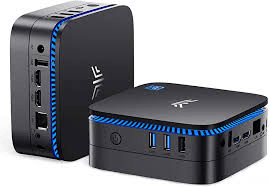
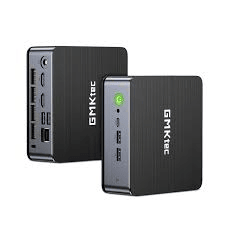
Introduction to Mini PCs and NUC Alternatives

In the world of compact computing, Mini PCs have gained immense popularity for their small form factor and impressive performance. Among the notable options in this category are Intel’s NUCs (Next Unit of Computing). NUCs have been the go-to choice for many users, but there are now excellent alternatives that deserve attention. This article aims to compare the top 5 NUC alternatives to help you make an informed decision.

Factors to Consider in NUC Alternatives

When searching for the perfect NUC alternative, several factors come into play. Considerations like processing power, graphics capabilities, connectivity options, storage, and size are crucial to match your specific needs. Whether you are a casual user, a content creator, or a gaming enthusiast, there’s a mini PC that suits you.

NUC Alternatives
Image by https://www.google.com/

Top 5 Mini PCs: A Detailed Comparison

Mini PC #1: Performance and Features

Our first contender boasts a powerful processor and advanced features that outperform traditional NUCs. With a high-performance CPU and cutting-edge GPU, this mini PC excels in handling demanding tasks and multimedia activities. Its compact design does not compromise on connectivity, making it ideal for both work and entertainment.

 Mini PC #2: Compact Design and Portability

Next up, we have a mini PC that takes portability to a whole new level. Its sleek design and lightweight build make it perfect for those on the go. Don’t be fooled by its size; this mini PC packs a punch with its formidable hardware and offers seamless performance for everyday computing tasks.

Mini PC #3: Connectivity and Expansion Options

For users who require a wide range of connectivity options and expansion capabilities, this mini PC is a strong contender. Equipped with an array of ports, including Thunderbolt, USB, HDMI, and more, it allows you to connect various peripherals and accessories effortlessly. The expandable storage and memory options provide the flexibility to meet your growing needs.

Mini PC #4: User Reviews and Ratings

While specifications matter, real-world experiences are equally important. We dive into user reviews and ratings to uncover the mini PC that has impressed users with its reliability and performance. Learn from firsthand experiences and find a mini PC that has garnered positive feedback from the community.

Mini PC #5: Price and Value Proposition

Finally, we look at a budget-friendly mini PC that doesn’t compromise on features and performance. This option offers an attractive value proposition, making it a compelling choice for users seeking excellent performance without breaking the bank. Explore how this mini PC stands out in terms of price-to-performance ratio.

Making Your Decision: The Best NUC Alternative for You

Now that we’ve examined the top 5 NUC alternatives, it’s time to make a decision based on your specific needs. Evaluate the factors that matter most to you, whether it’s raw performance, portability, connectivity, user reviews, or budget. Each mini PC has its unique strengths, and the ideal choice depends on how well it aligns with your requirements.

Conclusion: Embrace the Power of Mini PCs

the world of mini PCs is brimming with options that can rival traditional NUCs. These compact powerhouses offer a diverse range of capabilities to cater to different user preferences. From performance-oriented machines to budget-friendly choices, there’s a mini PC for everyone.

Embrace the versatility and convenience of mini PCs, whether you are a professional, a student, or a tech enthusiast. Keep in mind the key factors we’ve explored, and you’ll find the perfect NUC alternative that elevates your computing experience to new heights. Happy computing!

Introduction to Windows Narrator Reading E-books

Windows Narrator is an accessibility feature built into Microsoft Windows, designed to assist users with visual impairments by reading on-screen text aloud. While primarily intended to enhance accessibility, many users find Narrator useful for reading e-books and other text-heavy content. In this article, we will explore the latest version of Windows Narrator and how it can be employed effectively for reading e-books.

Getting Started with Narrator for E-books

Before delving into the various reading methods, it is essential to familiarize yourself with Windows Narrator’s basic commands. To activate Narrator, press the Windows logo key + Ctrl + Enter. This will launch the Narrator app and initiate the reading functionality. Alternatively, you can use the Windows logo key + Ctrl + N to toggle Narrator on or off.

Reading E-books
Image by rawpixel.com on Freepik

Reading Text with Narrator

Using Arrow Keys in a Word Processor

If you’re reading a document in a word processor like Microsoft Word, you can rely on the arrow keys to navigate the text. Simply use the up and down arrow keys to move between paragraphs and the left and right arrow keys to read by character.

Using Scan Mode for Navigation

Another way to read text with Narrator is by employing the scan mode. Activate scan mode by pressing Narrator + Spacebar. Once in scan mode, you can navigate using the up and down arrow keys to move by paragraph and the left and right arrow keys to move by character. For further details, refer to Chapter 3: Using Scan Mode.

Text-Reading Commands for Better Control

Narrator offers a range of text-reading commands to provide users with greater control over their reading experience. Here are some basic commands to get you started:

To stop reading, press Ctrl.
To read the window title, press Narrator + T.
To read a window, press Narrator + W.

For a comprehensive list of reading commands, see Appendix B: Narrator Keyboard Commands and Touch Gestures.

Exploring Different Text-Reading Options

Reading by Page, Paragraph, Line, Sentence, Word, and Character

Narrator allows you to read text in various granularities, enabling you to choose the level of detail that suits your reading preferences. Use the following commands to navigate through different parts of the text:

To read the current item, press Narrator + Tab.
To read from the current cursor position, press Narrator + R.
To read the current line, press Narrator + I or Narrator + Up arrow key.
To read the next line, press Narrator + O.
To read the previous line, press Narrator + U.

For more options and detailed commands, consult Appendix B: Narrator Keyboard Commands and Touch Gestures.

Customizing Verbosity Levels

Narrator offers various verbosity levels to control the amount of detail it provides about the text and controls. To change verbosity levels, press Narrator + V or Narrator + Shift + V until you reach the desired level:

Verbosity Level 1: Text Only
Verbosity Level 2: Some Control Details
Verbosity Level 3: All Control Details
Verbosity Level 4: Some Text Details
Verbosity Level 5: All Text Details

Adjusting verbosity levels ensures a tailored reading experience based on your needs.

Exploring Text Formatting Details

Narrator provides valuable information about text formatting, including font name, size, alignment, and more. Press Narrator + F to hear formatting attributes, and press Narrator + F again to cycle through the different groups of formatting attributes.

Formatting information includes font details, advanced font attributes, object color and outline information, paragraph spacing, page margin information, alignment details, visual effects, object layout, and annotation information.

Adjusting Punctuation Reading

Narrator enables you to customize how much punctuation you hear while reading text. Press the following commands to modify punctuation reading:

Default: Hear minimal punctuation, with natural pauses indicating commas and periods.
Math: Hear most mathematical symbols.
Some: Hear common conversational punctuation, such as commas and periods.
Most: Hear additional symbols, including parentheses.
All: Hear all punctuation, including special symbols.

Customizing punctuation reading ensures a smoother and more natural reading experience.

Capitalization Handling in Narrator

By default, Narrator reads capital letters the same as lowercase ones. However, you can change this behavior by going to Narrator settings and adjusting how capitalized text is read. Options include having Narrator say “cap” before capitalized letters or reading capitalized words with a higher pitch.

Reading Text in Other Languages

Narrator supports reading text in different languages. When you read text in a language for which a text-to-speech (TTS) voice is installed, Narrator will automatically use that voice. To install additional TTS voices, refer to Appendix A: Supported Languages and Voices.

If a TTS voice for a specific language isn’t installed, Narrator will announce the language and use the default TTS voice for reading the text.

Conclusion,

Windows Narrator proves to be a valuable tool for reading e-books and other text-intensive content. By mastering its commands and customization options, users can tailor the reading experience to suit their preferences and accessibility needs, making the exploration of digital literature a seamless and enjoyable process.

Introduction to Windows AutoPlay

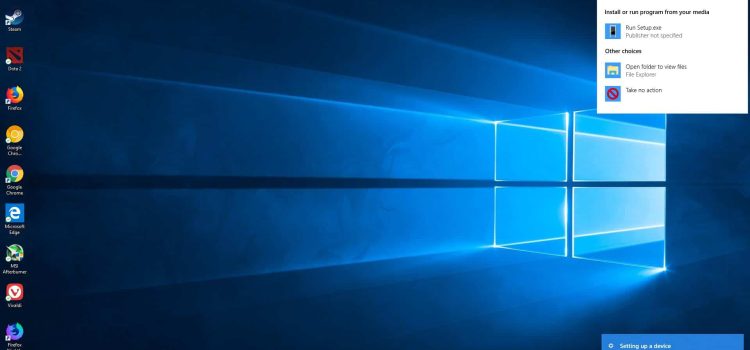
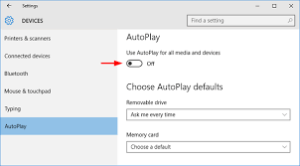
Windows AutoPlay is a convenient feature that automatically detects and performs actions when you insert new media or attach hot-plug devices to your computer. Based on the current settings, AutoPlay can perform various actions, such as playing content automatically, displaying a dialog box for selecting a default handler, launching applications for mixed content, or simply showing files in a standard folder view. This article will guide you through the process of setting up and using AutoPlay efficiently.

Preparing Hardware and Software for AutoPlay

Before you can use AutoPlay, certain information needs to be registered in the Windows registry. These pieces of information interact and reference each other to create the full AutoPlay environment. To ensure AutoPlay functions correctly, follow these individual stand-alone procedures:

  1. How To Assign a Device Handler to a Device
  2. How To Specify an Icon, Label, or Device Handler for a Device Using a Device Group
  3. How To Specify an Icon, Label, or Device Handler for a Device Using a Device Class
  4. How To Prevent AutoPlay for a Component
  5. How To Register a Handler for a Device Event
  6. How To Use AutoPlay Events in Running Applications
  7. How To Register an Event Handler

    Windows Event Viewer
    Image by https://www.google.com/

How AutoPlay Searches and Identifies Media

AutoPlay searches for media files up to four directory levels below the root directory to find known file types. It uses the PerceivedType value associated with a file name extension in the registry to determine the file’s category, whether it is an image, an audio file, or a video file. This information helps AutoPlay launch the appropriate handler for that device and file type. To understand more about Perceived Types and Application Registration, refer to the relevant documentation.

Understanding Single and Mixed Content Types

AutoPlay categorizes media into three main content types: Pictures, Music, and Video. A medium is considered to contain a single content type if all the files on the medium fall into one of these categories. For example, a medium containing .jpg, .gif, and .bmp files will be classified as having a single content type – “Pictures.”

On the other hand, if the medium contains different supported content types without any single content type accounting for 100 percent of the total, it is considered to have mixed content. Handling mixed content requires user input, and AutoPlay presents a dialog box with a filtered list of registered applications relevant to the content types present on the media.

Sample Scenarios for AutoPlay Usage

Let’s explore a few scenarios to better understand AutoPlay’s behavior:

  1. AutoPlay for Storage Devices with Picture Media:
    • When a USB SanDisk CompactFlash reader device with .jpg files is connected, AutoPlay launches the appropriate image application.
    • Users have the option to change the default action to another registered AutoPlay application, such as the Scanner and Camera Wizard or Picture It!.
  2. AutoPlay for Music File Playback Devices and Storage Devices:
    • When a USB Diamond Rio MP3 Player is attached, AutoPlay plays the files using its registered default handler, such as Windows Media Player.
    • Users can access the property sheet of the storage device and change the default action to another registered AutoPlay application, like WinAmp or Real Player.
  3. AutoPlay for Video Playback on First Presentation:
    • When a 1394 digital video camera is connected for the first time, a dialog box prompts the user to choose an application to run.
    • The user can set the selected behavior as the default action for later digital video camera hot-plug events.

Assigning Default Handler Applications

By default, a fresh installation of Windows comes with registered handler applications for different media types, including Pictures, Music, and Video. For non-supported types, users are prompted to assign the default AutoPlay action for each storage device upon its first introduction to the system. Users can always change the default AutoPlay handler for any storage device or content type using the AutoPlay property page accessible from My Computer.

Handling Mixed Content Types with AutoPlay

When AutoPlay detects mixed content media, it requires user input to take action. A dialog box presents a filtered list of registered applications relevant to all content types present on the media. Users can choose an application to AutoPlay that particular content type, while the rest remain untouched. The choice made for mixed content types cannot be saved as a default due to the unpredictable nature of mixed content media compositions.

Exploring AutoPlay User Interfaces

AutoPlay offers three user interfaces:

  1. Single Content Type Dialog Box:
    • Displayed when any supported media without a default AutoPlay action is presented.
    • Users can choose an action from the list of registered applications, list files in a folder view, or take no action.
    • Users can save a choice as the default action for the medium.
  2. Mixed Media Dialog Box:
    • Displayed when a medium contains a mix of supported file types.
    • Presents a filtered list of applications relevant to all content types on the media.
    • No option to choose a permanent default action due to the unpredictable nature of mixed content media.
  3. Property Page:
    • Provides AutoPlay configuration options for a specific DVD/CD-ROM device or content type.
    • Users can choose different actions for each content type.

Conclusion

Windows AutoPlay simplifies and streamlines the process of interacting with media devices on your computer. By understanding its functionalities, defining content types, and managing default handler applications, you can tailor AutoPlay to suit your needs and preferences. Experiment with different scenarios and make the most of this powerful feature for seamless media interactions on your Windows system.