1. NameCheap Logo Maker: Crafting Simple and Cost-Free Logos
When simplicity and cost-effectiveness are your priorities, the NameCheap Logo Maker stands out. This tool provides a hassle-free logo creation experience without any hidden costs or watermarks. It guides you through the process of choosing fonts, colors, and icons that resonate with your design vision. With an extensive collection of icons and customization options, you can tailor your logo to perfection.
2. Adobe Express Logo Maker: Unleashing Professional Logo Designs with AI
Did you know that Adobe Express offers more than just image editing tools? It also boasts a powerful Logo Maker backed by AI. Whether you’re aiming for bold, elegant, modern, or decorative styles, this tool has you covered. Customize your logo with various color palettes and font styles, and enjoy seamless integration with other Adobe tools for further editing.
Image by https://www.makeuseof.com/
3. My Free Logo Maker: Generate, Customize, and Elevate Your Logo
My Free Logo Maker (MFLM) is another excellent option that ensures complete freedom in logo creation. With no restrictions or watermarks, MFLM offers a seamless process for generating logos tailored to your preferences. The ability to choose from various designs and customize each logo element makes it an ideal choice for those seeking uniqueness.
Image by https://www.makeuseof.com/
4. Relogo AI: Transform Your Existing Logo with AI-powered Designs
For those who already have a logo but seek a fresh perspective, Relogo AI is a game-changer. This tool utilizes AI to re-imagine your existing logo in different design styles. By maintaining elements of familiarity while introducing new variations, Relogo AI strikes a balance that’s perfect for those looking for a subtle yet impactful change.
Image by https://www.makeuseof.com/
5. Brandmark: Elevate Your Logo’s Quality with AI Tools
While Brandmark offers logo generation at a cost, its free AI-based tools provide valuable insights and enhancements for your logo. From objective rating to color palette adjustments and screen optimization, these tools ensure your logo is not only visually appealing but also functional across various platforms.
Image by https://www.makeuseof.com/
Always Seek Second Opinions
Creating a logo is a subjective process, and receiving feedback is crucial. After using these tools to craft your logo, don’t hesitate to seek second opinions from designers or individuals whose judgment you trust. Constructive feedback can lead to refinements that elevate your logo’s impact.
Image by https://www.makeuseof.com/
In conclusion, these five free online logo making tools offer a range of possibilities for both creating new logos and revitalizing existing ones. Each tool comes with its unique set of features, ensuring that there’s a perfect match for your design preferences. Remember, a captivating logo is a powerful asset in establishing your brand’s identity, so take advantage of these tools to create a logo that resonates with your audience.
When it comes to diving into a world of literature, the options are aplenty. The allure of finding your next read is a thrilling experience that ebook enthusiasts cherish. While Amazon’s Kindle Store stands tall in the ebook market, there’s an entire landscape of online ebook stores waiting to be discovered. Here’s a rundown of some remarkable alternatives that offer variety, affordability, and quality reads beyond the familiar Amazon realm.
Exploring Online Ebook Stores Beyond Amazon
Amazon’s dominance in the ebook market is undeniable. The Kindle Store has shaped the digital reading landscape, drawing readers from all corners of the globe. However, sometimes venturing beyond the familiar can lead to exciting discoveries. For those seeking diverse genres, enticing prices, and distinctive ebook formats, these online ebook stores provide a refreshing alternative.
Amazon: The Giant Ebook Marketplace
At the forefront of online ebook shopping, Amazon’s vast ebook store boasts an expansive collection that caters to every literary taste. Kindle Unlimited, an enticing subscription service, offers a treasure trove of over a million titles for a monthly fee. Prime members can also indulge in Prime Reading, exploring a curated selection of books, magazines, and comics.
Although Amazon often presents the best prices and discounts, the AWZ format may pose a challenge for non-Kindle users. The need for conversion to EPUB format is inevitable, a task facilitated by apps like Calibre. Despite this, Amazon remains an essential destination for ebook enthusiasts.
Image by https://www.makeuseof.com/
Apple Books: A Haven for Apple Users
Apple users can turn to Apple Books, formerly known as iBooks, for a tailored ebook experience. However, non-Apple users will find themselves excluded from this realm, as it’s limited to Apple devices like Mac, iPad, and iPhone. While the store offers titles from mainstream and independent publishers, it falls short in volume compared to Amazon’s extensive collection.
Image by https://www.makeuseof.com/
eBooks.com: A Two-Decade-Long Repository
With a history spanning over 20 years, eBooks.com has evolved into a powerhouse among ebook sellers. Boasting more than two million titles across various genres, this platform offers a versatile reading experience. An online reader and downloading tool enhance convenience, allowing readers to multitask while indulging in their literary pursuits. The store exclusively deals in EPUB and PDF formats, ensuring compatibility with a wide range of devices.
Image by https://www.makeuseof.com/
Smashwords: Empowering Indie Authors and Readers
Smashwords serves as a beacon for indie authors, offering a platform to showcase their creations. For readers, this means access to an extensive library of nearly 800,000 books, with a significant portion available for free. Notably, Smashwords offers unique filters, including word count and genre distinctions, making it a haven for those seeking tailored content. The availability of multiple formats, including EPUB, MOBI, and PDF, further enhances the reading experience.
Image by https://www.makeuseof.com/
Barnes and Noble: Kindle’s Competitor with Nooks
As one of Amazon’s prime competitors, Barnes and Noble’s ebook store is a force to be reckoned with. Renowned for its Nook ereader, the company offers over four million paid titles and a million free ebooks. However, compatibility can be a hurdle for Kindle users. Converting EPUB files and removing Barnes and Noble’s DRM can be achieved with the help of the Calibre ebook management app.
Image by https://www.makeuseof.com/
Kobo: Personalized Recommendations and More
Kobo emerges as another potent player in the ebook arena, boasting a vast collection of five million titles. Its recommendations algorithm refines suggestions based on users’ preferences, creating a personalized experience. A Kobo Plus subscription provides unlimited access to a million titles, and an audiobook upgrade option mirrors Amazon’s Kindle Unlimited service. Kobo Writing Life empowers aspiring authors, enriching the platform with indie titles.
Image by https://www.makeuseof.com/
Google Play Books: Android User’s Choice
For Android enthusiasts, Google Play Books offers seamless integration within the Android ecosystem. The platform presents a collection of over five million titles, exclusively available in EPUB and PDF formats. However, Kindle users may encounter DRM restrictions, necessitating the use of additional apps like Calibre.
Image by https://www.makeuseof.com/
Harlequin: Romance and Beyond
Harlequin stands as a haven for readers seeking romance and beyond. With a specialization in women-oriented literature, the platform offers a diverse range of titles. Harlequin has expanded beyond romance to include genres like thrillers, suspense novels, dramas, and paranormal stories. Various subscription options and a plethora of free stories add to the appeal.
Image by https://www.makeuseof.com/
BookBub: Curated Deals and Exploration
BookBub revolutionizes ebook shopping with curated deals delivered by experts. Covering bestsellers and hidden gems, the platform opens doors to unexplored literary worlds. Although not a direct seller, BookBub aggregates deals from various ebook sellers based on users’ interests, ensuring readers never miss the best discounts.
Image by https://www.makeuseof.com/
Blackwell’s: UK’s Academic and Beyond
Blackwell’s, rooted in academic publishing, offers a niche selection of ebooks. While its focus on non-fiction is evident, the ebook collection pales in comparison to its physical book counterparts. Nevertheless, for seekers of academic wisdom, Blackwell’s remains a valuable resource.
Image by https://www.makeuseof.com/
Hive: Supporting Local While Buying Ebooks
Hive, a UK-based ebook store, stands out for its support of local bookshops. Besides ebooks, Hive offers an array of media. Each ebook purchase contributes to independent bookshops, making it an attractive choice for those eager to support local businesses.
Image by https://www.makeuseof.com/
WHSmith: A High Street Legacy and Kobo Partnership
A fixture on the British high street, WHSmith teams up with Kobo to provide a wide-ranging ebook store. Despite its integration challenges, the collaboration offers an array of genres, special offers, and free books.
Image by https://www.makeuseof.com/
Embracing the Library: A Borrower’s Paradise
While buying ebooks has its allure, the library offers an alternative path. Libraries, often part of systems like Libby in the US, allow users to borrow titles for a limited time, avoiding the need for purchase.
As you embark on your ebook journey, consider the rich landscape of online stores beyond Amazon. Each platform offers a unique blend of content, convenience, and support for readers and authors alike. Whether you seek personalized recommendations, genre diversity, or local support, these ebook stores have something exceptional to offer.
Google Chrome, a widely used web browser, sometimes exhibits the behavior of automatically launching new tabs without user initiation. This can disrupt the browsing experience, causing inconvenience and distraction. Let’s delve into effective fixes to regain control over your browser and put an end to these unwanted tab openings.
Fixes for Chrome Opening New Tabs on Click
Several factors can contribute to Chrome’s propensity to open new tabs spontaneously. Before diving into detailed solutions, consider these preliminary fixes:
End Task in Task Manager: Access the Task Manager, locate the Chrome process, right-click, and select “End task.” Restart the browser to check if the issue persists.
Clear Cache and Cookies: Outdated cached data might interfere with Chrome’s functionality. Clear your browser’s cache and cookies to prevent such disruptions.
Manage Extensions: Disable browser extensions one by one to identify any that might be causing conflicts with Chrome’s behavior.
Update Chrome: Ensure your Chrome browser is up-to-date by installing the latest version from Google’s official website.
Check Keyboard and Mouse Managers: Inaccurately configured keyboard and mouse managers can lead to browser malfunctions. Disable or remove such apps to troubleshoot this possibility.
Image by https://www.makeuseof.com/
Managing Shortcut Key Issues and Keyboard Checks
If Chrome consistently opens new tabs upon launch and the behavior persists, it’s possible that the shortcut keys for new tab openings are unintentionally pressed. Confirm this using the on-screen keyboard in Windows. Press CTRL + Win + O to open the on-screen keyboard and check whether the shortcut keys (CTRL + T) appear pressed. If so, ensure that your physical keys are not stuck. If the keys seem fine but still appear pressed on the on-screen keyboard, a hardware issue may be at play.
Adjusting Chrome Settings to Control Tab Behavior
Chrome features a built-in option that opens links in new tabs. This facilitates exploring multiple links from search engine results without constant back-and-forth navigation. To modify this behavior and make Chrome open links in the same tab, follow these steps:
Perform a search in Chrome and hit Enter.
Image by https://www.makeuseof.com/
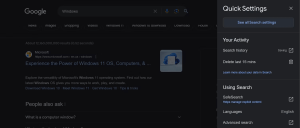
Click the Quick Settings icon in the top-right corner, then select “See all Search settings.”
Image by https://www.makeuseof.com/
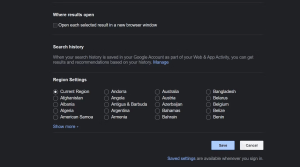
In the “Where results open” section, uncheck the box next to “Open each selected result in a new browser window.”
Image by https://www.makeuseof.com/
Image by https://www.makeuseof.com/
Dealing with Malicious Websites and Malware
If new tabs continuously lead to unwanted websites upon clicking links, the source website or its content may be malicious. This can result in redirects to questionable offers and landing pages run by threat actors. Ensuring your online safety is paramount; learn how to identify untrustworthy websites to stay protected.
Ensuring Browser Health: Reset and Reinstall Chrome
Chrome’s misbehavior can also stem from malware or viruses infecting the browser. If none of the above solutions prove effective, consider the following steps:
Run a Malware Scan: Perform a comprehensive malware scan using a trusted security tool to eliminate potential infections.
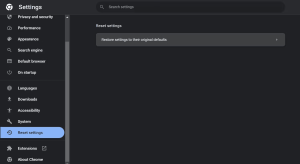
Reset Chrome Settings: Resetting Chrome to its default settings can rectify misconfigurations that may contribute to tab opening issues.
Reinstall Chrome: If all else fails, consider reinstalling Chrome. Ensure you remove the existing installation properly before proceeding with a fresh installation.
Image by https://www.makeuseof.com/
Concluding Thoughts on Resolving Chrome Tab Issues
The automatic opening of new tabs in Chrome can disrupt your browsing experience and raise concerns about security. By applying the solutions outlined in this article, you can effectively regain control over your browser. From preliminary fixes to adjusting settings, addressing keyboard concerns, and dealing with malicious elements, these steps will assist you in curbing unwanted tab openings. Remember, if all efforts fail, a fresh Chrome installation or exploring alternative browsers are viable options to ensure seamless and secure browsing.
1. Understanding the “Installer Has Insufficient Privileges” Error
When you attempt to install desktop programs on your Windows PC, you might come across the error message “The installer has insufficient privileges to access this directory.” This message often appears when you’re installing software using setup files. The result? You’re unable to install the software you need, which can be a major hindrance.
2. Simple Steps to Overcome the Error
Run the Affected Software’s Setup File With Admin Rights:
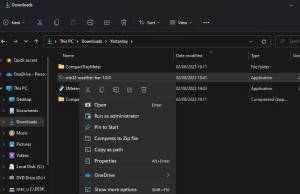
Sometimes, a straightforward solution is the most effective. Right-click the software’s installer file and select “Run as administrator.” This simple step can often resolve the privileges issue.
Image by https://www.makeuseof.com/
Unblock the Setup File:
Check if the installer file is blocked. Right-click the setup file, navigate to Properties, and if you see an “Unblock” option on the General tab, deselect it and click Apply.
Image by https://www.makeuseof.com/
Take Ownership of the Software’s Installation Directory:
One reliable solution is taking ownership of the installation directory. Follow the provided path and take ownership of the second-to-last folder. Alternatively, manually create the missing folder specified in the error message and take ownership of it.
Try Installing in a Different Folder:
Opt to install the software in a different directory from the one mentioned in the error message. This can bypass the privileges error.
3. Advanced Solutions for Persistent Errors
Start or Restart Windows Installer:
Check if the Windows Installer service is running. If not, start it. If it’s already running, restart it. This can resolve installation issues caused by the service.
Image by https://www.makeuseof.com/
Disable UAC Before Installing:
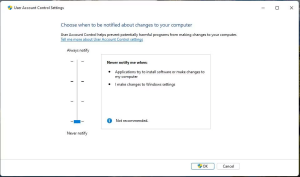
User Account Control (UAC) might be causing the error due to its security settings. Temporarily disable UAC before installing the software.
Image by https://www.makeuseof.com/
Disable All UAC Policy Settings:
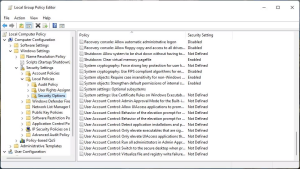
Windows Pro or Enterprise users can disable all UAC policy settings using the Group Policy Editor. This method can help restrict software installation-related errors.
Image by https://www.makeuseof.com/
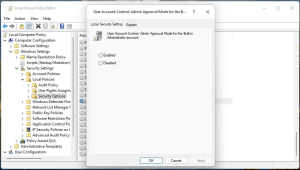
Select Disabled to turn off that policy setting.
Click Apply > OK to save the policy setting you’ve selected
Image by https://www.makeuseof.com/
Turn Off Third-Party Security Apps:
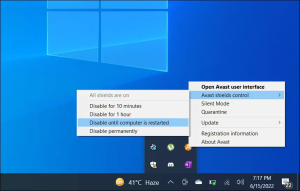
Disable third-party security apps like antivirus or firewalls temporarily. These tools can sometimes block installations, particularly of unsigned software.
Image by https://www.makeuseof.com/
4. Ensuring Smooth Software Installation
Try Installing Software After Clean Booting:
Perform a clean boot to disable third-party apps and services that could hinder the installation process.
Uninstall Older Software Versions:
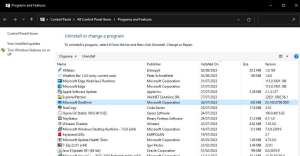
If the error occurs when updating software, uninstall the previous version before installing the new one.
Image by https://www.makeuseof.com/
Conclusion,
Encountering the “installer has insufficient privileges” error is a common occurrence during software installation on Windows systems. However, armed with the solutions provided here, you can overcome this obstacle and ensure smooth software installation. By following these steps, you’ll regain control over your software installation process and enjoy a hassle-free experience on your Windows 11/10 PC.
With the rise of technology, you no longer have to empty your pockets for high-end smartphone features. Many individuals require basic tasks such as messaging, browsing, and photography, which can be easily fulfilled by affordable devices. Let’s dive into the top picks for budget-friendly smartphones that offer exceptional value for your money.
2. Top Picks for Budget-Friendly Smartphones
When it comes to budget smartphones, there are several options that stand out. Let’s take a closer look at some of the top contenders:
3. OnePlus Nord CE 2 Lite: A Perfect Balance of Value and Performance
Image by https://www.makeuseof.com/
The OnePlus Nord CE 2 Lite stands as a prime example of balancing value and performance. Its 5G-compatible processor and smooth interface ensure fluid usage. The stunning display and exceptional battery life make it an excellent choice for budget-conscious consumers. Despite lacking certain features like waterproofing and Gorilla Glass protection, the OnePlus Nord CE 2 Lite remains an affordable and high-performing smartphone.
Pros 3.5mm headphone jack
Quality display
Long battery life
Overall excellent performance Cons No waterproofing
No Gorilla
Glass screen protection
Dull design
4. Samsung Galaxy A14: Affordable 5G Support and More
Image by https://www.makeuseof.com/
If 5G compatibility is a priority, the Samsung Galaxy A14 is an attractive option. With a sharp display, decent battery life, and surprisingly good camera capabilities, this device offers great value. While it may not be the most durable option, its 5G and 4G support make it a solid choice for those seeking fast connectivity on a budget.
Pros
Sharp display with smooth performance
3.5mm headphone jack
Decent camera
5G and 4G support
Cons
Not particularly durable
Slow charging
5. Xiaomi Redmi Note 11 Pro+: A Gaming Powerhouse on a Budget
Image by https://www.makeuseof.com/
Gaming enthusiasts will appreciate the Xiaomi Redmi Note 11 Pro+ with its impressive display and powerful MediaTek Dimensity 920 5G chipset. The device’s enhanced gaming performance, coupled with its capable camera and smooth gameplay, makes it a noteworthy option for budget-conscious gamers.
Pros
3.5mm headphone jack
120W charger for blazing-fast charging
Good audio quality
Dual SIM
Decent battery life
Cons
Only two years of major Android updates
6. Motorola Moto G Stylus (2022): Ideal for Note-Taking
Image by https://www.makeuseof.com/
For those who prioritize note-taking, the Motorola Moto G Stylus (2022) offers an excellent stylus experience at an affordable price. Its smooth scrolling, good camera, and reliable battery life make it a suitable choice for everyday use. Despite lacking 5G support, its performance and features are highly appealing.
Pros
Quality stylus
Smooth 90Hz scrolling
Good camera
Superb battery life
Water repellant
Cons
Dim display
No 5G
Not particularly compact
7. Samsung Galaxy A54 5G: Exceptional Display at a Budget
Image by https://www.makeuseof.com/
The Samsung Galaxy A54 5G impresses with its premium build quality and exceptional Super AMOLED display. With accurate colors, deep contrast, and excellent brightness, it provides an enjoyable viewing experience. While lacking a headphone jack, its Dolby Atmos-optimized speakers enhance audio quality.
Pros
Dolby Atmos-optimized speakers
4K at 30FPS video
Good video stabilization
All-day battery performance
Expandable storage
Cons
No headphone jack
25W charging limit
8. Google Pixel 7: Budget Smartphone with Impressive Camera
Image by https://www.makeuseof.com/
The Google Pixel 7 offers a budget-friendly option with impressive camera capabilities. Its OLED display, battery life, and camera features make it a competitive choice. Despite missing a telephoto lens, its camera quality, including features like Photo Unblur, sets it apart.
Pros
24-hour battery life
Corning Gorilla Glass Victus
NFC support
IP68 dust and waterproof
Excellent camera quality
Cons
No telephoto lens
9. iPhone SE (2022): Reliable and Affordable iPhone Option
Image by https://www.makeuseof.com/
Apple fans looking for a budget option will find the iPhone SE (2022) appealing. Its A15 Bionic chip provides fast performance, and its compact size is convenient for everyday use. While the small screen may not be ideal for media consumption, its reliability and durability make it a solid choice.
Pros
Range of Storage Options
Touch ID on Home button
4K at 60FPS video
Decent battery life and fast charging
5G Cellular support
Cons
Screen is on the small side for media content
10. Considerations Before Choosing Your Budget Smartphone
Before making a decision, consider your priorities. Are you looking for 5G support, gaming capabilities, or camera quality? Each smartphone offers a unique set of features tailored to different needs. Evaluate your requirements and select the device that aligns with your preferences and budget.
In conclusion, finding a budget-friendly smartphone no longer means sacrificing performance or features. The market offers a variety of options that cater to different preferences. Whether you prioritize gaming, photography, or overall value, these budget smartphones provide excellent choices for consumers seeking quality without breaking the bank.
Understanding Network Scanning and Enumeration in Penetration Testing
Scanning and enumeration are the initial steps in a penetration tester’s methodology. This phase encompasses various tasks, such as identifying live hosts, IP addresses, open ports, services, and operating systems on the target network. It serves as reconnaissance, allowing testers to comprehend the network’s structure, uncover potential vulnerabilities, and evaluate its security posture.
Nmap: Your Reliable Network Mapper for Scanning and Discovery
Nmap, short for Network Mapper, is a renowned command-line tool in the cybersecurity realm. Cyber professionals frequently utilize it for network discovery and swift scanning across networks of all sizes. By sending specialized packets to target hosts and analyzing their responses, Nmap constructs a map of the network’s layout. Its insights play a pivotal role in the enumeration process. Remarkably, Nmap is compatible with Windows, Linux, and Mac OS, ensuring easy installation and usage.
Image by https://www.makeuseof.com/
Nessus: Automated Vulnerability Scanning for Enhanced Security
Nessus, developed by Tenable Inc., stands as a popular automated vulnerability scanning and assessment tool. This solution aids security experts and researchers in identifying vulnerabilities within networks, systems, and applications. Organizations employ Nessus to proactively address potential weaknesses and bolster their security stance. With versions available for Linux, Windows, and MacOS, Nessus is user-friendly and accessible. While paid versions exist, the Nessus Essentials package offers comprehensive scanning capabilities.
Zenmap and Netdiscover: User-Friendly Alternatives for Efficient Scanning
Zenmap, the graphical user interface (GUI) version of Nmap, simplifies the visualization of scan results. Unlike the command-line interface (CLI) counterpart, Zenmap presents findings in an organized format, complete with a searchable database. This open-source tool is compatible with Linux, Windows, and MacOS. Users can save scan results and preferred commands for future reference.
Netdiscover serves as an active/passive reconnaissance tool, enabling network and IP address information gathering. Additionally, it inspects LAN traffic and identifies IP addresses. This command-line open-source tool is readily available on various Linux distributions.
Image by https://www.makeuseof.com/
Carrying Out a Good Penetration Test
The foundation of a successful penetration test rests on thorough information gathering and reconnaissance. This phase equips testers with a profound understanding of the target network. The more insights acquired about the system under scrutiny, the more effectively testers can execute precise and impactful assessments.
In conclusion, mastering the art of network scanning and enumeration is crucial for effective penetration testing. Nmap, Nessus, Zenmap, and Netdiscover stand out as valuable tools in this phase. Their combined capabilities empower testers to comprehensively assess network security and identify vulnerabilities that demand mitigation. By incorporating these tools into your penetration testing methodology, you can enhance your expertise, authoritativeness, and trustworthiness in the cybersecurity realm.
1. Setting Up Your Apple TV for the Ultimate Entertainment Experience
Bringing the big screen into your home has never been easier. Follow these steps to ensure a seamless setup process:
2. Unboxing and Connecting: How to Get Your Apple TV Ready
Before you dive into the Apple TV’s features, make sure you have the essentials ready:
An Internet connection.
Image by https://chat.openai.com/
A TV or display with an HDMI port.
Image by https://chat.openai.com/
An HDMI cable (Note: Apple TV doesn’t include one).
Image by https://chat.openai.com/
If you’re an iPhone user, streamline the setup process by using your device:
Update your iPhone to the latest iOS version.
Sign in to iCloud with your Apple TV.
Turn on two-factor authentication for your Apple ID.
Activate Bluetooth and connect to your home Wi-Fi network.
Once prepared, unpack the Apple TV 4K box to find the Siri Remote, streaming box, and power cable. Connect the power cable to both the Apple TV and a power outlet. Attach the HDMI cable to the Apple TV and your TV, and ensure your TV is set to the correct HDMI input.
3. Navigating Your Apple TV: Siri Remote and Customization
Image by https://chat.openai.com/
Personalize your Apple TV experience using the Siri Remote:
Select your language and country/region.
Opt to use Siri for enhanced functionality.
Image by https://chat.openai.com/
Set up your Apple ID and Wi-Fi settings using your iPhone for a quicker process.
Alternatively, manually enter your Apple ID and Wi-Fi info.
Image by https://chat.openai.com/
Sign in with your TV provider for access to locked content.
Customize settings like One Home Screen to unify your Apple TV experience across devices.
Add your Apple TV to the Home app and invite additional users for personalized access.
Image by https://chat.openai.com/
4. Exploring Content and Beyond: Apple TV’s Features at Your Fingertips
Master the Siri Remote, a pivotal aspect of your Apple TV interaction:
Use the touch-sensitive clickpad and ring for navigation.
Harness Siri’s voice commands for content search, media control, weather updates, and more.
Control TV power and volume, access Control Center, and manage media playback.
Utilize the Remote app on your iPhone or iPad for a seamless alternative.
The Apple TV’s heart lies in its apps. Discover a world of possibilities:
Browse curated titles in Discover or explore apps by category.
Apple apps like Apple TV, Music, and Photos are pre-installed.
Embrace the Apple TV app for a centralized hub of your content, including subscriptions and Apple TV+.
Unlock smart home control with your Apple TV:
Transform your Apple TV into a smart home hub.
Use Siri to control HomeKit devices remotely.
Access Control Center for user switching, device sleep, music control, and more.
In Conclusion
Your Apple TV 4K journey has just begun. It’s more than a streaming device; it’s a hub for entertainment, smart home control, and personalization. With its user-friendly setup, intuitive Siri Remote, and a wealth of content options, your living room transforms into a theater of possibilities. Dive in and experience all that the Apple TV has to offer.
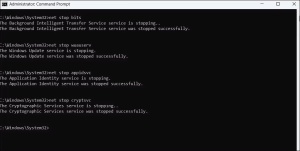
net start bits
net start wuauserv
net start appidsvc
net start cryptsvc
Close the Command Prompt window and restart your PC to apply the changes. If you’re interested in discovering more useful commands, check our guide on the best Command Prompt commands for Windows.
Using a Batch File: A Hassle-Free Approach
If the manual method seems overwhelming, you can opt for a batch file approach:
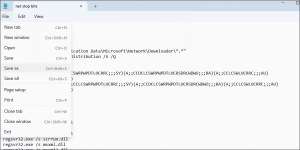
Press Win + S to open the search menu and type “Notepad.” Press Enter.
Copy and paste the provided commands into Notepad.
Save the file as “Reset Windows Components.bat.”
Click the File menu at the top, then Save as.
Image by https://www.makeuseof.com/
5. Enter Reset Windows Components.bat in the name field and specify your preferred location for saving the file.
6. Click the Save as type drop-down menu to select All files, then click on Save.
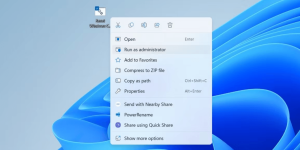
7. Locate the saved batch file on your PC. Right-click on it and select Run as administrator from the context menu.
8. Select Yes when the User Account Control (UAC) prompt appears
Image by https://www.makeuseof.com/
This batch file executes the same commands as the manual method, simplifying the process for you.
Conclusion
Resetting Windows Update components can often fix issues with downloading and installing updates. If you encounter problems in the future, you now have the tools to reset these components manually or using a batch file. However, if the issues persist, there are other Windows Update troubleshooting methods you can explore to ensure your system stays up-to-date and secure.
Remember, maintaining a smoothly functioning system often requires a bit of technical know-how, and these methods can be valuable tools in your arsenal of system management techniques.
Is your Start menu not working? Or do you just want a desktop shortcut that restarts your PC? Here are all the ways to restart a Windows computer.
Restarting your Windows computer is one of the most popular ways to fix any temporary system glitches. At times, you may also need to restart your system to install a Windows Update or apply registry changes.
1. How to Restart Windows via the Start Menu
The easiest and most well-known way to restart a Windows computer is through the Start menu. Here are the steps you need to follow:
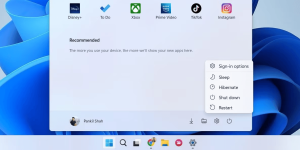
Click the Start icon on the taskbar or press the Win key to open the Start menu.
Click the power icon in the bottom right corner.
Select Restart from the menu that appears.
Image by https://www.makeuseof.com/
And voila! Your PC will reboot.
2. How to Restart Windows Using the Power User Menu
The Windows Power User menu provides quick access to some of the most important features and utilities. It also gives you the option to restart or shut down your Windows PC.
To restart Windows using the Power User menu:
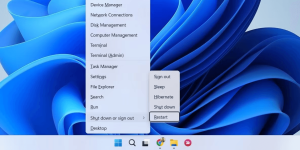
Right-click on the Start icon or use the Win + X keyboard shortcut to access the Power User menu.
Select Shut down or sign out > Restart.
Image by https://www.makeuseof.com/
As soon as you do this, your PC will reboot.
3. How to Use the Ctrl + Alt + Delete Menu to Restart Windows
Another way to restart your Windows PC is through the Ctrl + Alt + Delete menu. It’s likely your best option if the Start menu is not working.
Start by pressing Ctrl + Alt + Delete on your keyboard to open the options screen. Then, click the power icon in the bottom right corner, and select Restart from the list. Your PC will restart immediately.
Image by https://www.makeuseof.com/
4. How to Restart Windows With the Alt + F4 Shortcut
You can also restart your PC easily by accessing the Shut Down Windows dialog. Here are the steps you need to follow:
Press Win + D to quickly navigate to your Desktop.
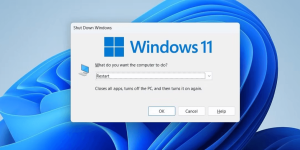
Press Alt + F4 on your keyboard to summon the Shut Down Windows dialog.
Use the drop-down menu to select Restart and click OK.
Image by https://www.makeuseof.com/
Aside from the above, you can also use the Shut Down Windows dialog to put your PC to sleep, shut it down, or hibernate it.
5. How to Restart Windows via the Command Prompt
If you’re an avid Windows user familiar with the command prompt utility, you can also restart your PC by running a command. Here’s how:
Click the search icon on the taskbar to open the search menu.
Type cmd and select Run as administrator.
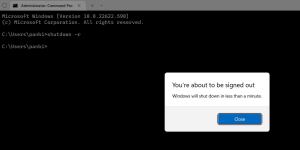
Run the command “shutdown -r” in the console to restart your PC.
Image by https://www.makeuseof.com/
If you want to cancel the restart at any point during the 60-second period, use the command “shutdown /a”.
6. How to Restart Windows From the Login Screen
You don’t necessarily have to sign in to your Windows computer to restart it. Windows also gives you the option to restart your PC from the login screen or lock screen.
When you are on the Windows login or lock screen, click the power icon in the bottom right corner and select Restart from the menu that appears.
Image by https://www.makeuseof.com/
7. How to Create a Desktop Shortcut to Restart Windows
Create a desktop shortcut to restart your computer with ease:
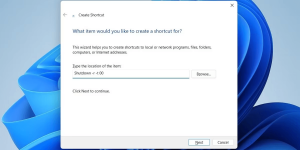
Right-click on an empty spot on your desktop and select New > Shortcut.
In the Create Shortcut window, type “Shutdown -r -t 00” in the text field.
Enter a suitable name for your shortcut and click on Finish.
Image by https://www.makeuseof.com/
Once you have created a desktop shortcut, you can double-click it to quickly restart your computer.
8. How to Use the Emergency Restart Feature in Windows
Windows also provides a secret Emergency restart option that can be useful if your PC freezes or if the above suggestions do not work. To use it:
Press Ctrl + Alt + Delete on your keyboard.
Press and hold the Ctrl key and click the power icon in the bottom right corner.
Click OK when the Emergency restart prompt appears.
Image by https://www.makeuseof.com/
Once you complete the above steps, your PC will reboot.
How Do You Prefer to Restart Your Windows PC?
Now you know several ways to restart your Windows PC. All of them are quick and easy to execute. You can pick the one that is most convenient for you.
In addition to the aforementioned methods, you can also remotely restart your Windows computer.
Experiencing sudden Wi-Fi speed drops can be frustrating. You might be streaming content one moment and struggling to load a webpage the next. Several factors can contribute to this issue, including network congestion, interference, and outdated hardware.
Troubleshooting Steps to Regain Wi-Fi Speed:
Test Your Internet Connection:
Before blaming your Wi-Fi, ensure your ISP isn’t the culprit. Test your connection using tools like Speedtest. For accurate results, connect your device directly to the router with an Ethernet cable and observe if the speed fluctuates.
Image by https://www.makeuseof.com/
Update Your Router’s Firmware:
Keep your router’s firmware up-to-date. These updates often include bug fixes and security patches that can improve performance. Reboot the router after updating to clear its cache and enhance stability.
Image by https://www.makeuseof.com/
Switch Your Wi-Fi Channels:
Overcrowded Wi-Fi channels can slow down your network. Choose the best Wi-Fi channel for your router to avoid interference from other devices. This simple adjustment can lead to noticeable improvements.
Image by https://www.makeuseof.com/
Check Bandwidth Consumption:
Bandwidth-hungry activities like video streaming can impact your Wi-Fi speed. Identify devices or programs using excessive bandwidth and address the issue. Also, run antivirus scans to ensure malware isn’t affecting your speed.
Image by https://www.makeuseof.com/
Optimizing Your Wi-Fi Network Setup:
Optimize Router Placement:
Router placement greatly affects signal strength. Avoid obstacles like concrete walls and position the router centrally for optimal coverage. Identify and resolve areas with weak signals or dead spots in your home.
Image by https://www.makeuseof.com/
Tighten Your Wi-Fi Security:
Unauthorized devices on your network can slow it down. Secure your router by changing default credentials and using strong passwords. Make sure to use advanced security protocols like WPA2 or WPA3.
Consider Upgrading for Lasting Improvements:
Upgrade Your Outdated Router Hardware:
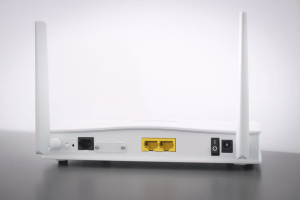
Aging routers can struggle to keep up with modern demands. Consider upgrading your router’s hardware, such as antennas or the router itself, for improved signal strength and faster speeds.
Image by https://www.makeuseof.com/
Conclusion: Taking Control of Your Wi-Fi Speed
Don’t let Wi-Fi speed drops ruin your online experience. By following these steps, you can identify the root causes of slow internet and take effective measures to improve your connection. Whether it’s optimizing router placement or upgrading hardware, investing time in Wi-Fi troubleshooting can lead to a more enjoyable online experience.