




Introduction: Join a LAN World in Minecraft
In the realm of gaming, few experiences are as exciting as immersing yourself in a Minecraft LAN world with friends. However, the frustration of being unable to connect or facing disruptions in your LAN gaming session can be a real buzzkill. If you’re a Windows user grappling with Minecraft LAN woes, you’ve come to the right place. In this article, we’ll explore seven proven solutions to get your LAN world up and running smoothly. Whether you’re a seasoned gamer or a novice explorer, these expert tips will help you overcome the hurdles and reconnect with your friends seamlessly.
1. Connect Both Devices to the Same Network
The Foundation of a Smooth LAN Experience
Before delving into complex fixes, start with the basics. To join or host a Minecraft LAN world, all devices must be on the same network. To ensure this, check your network connection settings and disable automatic connections to other networks. This simple step can save you from connectivity headaches.
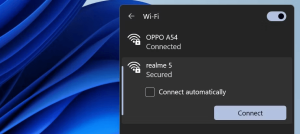
2. Connect to the Same Network Using the Same Connection Method
Syncing Connection Types
It’s not just about being on the same network; your connection type matters too. Ensure that your device uses the same connection method (Wi-Fi, Ethernet, etc.) as the host. Even though Minecraft doesn’t strictly require this, matching your connection type with the host’s can resolve compatibility issues.
3. Ensure You’re Using the Same Minecraft Version as the Host
Version Compatibility is Key
A common oversight is not running the same Minecraft version as the host. Ensure that your game is up-to-date by selecting the latest release in the Minecraft launcher. Mismatched versions can be a major obstacle to joining LAN worlds.

4. Change Your Windows Network Profile to Private
Unlocking Private Network Access
Windows often sets new network connections as public by default. This setting hides your device from others on the network. Change your network profile to private so that other devices can see and connect to your machine, making LAN gaming a breeze.
5. Enable Network Discovery in the Control Panel
The network discovery feature in Windows allows your device to discover other devices connected to the same network or permit other devices to see yours. If you still can’t join the LAN world in Minecraft or have issues, make sure this setting is turned on. Here’s how you can check that:
- Type “Control Panel” in Windows Search and open the Control Panel app.
- Navigate to Network and Internet > Network and Sharing Center.
- Click on the Change advanced sharing settings option on the left.
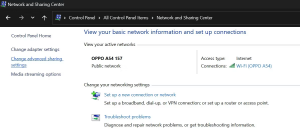
Image by https://www.makeuseof.com/ - Expand the private network profile and turn on the toggle next to Network discovery.
- Also, check the box beside Set up network connected devices automatically.
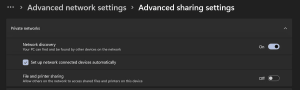
Image by https://www.makeuseof.com/
6. Perform Some General Fixes
Troubleshooting 101
When all else fails, these general fixes can come to your rescue:
- Whitelist Minecraft in Windows Defender to prevent connection blocks.
- Disable proxy servers or VPN connections.
- If using mods, ensure everyone has the same mods or try playing without them.
- Check your router settings for any restrictions on device connectivity.
7. Create a Direct Connection in Minecraft
Going Direct for Reliable Connectivity
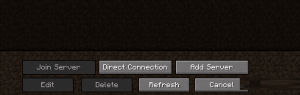
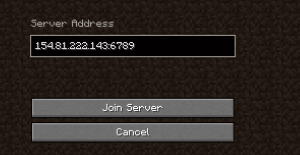
If nothing else works, establish a direct connection to the host server. This method involves using the host’s IPv4 address and LAN port number. It’s a surefire way to bypass most connectivity issues.
Conclusion
In the world of Minecraft, adventures are best shared with friends in LAN worlds. But when technical glitches obstruct your path, it can be disheartening. By following these seven expert-backed solutions, you can troubleshoot and overcome LAN connection problems on your Windows system. Now, reconnect with your friends and dive back into the blocky wonders of Minecraft without a hitch.
Knowledge Source:
This article is based on insights from Shan Abdul, a seasoned gamer and tech enthusiast. With years of experience in navigating Minecraft LAN challenges, Shan has become a go-to source for gamers seeking solutions to connectivity issues.
Informative Table: 7 Ways to Fix Minecraft LAN Issues
| Issue | Solution |
|---|---|
| Devices not on the same network | Connect all devices to the same network. |
| Different connection methods | Ensure all devices use the same connection method. |
| Version mismatch | Use the latest Minecraft version or match the host’s version. |
| Windows network profile set to public | Change the network profile to private. |
| Network discovery disabled | Enable network discovery in Windows settings. |
| General troubleshooting | Whitelist Minecraft, disable proxies/VPNs, mod compatibility. |
| Direct connection not established | Establish a direct connection using IPv4 address and LAN port. |
Comparative Table: Connection Methods
| Connection Method | Advantages | Disadvantages |
|---|---|---|
| Wi-Fi | Wireless convenience | Potential for interference |
| Ethernet | Reliable, low latency | Requires physical connection |